
Inspiring
July 7, 2024
解決済み

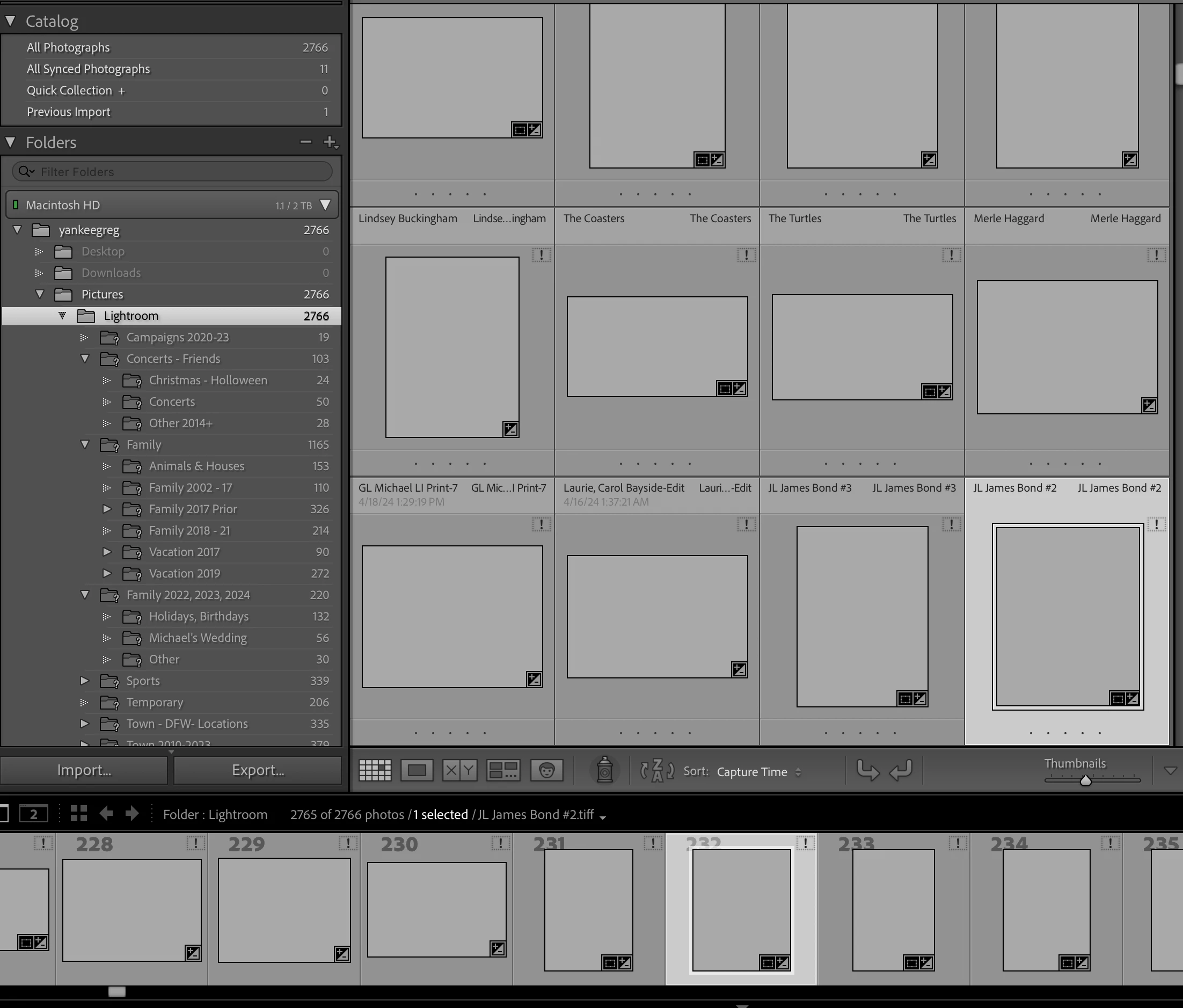
All Photos in the Catalog have an exclamation symbol without the pictures/Images

  • July 7, 2024
  • 返信数 1.
  • 1815 ビュー

All Photos in the Catalog have an exclamation symbol without the pictures/Images 
I have 2766 images and when I updated my backup H/D I must have hit something in error.
At 81 years old it is not hard for me to make a computer mistake, LLOL
I tried to use the backup which is 2 weeks old, that did not work and even a previous B/P one.
I have all the pictures on my computer in a folder called Lightroom in pictures, I believe that is generrated by LR, it has all the NEF and xmp files to the photos.
I also have other Tiff and jPeg files as well in the catalog.
The folders also now have question marks.
If I click on the exclamation point it asked to locate the file, having 2700+ images there should be a way to get them all changed at one time, doing one at a time would take a very long time with the hope that I would get them all.

このトピックへの返信は締め切られました。
解決に役立った回答 dj_paige

I did the "folder" method for one and it creates a new folder under a different catalog withe the same name "Lightroom"
If that is what it takes, I can deal with that, hopefully when I add all the new folders it will have most if not all the pictures.
My question will be, can I elimiate the original folders that have the files without the images.
I am retired so I have the time to rebuld it, LLOL


It doesn't sound like you did it right.


When you right click on a folder with a question mark icon ... this is what is supposed to happen. Let's suppose you right-click on the folder named Campaigns 2020-23 and select "Find Missing Folder". The photos in this folder are no longer under /yankeegreg/Pictures/Lightroom/Campaigns 2020-23 because the folder no longer exists in your computer. Let us suppose the photos are somewhere else, I am going to call it folder B, but you will have to find the full path name and folder name of this folder, wherever you moved it to. So when you select "Find Missing Folder", a dialog box appears, and you navigate to folder B and select it and click on Select Folder. This allows LrC to use the photos which are now in Folder B.

返信数 1

dj_paige
Legend
July 7, 2024

This has nothing to do with "updating my backup H/D". Lightroom Classic does not know anything about your backpus. So you must have done something else. The solution is in this document (see Figure 4 and associated text)

greg14作成者
Inspiring
July 7, 2024

I tried the link.
What I see initially is that my LR does not show the images like the document sample image.
I tried the "Missing Photo Location" for a folder but it did not work, what was posted was a new folder called backup with the same scenario, information without the images just the same blank images (376) with the info on the right side panel showing file size etc like the current files has.
Please have patience with me, I am 81 years old and this stuff does not come naturally to me.
I know it is my fault, that fact that all the information is still on my computer is a relief, I just need to have someone try and explain in a simple way how to get the images back into LR either with a merge or a rebuild.
Here is a sample that shows the info panel for an image, unsure if that is helpful.


greg14作成者
Inspiring
July 7, 2024

I see where you mentioned "This has nothing to do with "updating my backup H/D"
That is an old post that somehow I must have added to instead of a new one.
Do you suggest I make a new post if that is the problem?
Thanks
Greg