bartonlew
Legend
July 21, 2022
Answered

Book module not showing all photos in Collection

  • July 21, 2022
  • 1 reply
  • 481 views

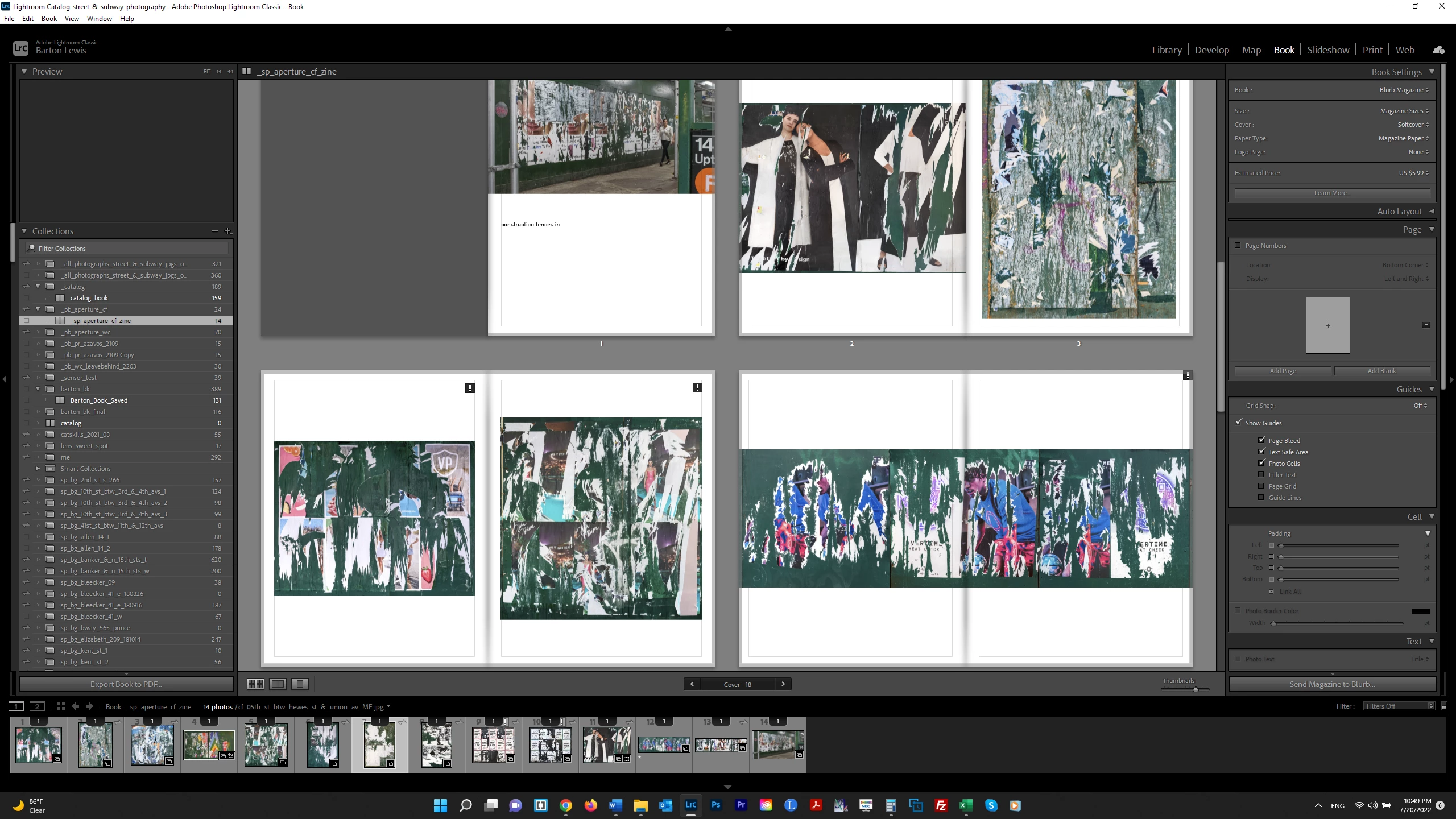
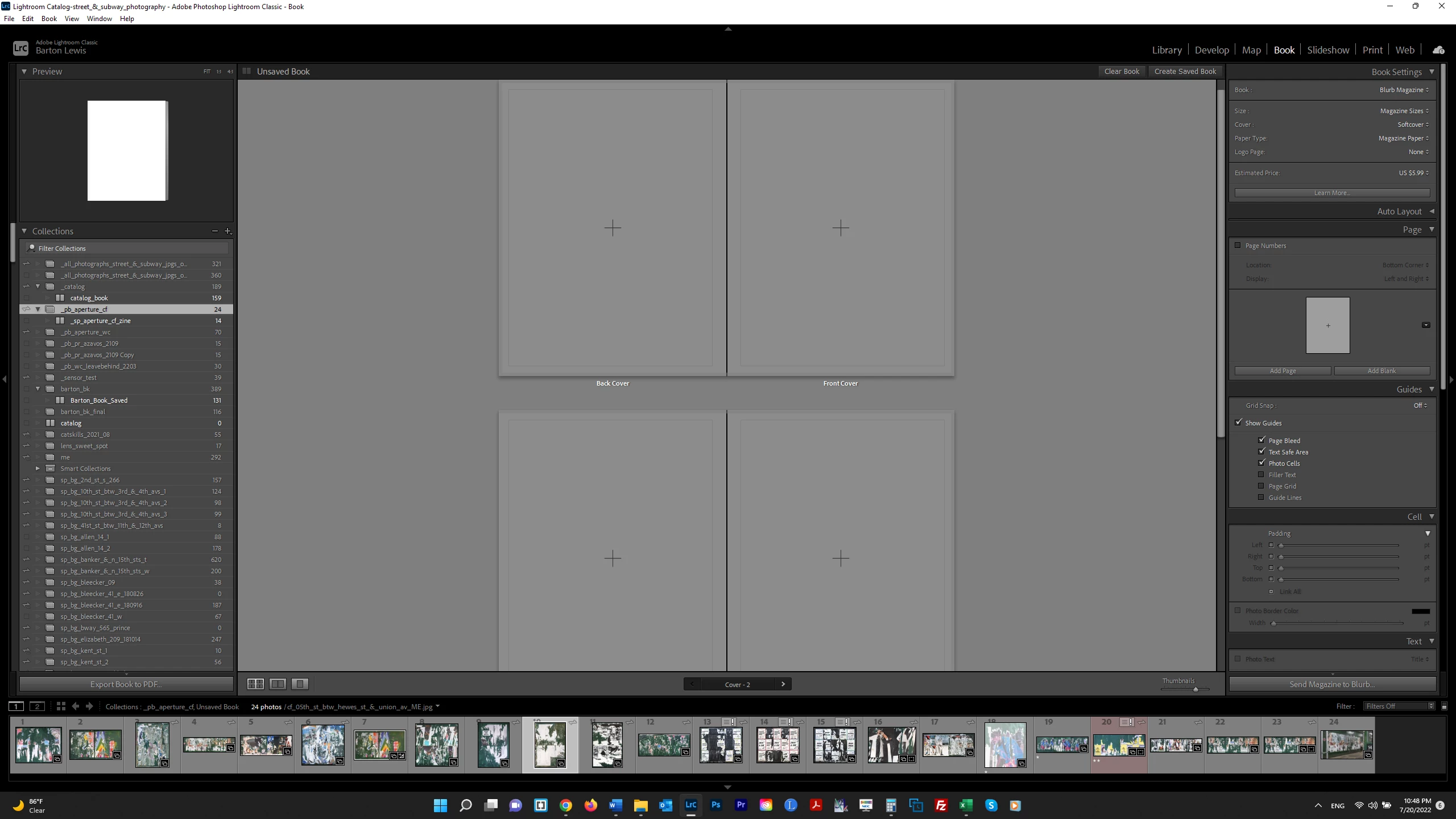
I created a Collection which I want as the basis for a zine (screenshot #1).  After designing the zine, I saved it using Create Book (screenshot #2).  However, inside the new collection, only the photos I selected for the zine are showing up, not all the photos in the Collection.  How do I continue editing and completing the book using photos in the Collection that I did not yet add?  Thanks.


This topic has been closed for replies.
Correct answer Rob_Cullen

To add more photos to the Book (zine)-

Return to Grid mode [G]

Select any photos you want to add. From a standard Collection or any folder in the Library.

Drag them to the Saved Book Collection (Not the standard collection)

[Double-Click] the Saved Book Collection to reopen in the Book Module.

The added photos will appear at the right end of the filmstrip from which they can be dragged onto pages of the book/magazine.


1 reply

Rob_Cullen
Community Expert
Rob_CullenCommunity ExpertCorrect answer
Community Expert
July 21, 2022

To add more photos to the Book (zine)-

Return to Grid mode [G]

Select any photos you want to add. From a standard Collection or any folder in the Library.

Drag them to the Saved Book Collection (Not the standard collection)

[Double-Click] the Saved Book Collection to reopen in the Book Module.

The added photos will appear at the right end of the filmstrip from which they can be dragged onto pages of the book/magazine.


Regards. My System: Windows-11, Lightroom-Classic 15.1.1, Photoshop 27.3.1, ACR 18.1.1, Lightroom 9.0, Lr-iOS 10.4.0, Bridge 16.0.2 .
bartonlew
bartonlewAuthor
Legend
July 21, 2022

Thanks.  But unless you have committed the photos you've already added to your zine to memory, once you click outside the Saved Book to go to a Collection/Library to add more, how do you know which ones you have/haven't already added?  

Rob_Cullen
Community Expert
Community Expert
July 21, 2022

In your situation you have a Standard Collection of 24 photos and you have use 14 of those already in the Saved book.

You

1) select the standard Collection,   (my eg. BOOK 2022)

2) View in Grid mode [G]

3) Select ALL photos [Ctrl+A]

4) Drag them onto the Saved Book Collection   (my eg. book 2022)

5) The Book/ZIne  now contains all the photos from the standard Collection. They won't double-up.


OR- You can drag ANY photos from anywhere in the Library. You could be viewing a Collection, a Folder, All Photographs, or a filtered selection of images. Select what you want to add and drag to the Saved Book Collection.


The Film strip will indicate to you with a number if an image is on a book page.

No number-  no image on a page!

If the number is '2' then the photo is used twice (eg. a page and a cover).


Regards. My System: Windows-11, Lightroom-Classic 15.1.1, Photoshop 27.3.1, ACR 18.1.1, Lightroom 9.0, Lr-iOS 10.4.0, Bridge 16.0.2 .