Participant
August 17, 2025
Answered

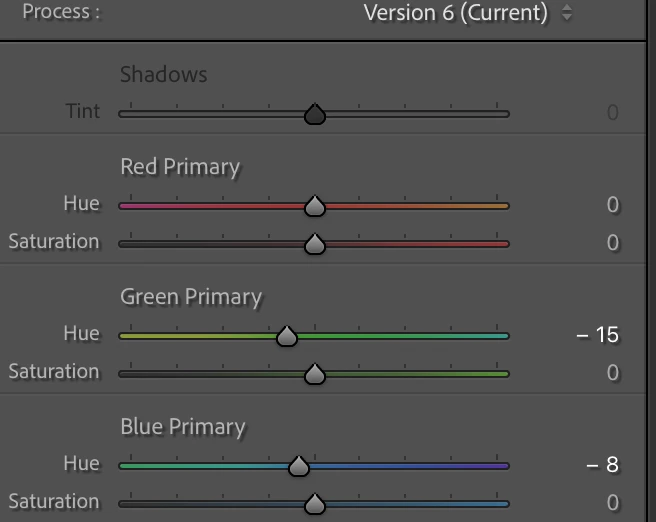
Can't use Shadows Tint feature in Calibration

  • August 17, 2025
  • 2 replies
  • 695 views

Hello,


I am wondering why I don't have the option to use the Shadows Tint slider under the Calibration tab? I also only have 2 options when choosing between color profiles - Color and Monochrome.  I have a 2019 year MacBook Pro.  Hope someone can help with this!


Correct answer Conrad_C

@kissu wrote:

…the original file is a raw file. I have a weird system where I import to the Apple Photos, then drag the photos I want to edit to Desktop and them import from there to Lightroom. I thought they come through as raw files but maybe not?


That is probably where the problem is. In Apple Photos, the only way to get a raw original out of it is to select the photo and choose File > Export > Export Unmodified Original for (number of selected photos) Photo(s). Then import that into Lightroom Classic. This is what you should do for those photos to have full raw editing capability in Lightroom Classic.


For most (maybe all?) other export methods in Apple Photos, including drag-and-drop, Photos assumes you want it exported with Apple Photos edits, so it acts as if you chose File > Export > Export (number of selected photos) Photo(s). Raw is not available with that command, because a raw file can’t store edits.


Be aware that if the raw file is in Apple Photos and then you export it for import into Lightroom Classic, you now have two copies of the raw files: One still inside the Apple Photos library, and another where you exported a copy of the raw file from Photos. In addition, if in Lightroom Classic you set the Import dialog box to use the Copy option, that will create a third copy of the raw file at the location where you told the Import dialog box to copy the original.


So a consequence of this form of an Apple Photos to Lightroom Classic workflow is that if you don’t want to use up space for and manage two or three duplicates of the same original image, after importing to Lightroom Classic you’ll want to go back and delete the copy in Apple Photos and from any other intermediate location (like the desktop) that is not the final storage folder for that image where you set up Lightroom Classic to find it. 


One way to avoid duplicates is to put Apple Photos into “referenced files” mode, so that it works like Lightroom Classic and both applications can reference the same single set of image paths outside the Photos library. That would also mean you wouldn’t have to export the raw original, because it would already be stored in a normal folder outside the Photos library where Lightroom Classic can import it right away. The main tradeoff with doing this is that if you’re using Apple Photos partly because you want to use its iCloud Photos features, referenced photos don’t work with iCloud Photos and won’t be synced to the Apple cloud with other devices. If that’s OK and you do want to use referenced photos in Apple Photos, the setting is in Photos > Settings, General tab, deselect “Copy Items to the Photos Library”.

2 replies

Rob_Cullen
Community Expert
Community Expert
August 18, 2025

"I have a weird system where I import to the Apple Photos, then drag the photos I want to edit to Desktop and them import from there to Lightroom."

As suggested by @richardplondon  check that you are in fact editing a raw file-type in Lr-Classic.

Your problem might be that Apple Photos may only be showing you its preview JPGs ( that you are importing). The Photos app 'hides' your original raw files away in a package that is not available to Lr-Classic. 

PHOTOS APP LOCKS IMAGE FILES- Best Explanation

MAC HIDES IMAGES IN THE PHOTOS APP


Regards. My System: Windows-11, Lightroom-Classic 15.1.1, Photoshop 27.3.1, ACR 18.1.1, Lightroom 9.0, Lr-iOS 10.4.0, Bridge 16.0.2 .
Community Expert
August 17, 2025

Shadows Tint seems to be consistently greyed-out for camera JPGs, and available for Raw. Could that be it?


Not quite identical in behaviour I think, but there is a global Shadows hue control always available regardless of underlying file type (and Midtones and Highlights) within the Color Grading panel:

also Tone Curve panel adjustment can 'shape' hue response in all sorts of ways.


A further option is a Mask which selects the shadow areas just by tonal range, and applies a Tint adjustment.

kissuAuthor
Participant
August 17, 2025

Thanks for a reply! I think this may be it but I actually shoot in Raw and the original file is a raw file. I have a weird system where I import to the Apple Photos, then drag the photos I want to edit to Desktop and them import from there to Lightroom. I thought they come through as raw files but maybe not? Maybe I'm importing them wrong in the first place. 


I use curves and Color Grading wheels, too so I was just wondering why I don't have the option to use the Shadow Tint feature.

Community Expert
August 18, 2025

It seems Shadow Tint refers to something Raw-specific. As a non-Mac user I can't confiirm whether your chosen workflow is importing something containing native sensor-Raw data or not - sounds like not, to me.


However much LrC tries to treat Raw and non-Raw similarly in practice, there must be some differences in adjustability underneath the hood (otherwise we'd never bother with Raw!)


The most characteristic place to see this, is that the Basic panel's White Balance Temperature slider shows (absolute) degrees Kelvin when dealing with true Raw data, but a (relative) warmer-cooler scale otherwise. What does yours show, for these photos?
