
Participant
February 18, 2025
Question

Cannot View Original Image After Re-importing Edited Photo

  • February 18, 2025
  • 2 replies
  • 147 views

Hello,


I’m experiencing an issue in Lightroom Classic 14.2.

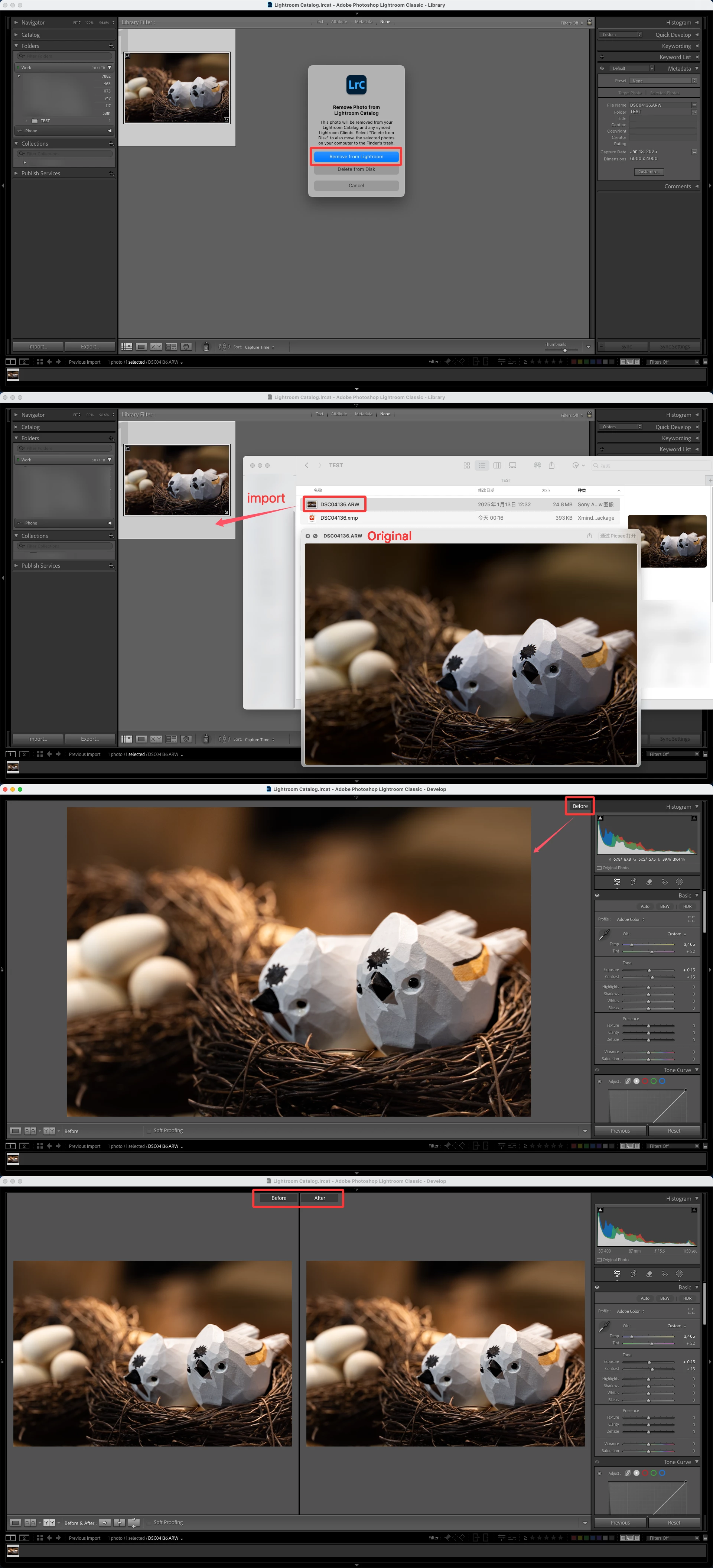
When I remove edited photos or folders from "Folders" and re-import them, pressing the backslash (“\”) key shows the edited version, not the original. I can’t compare the original and edited images this way.

Is there a setting or solution to fix this?


Thanks for your help!
 

2 replies

JohanElzenga
Community Expert
Community Expert
February 19, 2025

As you can see in your second screenshot, you have saved an xmp sidecar file for this image. That sidecar file contains the edits, and is read and applied by Lightroom Classic when you import the image again. That is why the before is now set to the image with those edits. Also note that what you see in the Apple Preview (same screenshot) is the camera embedded image preview. It's not the 'original image', it is how the built-in camera software created a jpg preview. Lightroom replaces this preview with its own preview on import, so again that explains why you do not see this embedded preview as the before.


Bottom line: you are wasting your time doing this. If you shoot in raw, then there isn't an 'original image' that you can view. The raw file needs to be read and interpreted before you can view anything that looks like an image. Every software package has its own proprietary method of reading raw files. So comparing the camera preview as the 'before' with what Lightroom does as 'after' is not very useful, because it doesn't mean anything. It's not 'before' versus 'after', but apples versus oranges.


-- Johan W. Elzenga
dj_paige
Legend
February 18, 2025

to fix this problem, don't do this:


"I remove edited photos or folders from 'Folders' and re-import them"


Not only does it fix the problem, it is less work than you are doing now.