
Catalog corrupted after machine transfer - AI Edits Error at launch, cannot backup catalog at exit
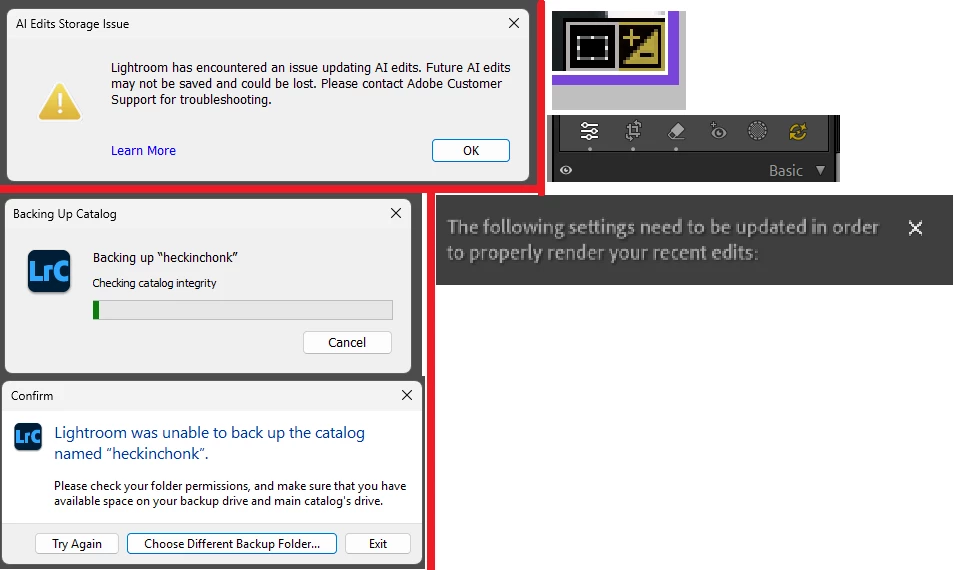
Problem: LrC 15.4.1 - Receive “Lightroom has encountered an issue updating AI edits” & “unable to backup catalog error” after migrating catalog from Windows 10 to Windows 11.
===============
Background: Problems started when I moved LrC catalog/workflow from a windows 10 machine to a windows 11 machine. Backed up entire C drive from W10 PC to external hard drive (included the then-used LrC catalog). Signed out of all adobe apps on old machine before doing a “fresh”/”clean” install of Windows 11 to C drive. Kept all jpg/raw originals on F Drive, which on second catalog import attempt, had no issues on Windows 11.
Migration Attempt 1 (Failed, Abandoned): After Windows 11 install, and LrC install, tried to open old catalog from Windows 10 and could not get it to boot properly. Tried to copy the Catalog from old Windows 10 C drive (external) to new Windows 11 C drive (internal) --- Alt+Open LrC and selecting the copied old catalog led to: missing files, missing edit info, and AI Edits error at launch.
Migration Attempt 2 (Current, Broken): Deleted the catalog, uninstalled LrC and Creative Cloud. Reinstalled from scratch. Copied over old Catalog to new C drive, then imported/merged into new catalog as recommended by Adobe forums. Worked fine then, but still received the AI Edits error at launch. Now after importing about a months worth of photos from my camera, I am now no longer able to backup the catalog weekly to any drive attached to my computer (C / F / etc.), AND the AI Edits error is still showing. After digging around, old Lightroom AI Edits appear to need to be “re-run,” which is annoying considering I now feel like “finished” projects now have to be re-run, rechecked, and then re-exported if someone wants it again. The error I receive over the AI settings icons is a golden yellow, and then this text:
The following settings need to be updated in order to properly render your recent edits.
==============
Request for help: Not sure what to do aside from import into another new catalog, but afraid it will still be the same issue with a lot of headaches in-between (in the interim month, lost some edit info and had issues duplicating the same photos from SD card into the F drive). See attached photo which shows the AI Edit Error, and the backup error I face, and the popups regarding AI on some old photos from pre-catalog merger. Testing integrity of the catalog at launch and while running produces no errors.
==================
Machine Specs:
- Windows 11 Pro, Version 25H2, 64-bit/x-64
- CPU: Ryzen 5600x
- RAM: 32gbs DDR4
- GPU: Nvidia 3070
- Data Storage: C drive - NVMe, All other drives SSDs of varying speeds/capacities, but all have space for catalog backups
Running Lightroom Classic 15.4.1 (latest).


 AdChoices