bartonlew
Legend
July 9, 2022
Answered

Clear book module?

  • July 9, 2022
  • 5 replies
  • 1643 views

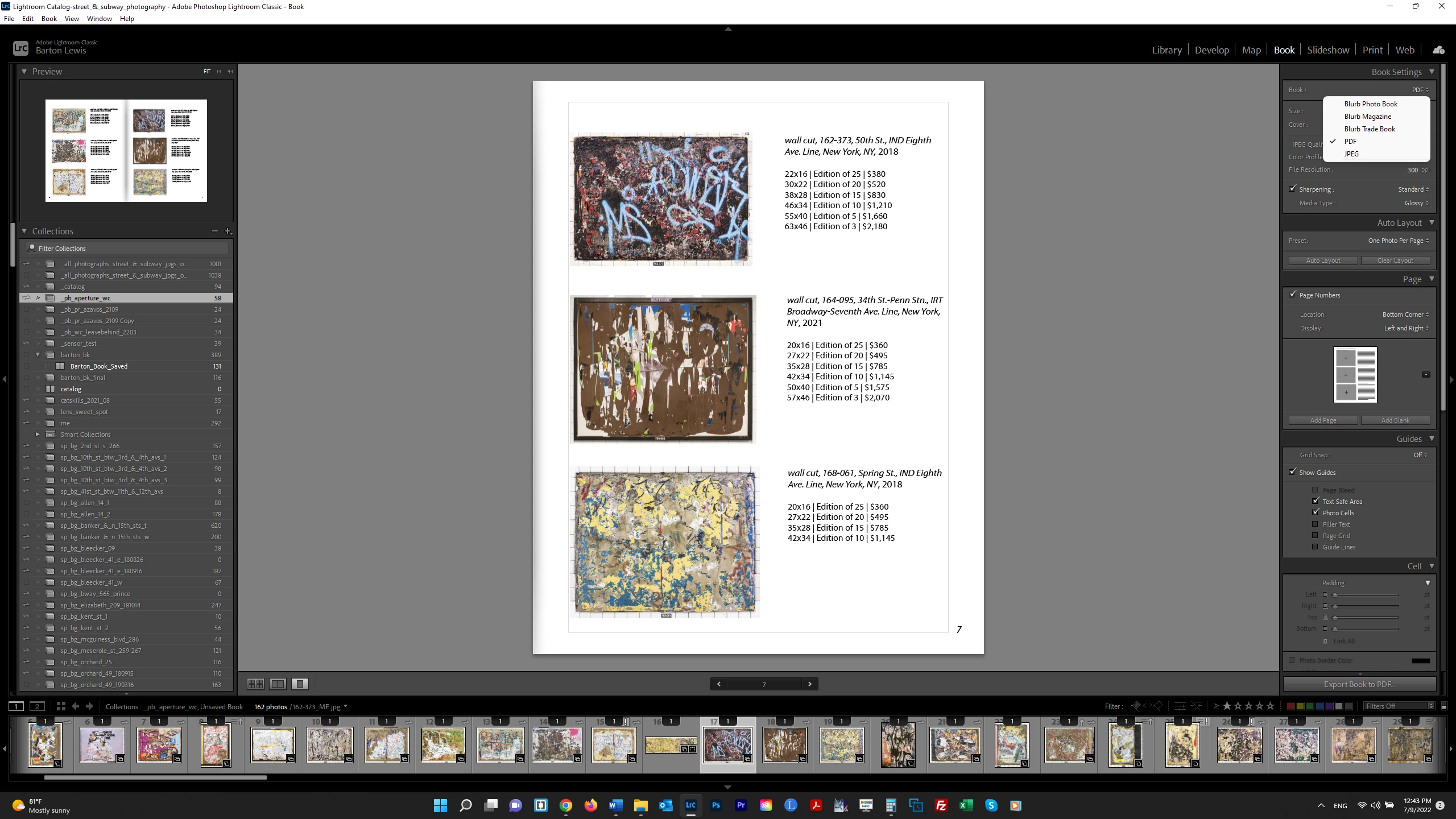
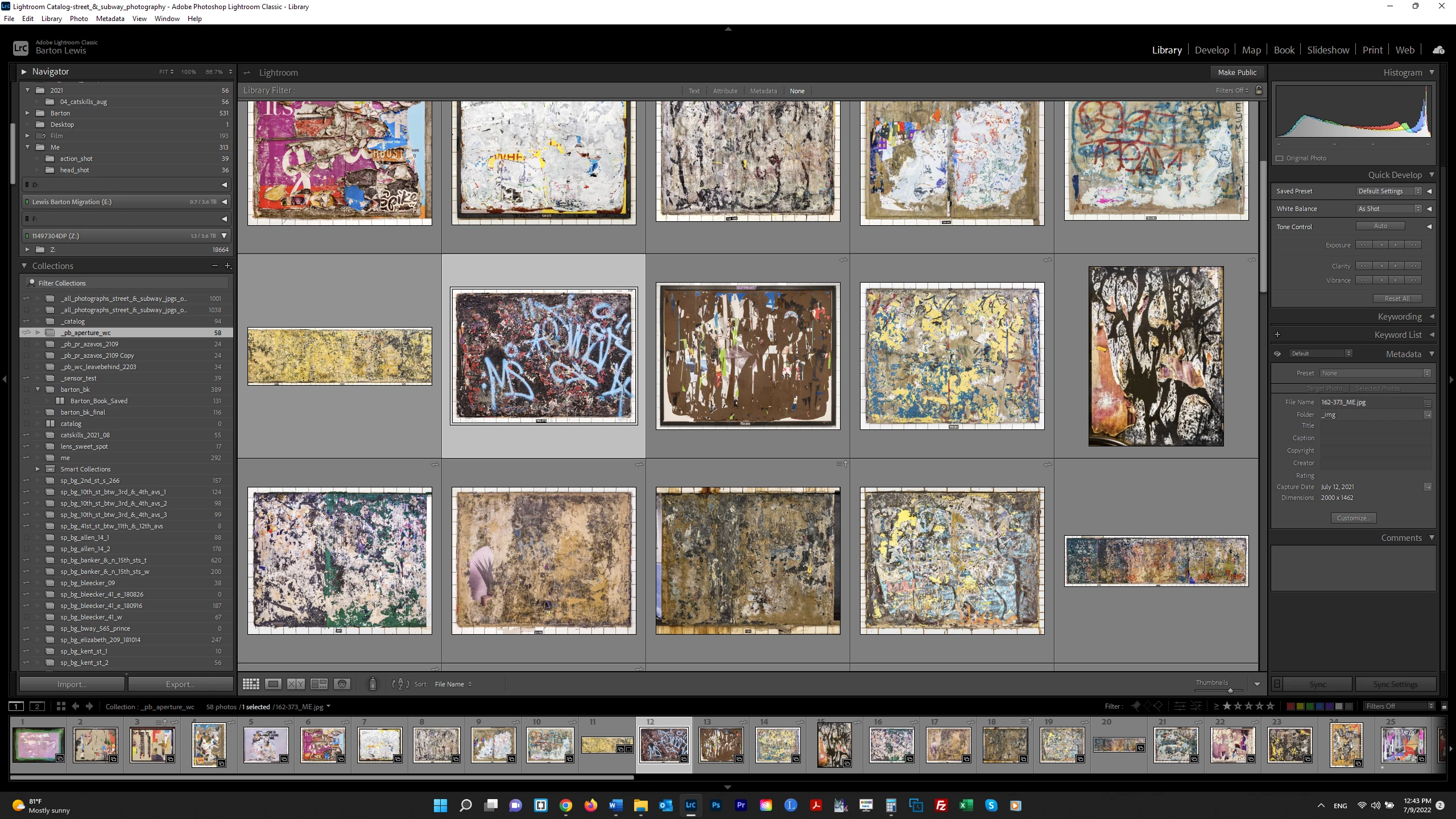
I created a Collection which I want to turn into a book in the book module.  The 1st screenshot shows that Collection.  When I then go to the book module, the previous photobook I created comes up - which is based on a different Collection.  Even though I am still inside the present collection I created in the Colletions panel, Lightroom *thinks* I want the book I previously created - not so!  I want to start a new book.  I don't see a "clear" option inside the book module.  How can I start afresh?  Thanks.  


Correct answer Aronis

I figured it out.   The "Book" module remembers your last selected collection.  If you pick another collection and go to the "Book" module, it ADDS the content of the colletion to the prior group of imates.   So you have to step through as follows:  


Open "Library. " Go to "Book" module. "Clear Book."  Go back to "Library" module. Select the collection you want. Go back to "Book" module , that is the workflow which worked for me.  Very counter intutitive but it appears to considently work.


I am working on figuring out how to change the book type and then apply that.   Baby steps.


Mike

5 replies

AronisCorrect answer
Inspiring
August 19, 2025

I figured it out.   The "Book" module remembers your last selected collection.  If you pick another collection and go to the "Book" module, it ADDS the content of the colletion to the prior group of imates.   So you have to step through as follows:  


Open "Library. " Go to "Book" module. "Clear Book."  Go back to "Library" module. Select the collection you want. Go back to "Book" module , that is the workflow which worked for me.  Very counter intutitive but it appears to considently work.


I am working on figuring out how to change the book type and then apply that.   Baby steps.


Mike

Rob_Cullen
Community Expert
Community Expert
August 21, 2025
Regards. My System: Windows-11, Lightroom-Classic 15.0, Photoshop 27.0, ACR 18.0, Lightroom 9.0, Lr-iOS 10.4.0, Bridge 16.0 .
Inspiring
August 18, 2025

the more I try to fix it the more is scews up.  Just Great.


and I PAY for this software Monthly.   Real Money.


Mike

Inspiring
August 18, 2025

and of course the online module QUICKLY updated the collection deleting half of the photos which I TOOK HOURS sorting.  This software has BUGS.  


Mike

Rob_Cullen
Community Expert
Community Expert
August 19, 2025

Hi Aronis, Yes frustrating I know, having done many books in LrC and run into the same problem you have also encountered (and I still do).

Try this workflow-

1)  Create a Standard Collection of photos (NOT a Smart Collection)

2) Select the photos in the Standard Collection and click on the top menu [Book] Module.

3) Apply [Auto Layout] so that the new book fills with photos (that can include the 'unwanted')

4) Immediately Click on the [Clear Book] tab.

Now I think you will find that the images on the Filmstrip have now reduced to only the selected photos from the standard Collection.

5) Immediately Click on the [Create Saved Book] tab, and give your new book a distinctive name.

Now you have a new 'Saved Book' that will show in the Collections panel with the tiny book icon and the name you gave it.


A couple of points-

-There is no "online module".  Lr-Classic works locally.

-MOST IMPORTANT!-  You MUST ALWAYS re-open your Book to make edits and changes by 'Opening' the  Saved Book Collection (as created in step 5 above). You can [double-click] the Saved Book Collection name, or [One Click] the white arrow that appears after the book name when you hover the mouse cursor over the name.

-Do NOT use the top menu [Book] to re-open a previously created book. The Book module top menu  always starts a 'new' book.

-Do not use the originally created Standard Collection again (delete it!).  If you want more photos added to the book, drag them onto the Saved Book Collection.


Regards. My System: Windows-11, Lightroom-Classic 15.0, Photoshop 27.0, ACR 18.0, Lightroom 9.0, Lr-iOS 10.4.0, Bridge 16.0 .
Inspiring
August 18, 2025

I am more than pissed off, it was heart braking going through old family photos to make a colleciton and now it is screwed up.  I have to do it all over again. Thanks Lightroom, for nothing.


Mike

Inspiring
August 18, 2025

This DOES NOT WORK. I took DAYS setting up a new smart collection and when I tried to make a new photobook, lightroom merged the prior smart collection and I could not get it to clear.  


Mike

Rob_Cullen
Community Expert
Community Expert
July 9, 2022

Whenever you start a new book by clicking the Module Menu for 'Book' you will see tabs above the pages window-

The [Clear Book] tab should remove all pages from the window and limit the photos on the filmstrip to only show your selected photos. Then you start designing your book, either manually by adding page-by-page, or use an Auto-Layout Preset.


The Auto-Layout panel also has a [Clear Layout] button but I suggst this is only useful for clearing an unwantd Auto-Layout to choose another Preset.


Once you have your book 'under way' with a basic layout you MUST click on the tab to [Create a Saved Book]. This will create a new Collection that is specifically a 'Book' Collection that records every change you make to the Book design. You always re-open a Book from a 'Saved Book Collection'  (NOT the first Standard Collection you started from!)


Regards. My System: Windows-11, Lightroom-Classic 15.0, Photoshop 27.0, ACR 18.0, Lightroom 9.0, Lr-iOS 10.4.0, Bridge 16.0 .
bartonlew
bartonlewAuthor
Legend
July 10, 2022

Thanks!  I am not having the same user experience as you.  I cannot see the "Clear Book" and "Create Saved Book" options you are showing in your first screenshot.  I have tried clicking around the Page and Auto Layout options to no avail.  How do I access these tabs?  Thanks.  


Bob Somrak
Legend
July 10, 2022

Try clicking "Auto Layout" and then "Clear Book" should show up.  The Book module in the most inane fustrating mess in LrC.  

M4 Pro Mac Mini. 48GB