
FunRoman
Participating Frequently
September 10, 2018
Answered

Color Banding in Library but not in Develop mode

  • September 10, 2018
  • 5 replies
  • 4636 views

Hello there,

I've noticed that I get Color Banding in Library mode (and on exported images) that I don't see in Develop and I can't fix it. Straight to examples. All are from the same RAW file, it's a  right/upper corner at 1:1 scale. The only adjustments I did were a bit of highlights and shadows changes. No colors were changed.

Here is in develop mode. Perfectly good gradient.
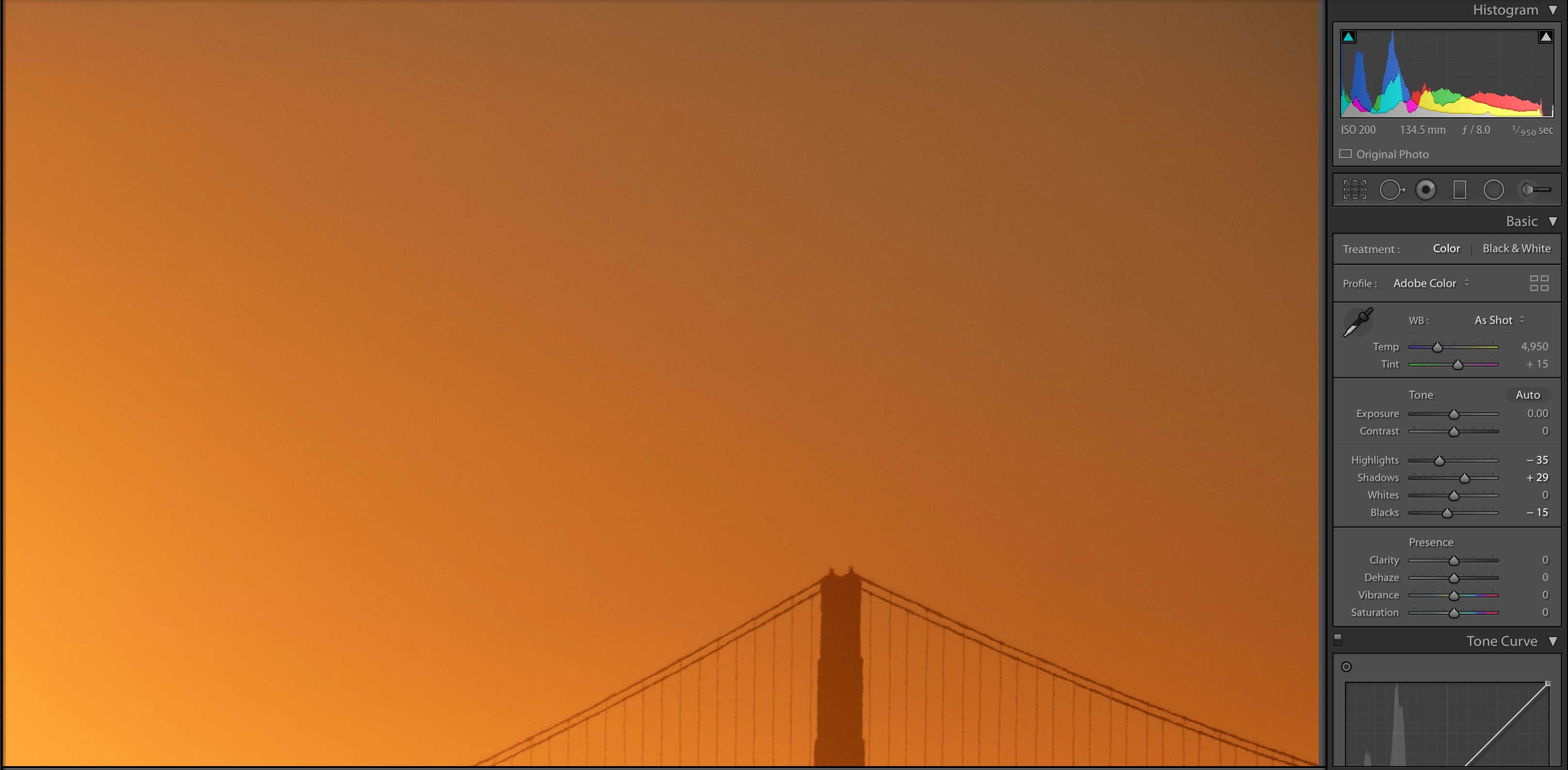
Just switched a tab to Library. Boom, color banding. Histogram is the same but this seems to be just a stale histogram from Develop mode.
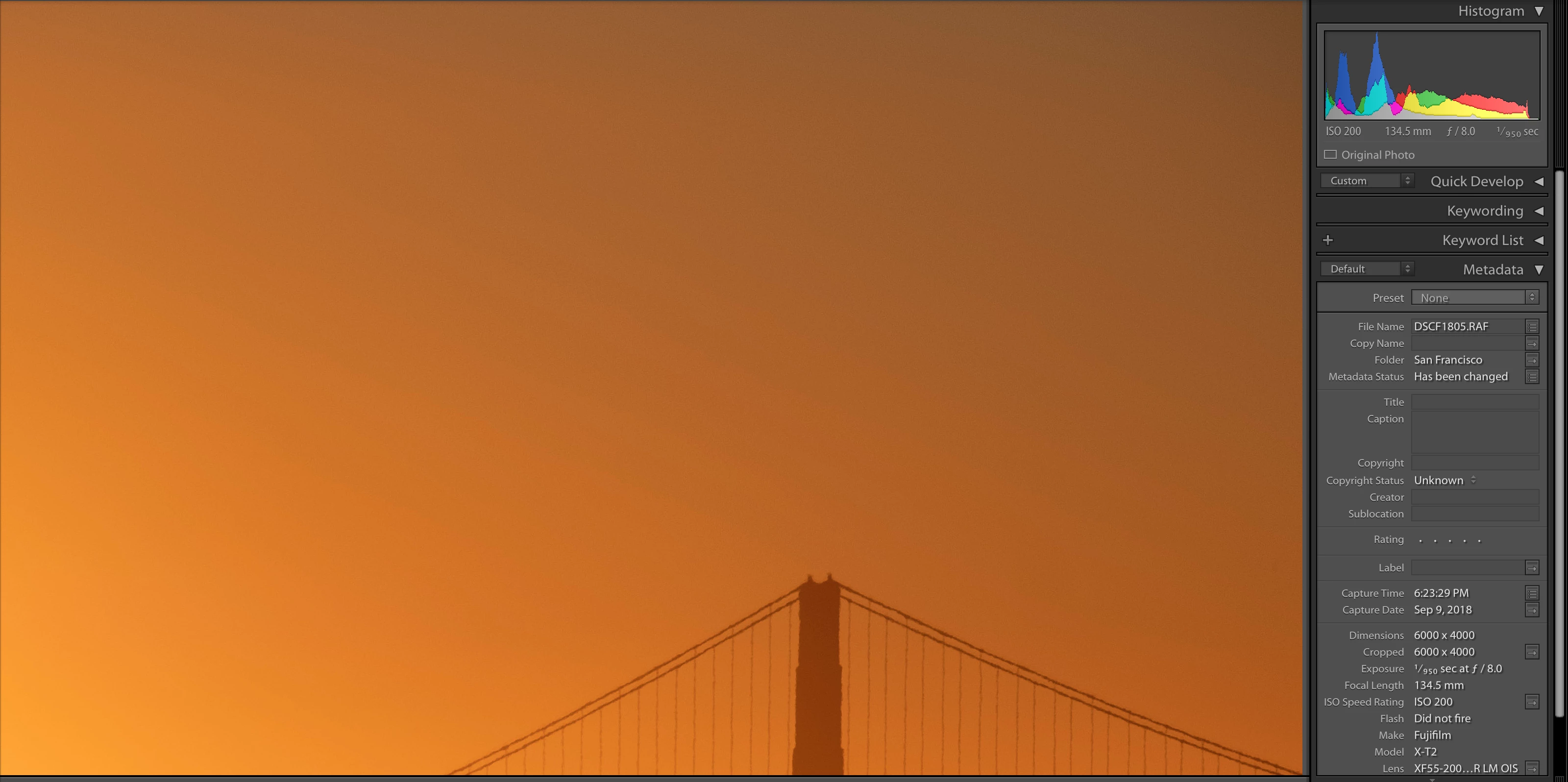
Close and open LR, open Library Mode. Color banding still there. but look at histogram, it's different, it's not smooth anymore. If I go to develop mode I get the original histogram and no color banding.

I was trying ti find an answer among existing question but all of them does not exactly match to my issue. I do not have any color gradation (maybe some nut not too much). I've tried to check it under Soft Proofing in Develop Mode (it's still looking good). I've reset all modification and play with just a RAW file (it still there).

I have plenty of short ruined because of that but I always thought that this was an issue of export (I usually export at lower quality for WEB). But even if I export to Flickr with full quality it still look bad. Then I thought, that it's just a display issue (first I've noticed that on display of my friend). But I have an amazing 4K display and still can see that. Then, finally, yesterday, I've noticed that directly in light room just while switching modes.

So, two questions.

Less desired approach: How to make Develop show me the actual result that I will get (what I see in library mode)?

Desired approach: How to make export look like what I see in Develop mode?

This particular shot was made with Fuji X-T2 and 55-200mm lense. Here is a RAW file Dropbox - DSCF1805.RAF.

Could it be an issue of a LR poor support for Fuji's RAW files?

Thank you for your help.

This topic has been closed for replies.
Correct answer D Fosse

The Library previews are jpegs. Not only are jpegs 8-bit to begin with, but the chroma component is much more heavily compressed than the luminance component. Color banding in smooth gradients is very common in jpeg.

If you then have a less-than-perfect monitor profile, or video card calibration tables, or a monitor of less than stellar quality - this inherent banding will get amplified. Again, a typical display chain is 8-bit to start with. There will be banding - the question is if it's pronounced enough to be noticeable, or when it passes that threshold.

I downloaded your original file and didn't see any banding, other than the very slight hint I'd expect from a jpeg.

Beautiful shot BTW, and perfectly exposed - too bad the delicate color is probably caused by pollution...

5 replies

FunRoman
FunRomanAuthor
Participating Frequently
September 12, 2018

Thanks everyone for your help. Today I've learned something new.

JoeKostoss
Community Expert
Community Expert
September 17, 2018
D Fosse
Community Expert
D FosseCommunity ExpertCorrect answer
Community Expert
September 11, 2018

The Library previews are jpegs. Not only are jpegs 8-bit to begin with, but the chroma component is much more heavily compressed than the luminance component. Color banding in smooth gradients is very common in jpeg.

If you then have a less-than-perfect monitor profile, or video card calibration tables, or a monitor of less than stellar quality - this inherent banding will get amplified. Again, a typical display chain is 8-bit to start with. There will be banding - the question is if it's pronounced enough to be noticeable, or when it passes that threshold.

I downloaded your original file and didn't see any banding, other than the very slight hint I'd expect from a jpeg.

Beautiful shot BTW, and perfectly exposed - too bad the delicate color is probably caused by pollution...

TheDigitalDog
Inspiring
September 11, 2018

https://forums.adobe.com/people/D+Fosse  wrote

The Library previews are jpegs. Not only are jpegs 8-bit to begin with, but the chroma component is much more heavily compressed than the luminance component. Color banding in smooth gradients is very common in jpeg.

Exactly and the only 'accurate' way to preview the data is in Develop which uses different data and preview path at 1:1 or greater. The other modules simply don't use the same/correct preview path for speed.

Author “Color Management for Photographers" & "Photoshop CC Color Management/pluralsight"
Todd Shaner
Legend
September 11, 2018

If you're seeing this quite often try changing the Preview Quality setting to the next higher level. I could barely see any banding in the Library module with your Develop settings and 'Medium' Preview Quality. This will increase the size of the Preview cache, which is a trade-off.

FunRoman
FunRomanAuthor
Participating Frequently
September 11, 2018

So, I've tried to use Pro Photo RGB at export with 60% and 90% quality. The problem remains to be there. (with 90% it's not as severe is with 60% which was really bad).

I've run another test and here are my observation.

When I work in develop mode I get this moth nice histogram

I close LR, I open LR. I get on the same Develop Mode. Look at he histogram. It's different. I believe its the one that give that "color" banding issue. Thought, it's still not visible in Develop mode.

Legend
September 11, 2018

I took your RAF image at your settings that I could see. Export sRGB  - which to my knowledge tends to maximize compatibility with most web platforms etc. JPG, 80%

No banding that I can see at all. To my eyes, when I view it through Microsoft's standard pic viewer, and jump back and forth to view in LR develop, they are indistinguishable. That's what I -usually- see at 70% jpg, but sometimes with a gradient like this you might have to go higher so I took it to 80%.

FunRoman
FunRomanAuthor
Participating Frequently
September 12, 2018

Joefry, thanks for trying it on your hardware. I believe that 60% vs 80% in sRGB does make quite a difference in that particular case. I still cat see these lines in the sky but the are less visible that it was before.

Sahil.Chawla
Adobe Employee
Adobe Employee
September 10, 2018

Hi there,

Could you please check the Catalog File Handling settings (preview size and quality). You should be seeing the Standard preview initially, then when you click to magnify it creates a 1:1 preview. If you're Preview Quality is set low, see what changing it to Medium does for you.

Regards,
Sahil

FunRoman
FunRomanAuthor
Participating Frequently
September 10, 2018

Hi Sahil, thanks for your answer. I will definitely try that. Will changes in preview settings affect the export results?

D Fosse
Community Expert
Community Expert
September 10, 2018

On screen banding is always in the display chain, unless it's an 8 bit RGB file. That means calibration, monitor profile, or the panel itself. Or possibly a buggy video driver.

Remember that your display pipeline is 8 bit depth, or even 6 bit + temporal dithering in most TN panels. That's a lot less bits than the original image data.

Lightroom Develop uses some sort of dithering - or so I'm told - to avoid banding. I haven't been able to find out precisely what kind of dithering.

At the bottom is the fact that the actual conversion from image data into your monitor profile is different in Library vs. Develop. A defective monitor profile could handle one and choke on the other. Indeed, a difference between the two modules is very often indicative of a bad monitor profile.

JohanElzenga
Community Expert
Community Expert
September 10, 2018

This may be a color space issue. Lightroom uses different previews for develop and library. The develop preview is in a kind of linear ProPhotoRGB, so a huge color space. The library module preview is AdobeRGB, so quite a bit smaller. The color space of exported image is set in the export dialog, so that can be different again.

-- Johan W. Elzenga
FunRoman
FunRomanAuthor
Participating Frequently
September 10, 2018

Hi Johan, thanks for your response. Are you saying if I set export as ProPhotoRGB I will get what I see in Develop mode? I less worry about library mode view rather the outcome of the export.

JohanElzenga
Community Expert
Community Expert
September 10, 2018

FunRoman  wrote

Hi Johan, thanks for your response. Are you saying if I set export as ProPhotoRGB I will get what I see in Develop mode? I less worry about library mode view rather the outcome of the export.

Yes, you should indeed get the same result (although ProPhotoRGB is not linear, so it's still not the same as the internal version used in the develop module). The question is whether you can use this color space in your exported image, of course. That depends on how and where you are going to use it.

-- Johan W. Elzenga