Participant
January 14, 2017
Answered

Color differences between Library and Develop modules

  • January 14, 2017
  • 1 reply
  • 13607 views

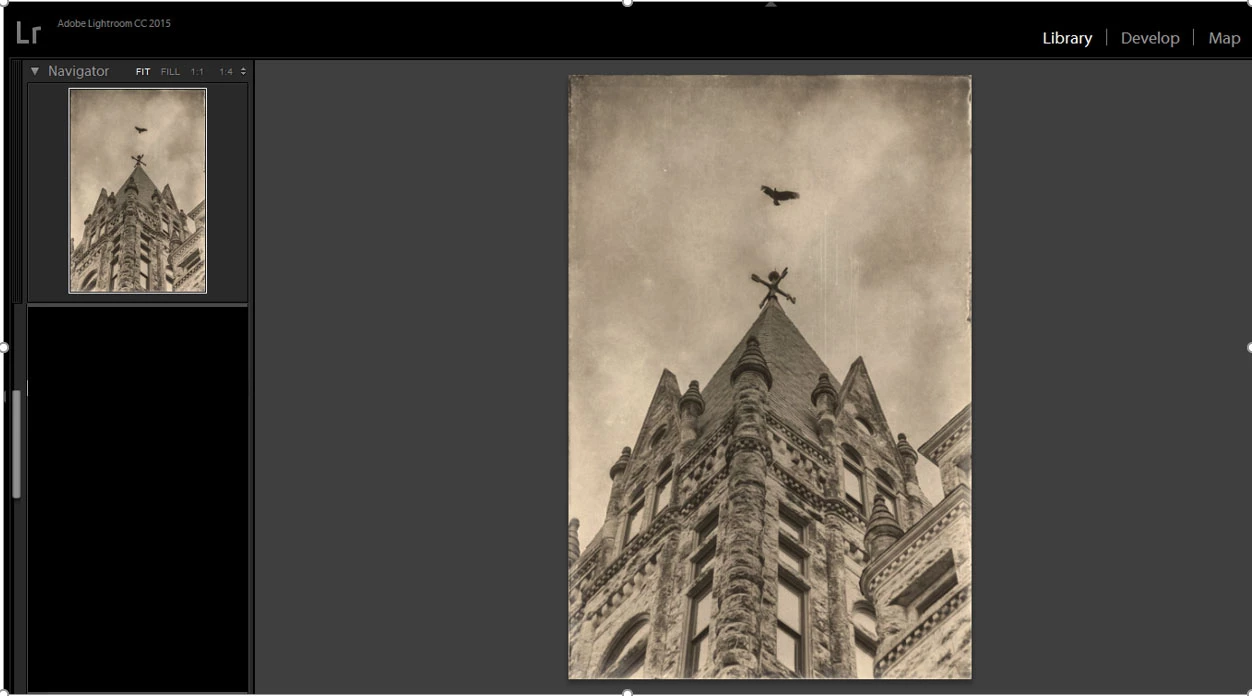
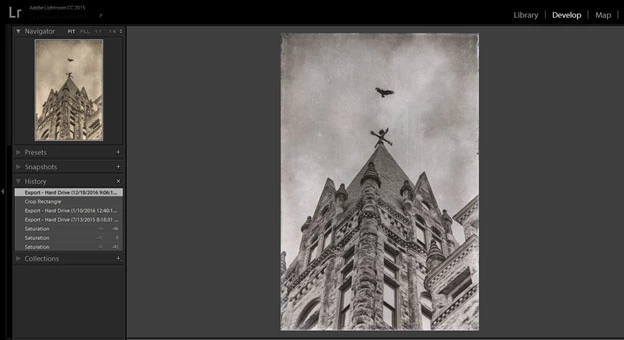
I completely understand that color: In Develop, LR is showing you a file rendered in its own internal color space (ProPhoto RGB with an sRGB gamma curve, also known as Melissa RGB). In Library, the previews are in Adobe RGB. It is possible that at the outer edges of the gamut you're seeing color differences. The previews are JPEGs, and in extreme cases there can be color artifacts from the JPEG compression. These artifacts previously mentioned won't be seen in Develop; however the differences both my husband and I are seeing are great. The Library view is much warmer than the Develop view. When exporting, it will produce an image that will mimic the Develop view which is good, but the frustration still remains when you are in Develop mode and scrolling over presets. The "preview" image does not give the user an accurate preview of the color and/or changes the preset will make to the working image. Is there a fix for this or can something be done to correct this issue on my computer? Please see the differences below:

Library view and small preview window
Develop view and small preview window
    This topic has been closed for replies.
    Correct answer Per Berntsen

    The problem you have is almost certainly caused by a defective monitor profile.

    As a (temporary) fix, try setting the monitor profile to sRGB, or Adobe RGB if you have a wide gamut monitor.

    If that fixes the problem, you should ideally calibrate the monitor with a hardware calibrator.

    If you're on Windows, follow the directions below.

    For Mac, see http://www.lightroomqueen.com/articles-page/how-do-i-change-my-monitor-profile-to-check-whether-its-corrupted/

    Press the Windows key+R, type colorcpl in the box, and hit Enter.

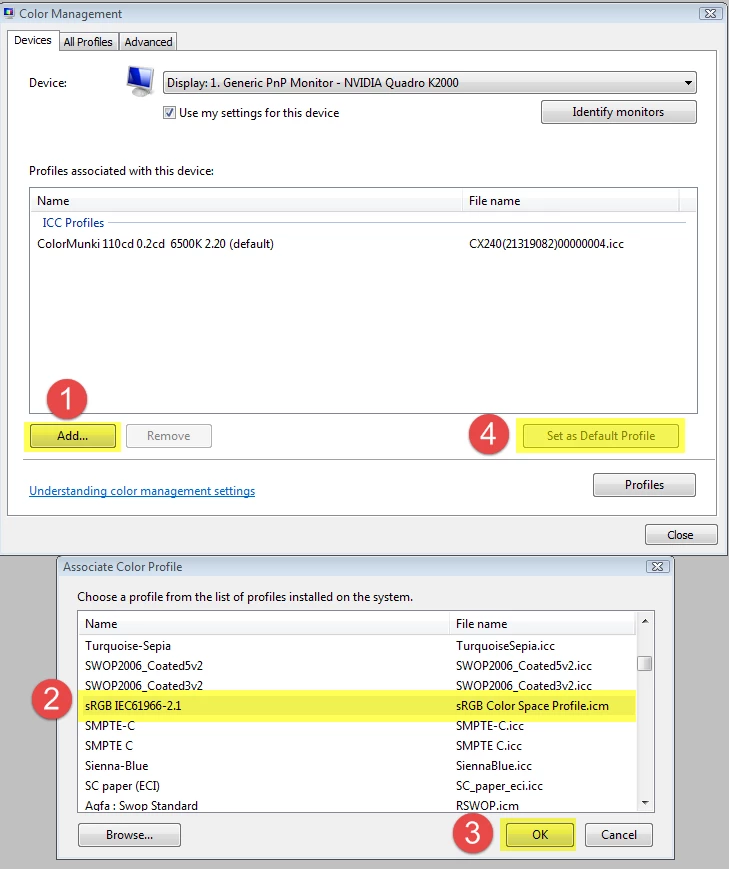
    Add the sRGB profile, then set it as Default profile. See screenshot (from Windows 7) below.

    Make sure that Use my settings for this device is checked.

    1 reply

    Per Berntsen
    Community Expert
    Per BerntsenCommunity ExpertCorrect answer
    Community Expert
    January 14, 2017

    The problem you have is almost certainly caused by a defective monitor profile.

    As a (temporary) fix, try setting the monitor profile to sRGB, or Adobe RGB if you have a wide gamut monitor.

    If that fixes the problem, you should ideally calibrate the monitor with a hardware calibrator.

    If you're on Windows, follow the directions below.

    For Mac, see http://www.lightroomqueen.com/articles-page/how-do-i-change-my-monitor-profile-to-check-whether-its-corrupted/

    Press the Windows key+R, type colorcpl in the box, and hit Enter.

    Add the sRGB profile, then set it as Default profile. See screenshot (from Windows 7) below.

    Make sure that Use my settings for this device is checked.

    C_MackoAuthor
    Participant
    January 29, 2017

    Thank you so much for this information and going the extra mile to actually show how to resolve the issue The Library and Develop modules are completely the same!