Participating Frequently
March 12, 2025
Answered

Color shift after export from Lightroom and PS (same color space checked, monitor calibrated)

  • March 12, 2025
  • 1 reply
  • 839 views

Hello! I have a problem with color shift after exporting from Lightroom and PS (Windows 10).

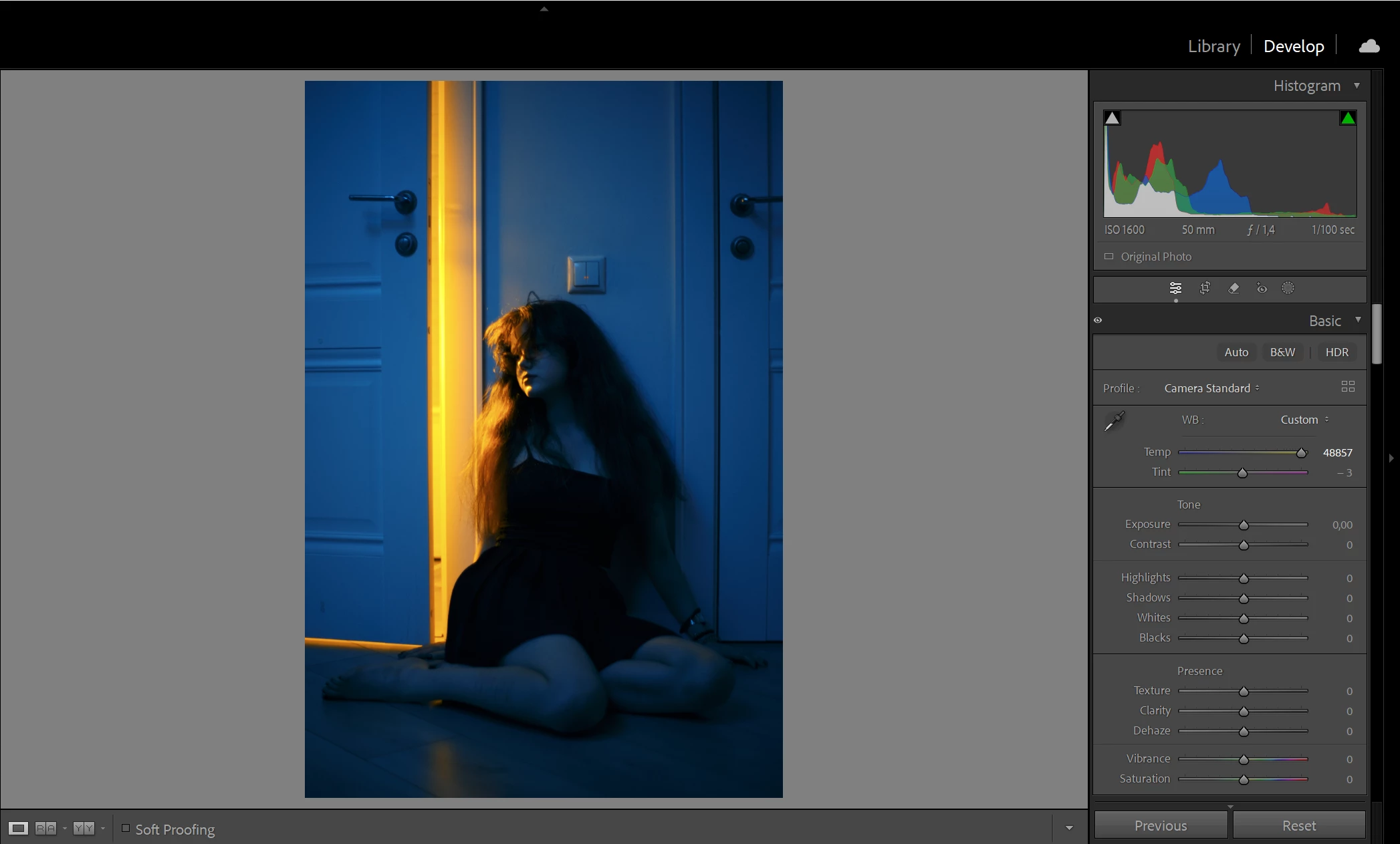
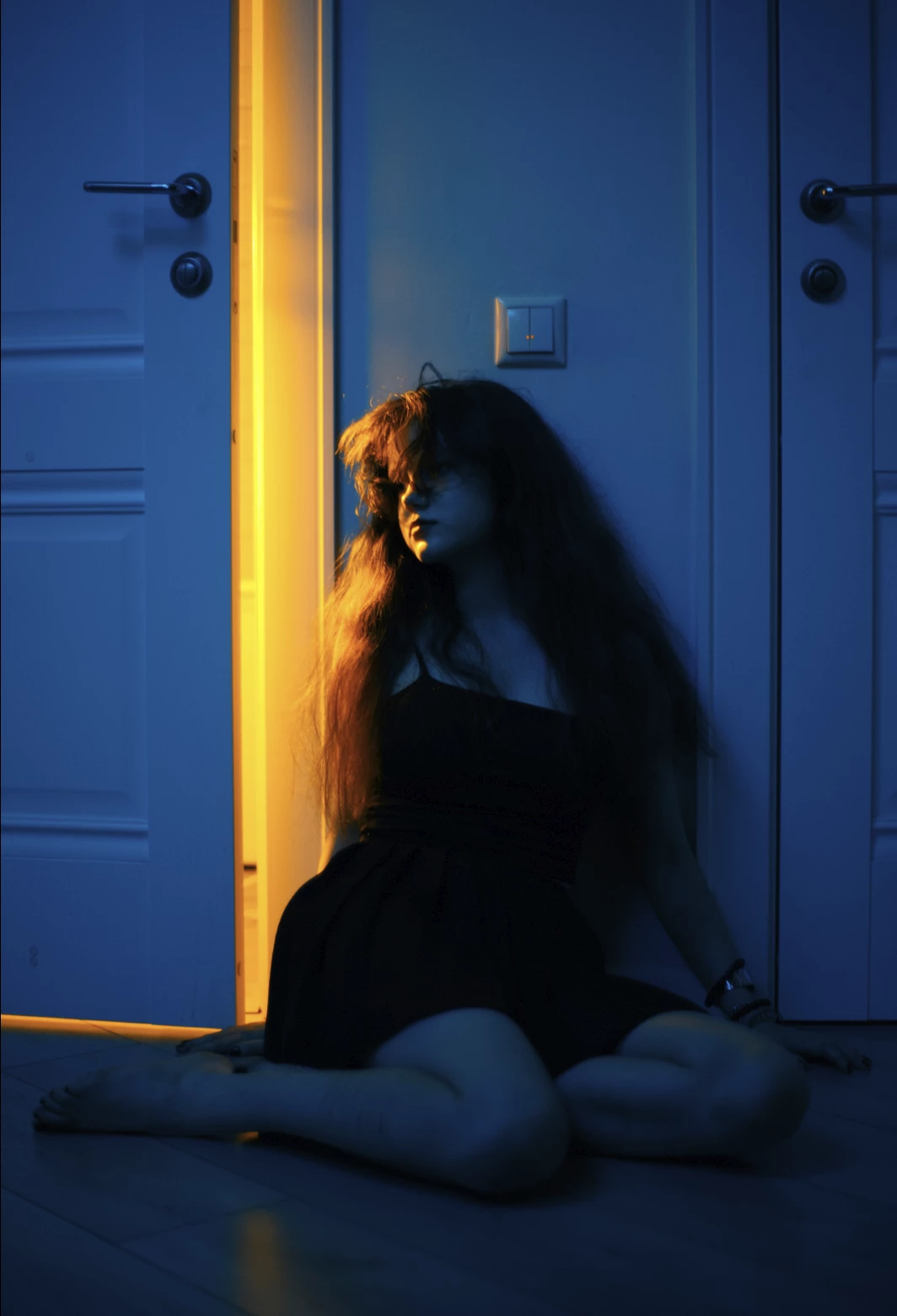
Colors look desaturated after export (and even if I transfer photo from Lr to Ps via Edit in).

Monitor is calibrated. I use same color space space everywhere (srgb) and I have no problems with color towards recent few days.

I tried deactivate GPU in Lr, tried downgrade Lr and Ps (old versions keep the same issue).

I use FastStone Image Viewer with CMS turned on.

I shoot raw and use Canon Standard profile in LR and Camera Raw. Photos in Lr look good, but after export (and viewing in FastStone) or transfer to Ps colors changes. 

I attach screenshot from Lr and screenshot from FastStone. 

UPD: I try to reinstall FastStone and after color looks good, but I check CMS and after I turn on "Auto detect and use monitor color profile" colors become desaturated again.
 

[moved from bugs to discussions according to the community rules - Mod.]

Correct answer Per Berntsen

The attached GIF does show desaturation, but the GIF format does not use color management, and can only display 256 colors, so it doesn't provide any useful information.

The screenshot from FastStone has a slight magenta cast, but does not look desaturated on my screen.


Photos in Lr look good, but after export (and viewing in FastStone) or transfer to Ps colors changes. 


When color managed applications don't match, it is usually caused by a defective or incompatible monitor profile, or a buggy GPU driver.

Start by making sure that your GPU driver is up to date. If it's an Nvidia GPU, make sure to use the Studio driver, not the game ready driver.

Don't rely on Windows to keep drivers up to date, go to the manufacturer's website and download the latest version from there.


If this is not a GPU issue, recalibrate your monitor, making sure to create a version 2 (not version 4), matrix (not LUT) profile – if you have these options. (what calibrator and software do you use?)


As troubleshooting, you can also set the monitor profile to a known good profile (sRGB or Adobe RGB).

Use sRGB if your monitor is standard gamut, use Adobe RGB if it's wide gamut.

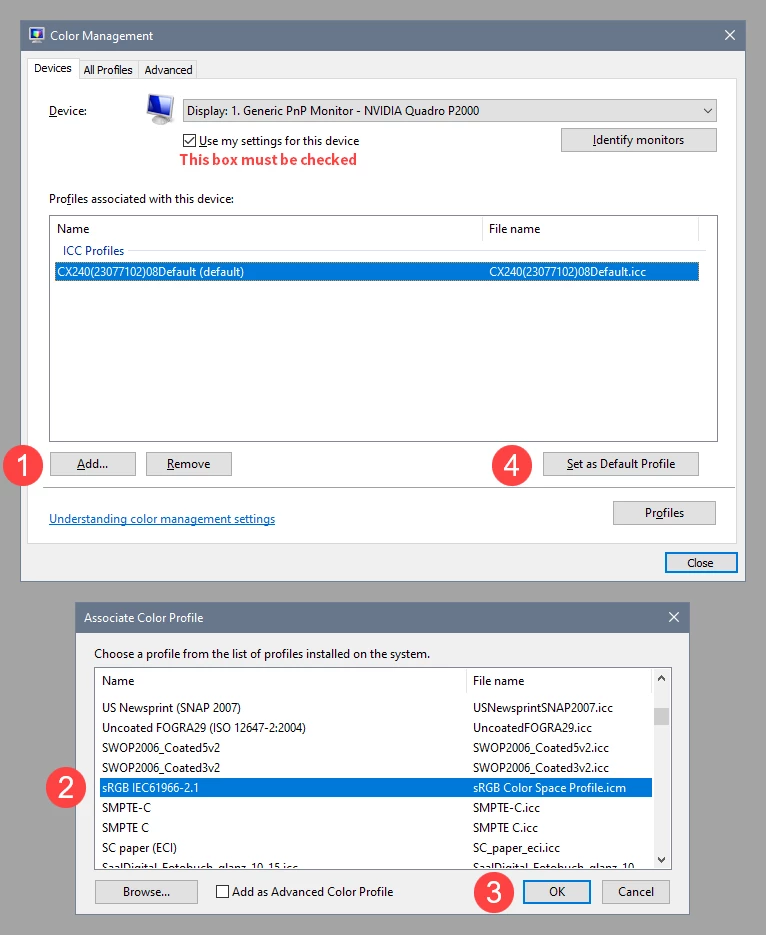
With all color managed applications closed, press the Windows key + R, type colorcpl in the box and press Enter.

Add the sRGB (or Adobe RGB) profile, then set it as default.

If this fixes the issue, your current monitor profile is defective or incompatible.


1 reply

Per Berntsen
Community Expert
Per BerntsenCommunity ExpertCorrect answer
Community Expert
March 12, 2025

The attached GIF does show desaturation, but the GIF format does not use color management, and can only display 256 colors, so it doesn't provide any useful information.

The screenshot from FastStone has a slight magenta cast, but does not look desaturated on my screen.


Photos in Lr look good, but after export (and viewing in FastStone) or transfer to Ps colors changes. 


When color managed applications don't match, it is usually caused by a defective or incompatible monitor profile, or a buggy GPU driver.

Start by making sure that your GPU driver is up to date. If it's an Nvidia GPU, make sure to use the Studio driver, not the game ready driver.

Don't rely on Windows to keep drivers up to date, go to the manufacturer's website and download the latest version from there.


If this is not a GPU issue, recalibrate your monitor, making sure to create a version 2 (not version 4), matrix (not LUT) profile – if you have these options. (what calibrator and software do you use?)


As troubleshooting, you can also set the monitor profile to a known good profile (sRGB or Adobe RGB).

Use sRGB if your monitor is standard gamut, use Adobe RGB if it's wide gamut.

With all color managed applications closed, press the Windows key + R, type colorcpl in the box and press Enter.

Add the sRGB (or Adobe RGB) profile, then set it as default.

If this fixes the issue, your current monitor profile is defective or incompatible.


Participating Frequently
March 13, 2025

Thank you! I've tried your method, using srgb or Adobergb colors in all programs are the same. Using calibrating profiles - same color issues. I take color profiles from backup, delete previous and load from backup - the same problem. 

Profiles workes great for 2 years and I can't understand why this problem appears in March 2025. 

So it's not LR or PS problem, but I don't know how to solve it.

Per Berntsen
Community Expert
Community Expert
March 13, 2025

What calibrator do you use, and with what software?

Does the software have options for ICC profile version and tone curve (gamma or LUT)?