bena58748468
Participant
June 5, 2022
Answered

Colour glitch on export

  • June 5, 2022
  • 4 replies
  • 501 views
Can anyone help!!
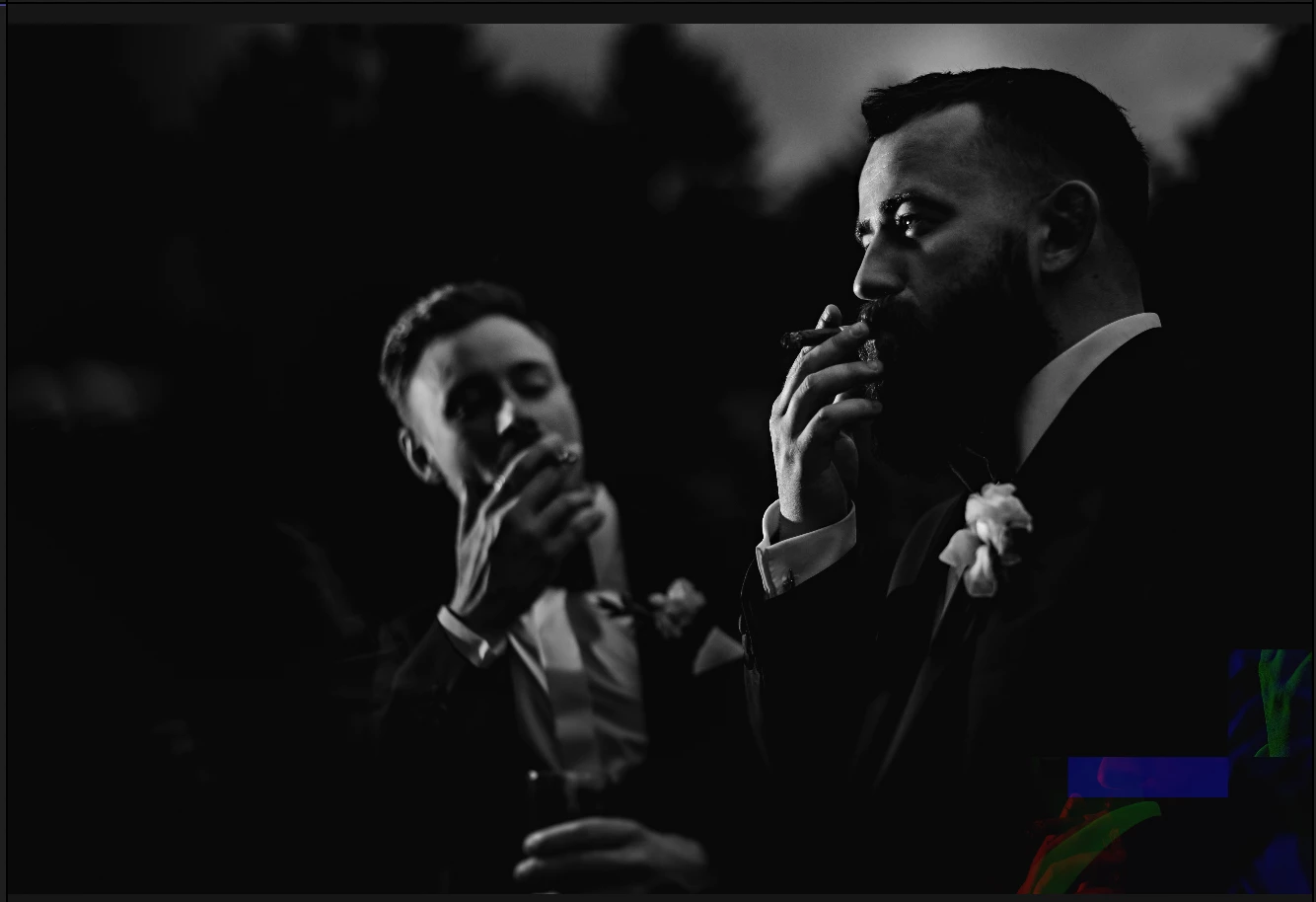
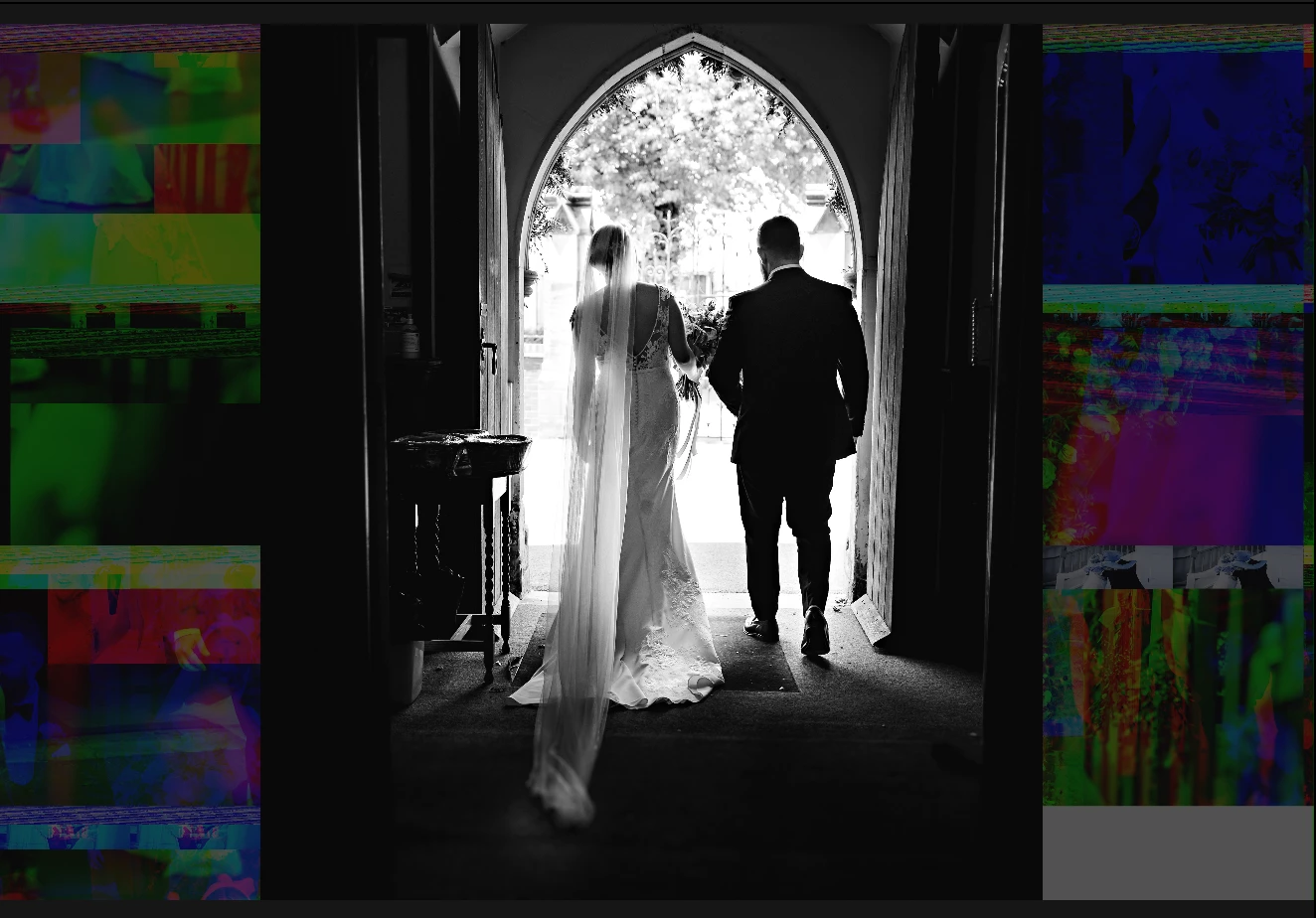
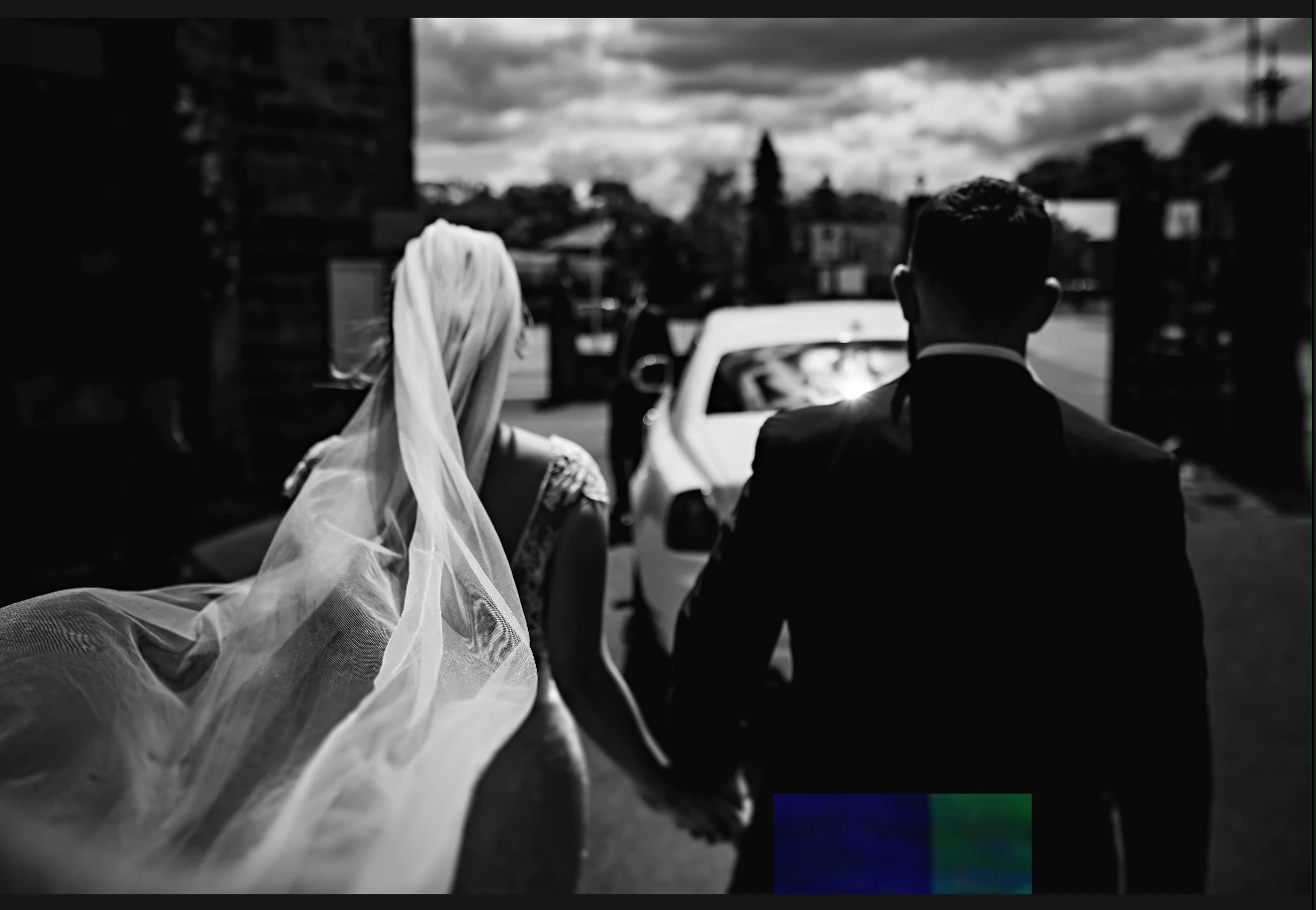
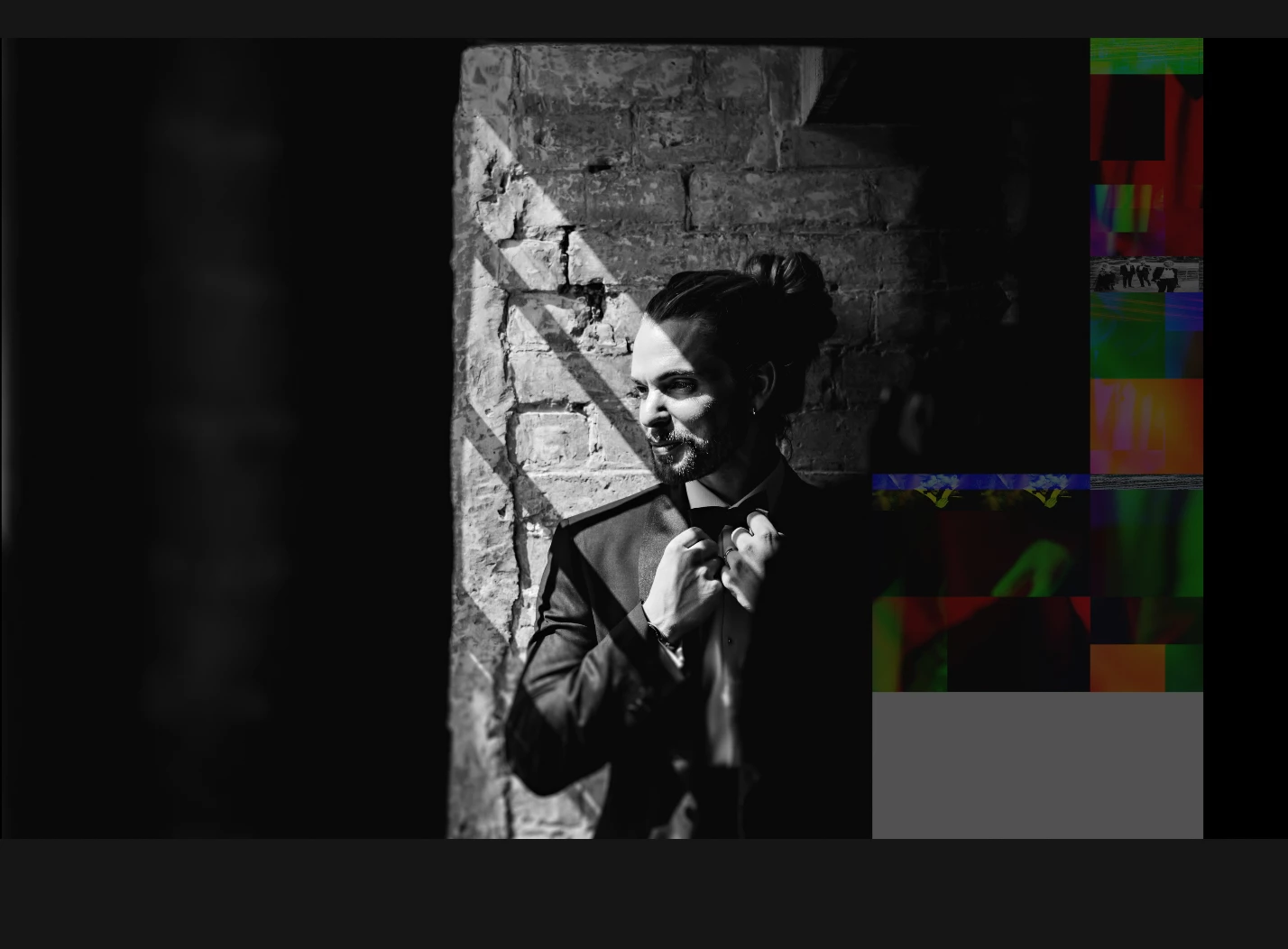
I'm having issues with some images - The image edits fine using my normal B&W preset in Lightroom Classic (All up to date), and exports fine so the RAW files seem to be ok, but when I sharpen them (in my normal way in PS, using a preset I've always used for years), these coloured errors come up on some of the images. It only seems to happen on B&W images though, and not all of them.....
I've tried re-exporting the problem images and then sharpening them again, and the same thing happens.
 
Any ideas what's going wrong?
 
This topic has been closed for replies.
Correct answer AxelMatt

The first thing that you should try is to switch off the GPU support from the Lightroom preferences and check if that helps to fix the issue.

Go to Lightroom > Preferences > Performance tab > Uncheck "Use Graphics Processor" > Restart Lightroom.

https://helpx.adobe.com/lightroom-classic/kb/lightroom-gpu-faq.html#troubleshooting

https://helpx.adobe.com/lightroom-classic/kb/troubleshoot-gpu.html


If Lightroom doesn't start correctly the please see "Solution 2" in the document behind the second link.

Troubleshoot GPU issues | Lightroom Classic (adobe.com)


Another step is to try to reset the Lightroom preferences.

https://www.lightroomqueen.com/how-do-i-reset-lightrooms-preferences/

It's recommended to backup your preferences before you reset the preferences to the default settings:

https://helpx.adobe.com/lightroom-classic/kb/preference-file-and-other-file-locations.html


If this doesn't help we need more informations about your environment.

Which operating system do you use?

Which version of Lightroom do you use?

Please post the exact version and not only phrases as "recent", "latest" and so on.

4 replies

bena58748468
Participant
June 5, 2022

Thanks Golding D - It was set to Automatic, but was just trying what Axel suggested below buy switchingto custom and untoggling the "use GPU"...


Thakns, I'll add more to the RAW cache.

GoldingD
Legend
June 5, 2022

Why is " Use Graphics Processor" set to Custom as opposed to Automatic? Did you have to force the selection?


P.S. that Camera RAW CACHE setting of 5 GB, the default setting, is way too small, typically mist bump that up to 40, or 5 GB

bena58748468
Participant
June 5, 2022

Thanks Axel - Is this correct?

AxelMatt
Community Expert
AxelMattCommunity ExpertCorrect answer
Community Expert
June 5, 2022

The first thing that you should try is to switch off the GPU support from the Lightroom preferences and check if that helps to fix the issue.

Go to Lightroom > Preferences > Performance tab > Uncheck "Use Graphics Processor" > Restart Lightroom.

https://helpx.adobe.com/lightroom-classic/kb/lightroom-gpu-faq.html#troubleshooting

https://helpx.adobe.com/lightroom-classic/kb/troubleshoot-gpu.html


If Lightroom doesn't start correctly the please see "Solution 2" in the document behind the second link.

Troubleshoot GPU issues | Lightroom Classic (adobe.com)


Another step is to try to reset the Lightroom preferences.

https://www.lightroomqueen.com/how-do-i-reset-lightrooms-preferences/

It's recommended to backup your preferences before you reset the preferences to the default settings:

https://helpx.adobe.com/lightroom-classic/kb/preference-file-and-other-file-locations.html


If this doesn't help we need more informations about your environment.

Which operating system do you use?

Which version of Lightroom do you use?

Please post the exact version and not only phrases as "recent", "latest" and so on.

My System: Intel i7-8700K - 64GB RAM - NVidia Geforce RTX 3060 - Windows 11 Pro 25H2 -- LR-Classic 15 - Photoshop 27 - Nik Collection 8 - PureRAW 6 - Topaz Photo AI