

Lars Eivind Bones
Participant
November 26, 2019
Question

Colour profile problem in develop mode

  • November 26, 2019
  • 5 replies
  • 1690 views

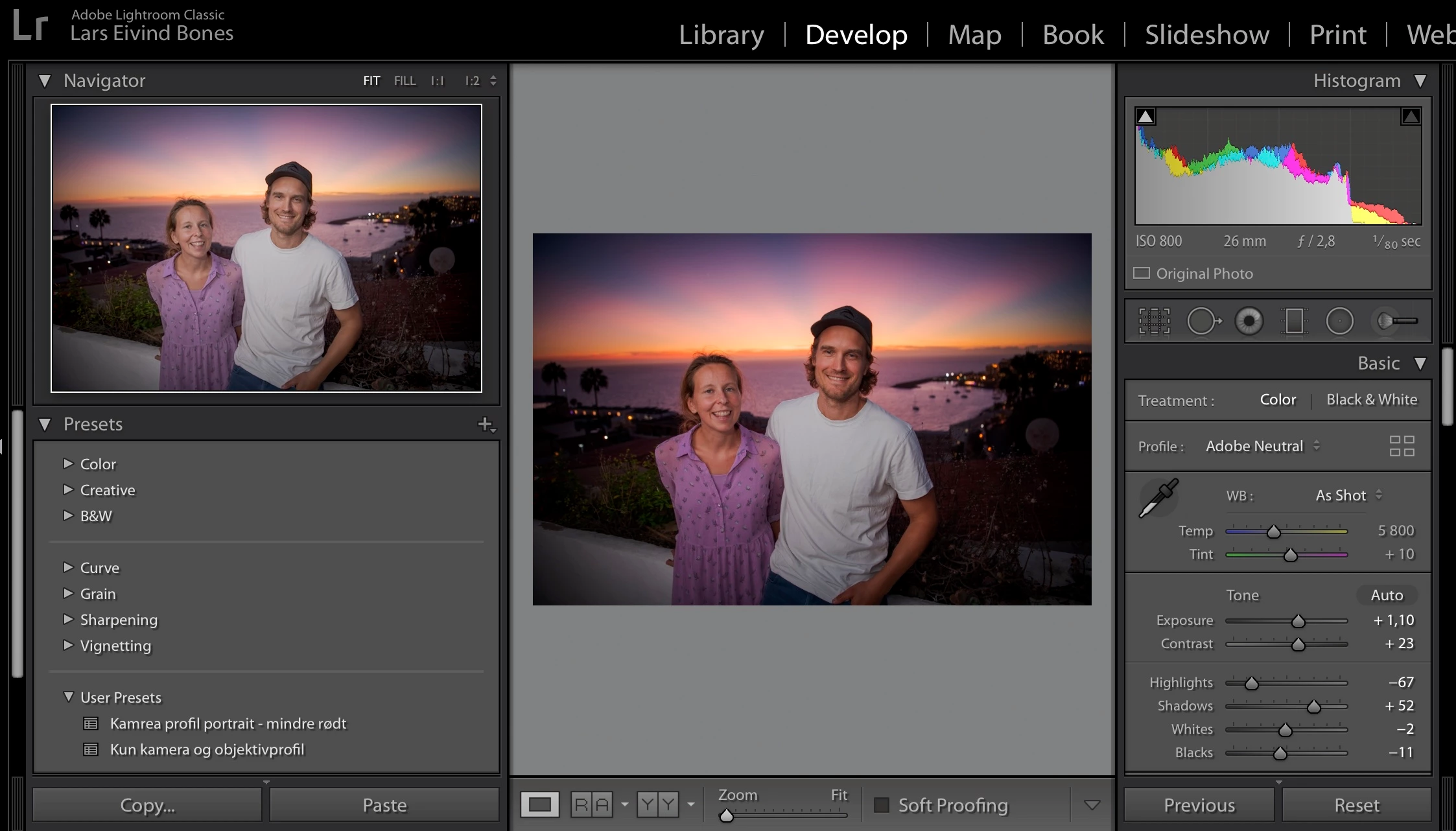
I have a issue about main develop window that shows different colours/densety than navigator window and full screen mode. When I export the pictures it appers simular to the navigator and full screen mode view. 
This topic has been closed for replies.

5 replies

Participant
December 29, 2023
I have the same problem, but in Photoshop, when I use the camera raw filter the photo changes color, I have already disabled the performance but it didn't help
TheDigitalDog
Inspiring
November 26, 2019

Also keep in mind, the only accurate way to view color and tone in LR is within Develop module at 1:1 or greater. IOW, the other modules use a differing preview architecture and it's not uncommon or unexpected to see 'slight' visual differences from those modules compared to Develop at 1:1 or greater. 

Author “Color Management for Photographers" & "Photoshop CC Color Management/pluralsight"
Community Expert
November 26, 2019

Oh and older versions of palette master had a bug wehre the monitor profile does not get loaded in the system. To load it you had to go into system-preferences->displays pane and hit the color button and find the profile you created.

Also make sure you have the nightshift feature unchecked in the Night shift tab for the monitor and that you have truetone unchecked in the prefs for the built-in display. Having true tone checked on the built-in display can also cause these issues on secondary monitors.

Community Expert
November 26, 2019

This is undoubtedly a monitor profile issue triggered by the GPU turning on and off. You should recalibrate your display. Since this is a BenQ, use the benq software (Palette Master) as it can utilize the on monitor LUTs for very good color.

Per Berntsen
Community Expert
Community Expert
November 26, 2019

First of all, try to disable the GPU.

Go to Preferences > Performance, and uncheck Use graphics processor.

If this fixes the issue, update your graphics driver, and try to turn the GPU back on. (since you have a Mac, you may have to wait for an OS update to receive updates for the graphics driver)


This could also be caused by a defective monitor profile.

As troubleshooting, and as a possible temporary fix, try setting the monitor profile to sRGB (use Adobe RGB if you have a wide gamut monitor).

Lightroom needs to be restarted to become aware of the new profile.

If this fixes the issue, it is recommended to calibrate the monitor with a hardware calibrator, which will also create and install a custom profile that accurately describes your monitor.


See How do I change my monitor profile to check whether it’s corrupted?

Lars Eivind Bones
Participant
November 26, 2019

Thanks for replying so quickly! 


Your first tip really worked.

Turning off GPU made the different screen modes look the same. 

Is it necessary to turn it on again?

(I'm running my Macbook pro 13 " with an external BenQ SW27i screen)

Lars Eivind Bones
Participant
November 26, 2019

How it looks like with the GPU disabeled