Ich möchte im Drucken-Modul eine JPG-Datei erstellen. Früher konnte man über die Benutzerdefinierte Dateiabmessungen die Pixelgröße der JPG-Datei festlegen. Der Wert für die Dateiauflösung hatte keinen Einfluss.
In der aktuellen Version (und wahrscheinlich schon viele davor) hat der ppi-Wert einen (unbekannten) Einfluss auf die Pixelmaße der JPG-Datei. Die eingegebenen Dateiabmessungen werden ignoriert.
Bei dem Beispiel im Screenshot wird aus den 1.200 pt x 415 pt eine JPG-Datei mit 5000 x 1729 Pixel!
Warum wurde der Prozess geändert? Das macht doch bei einer Bilddatei keinen Sinn.
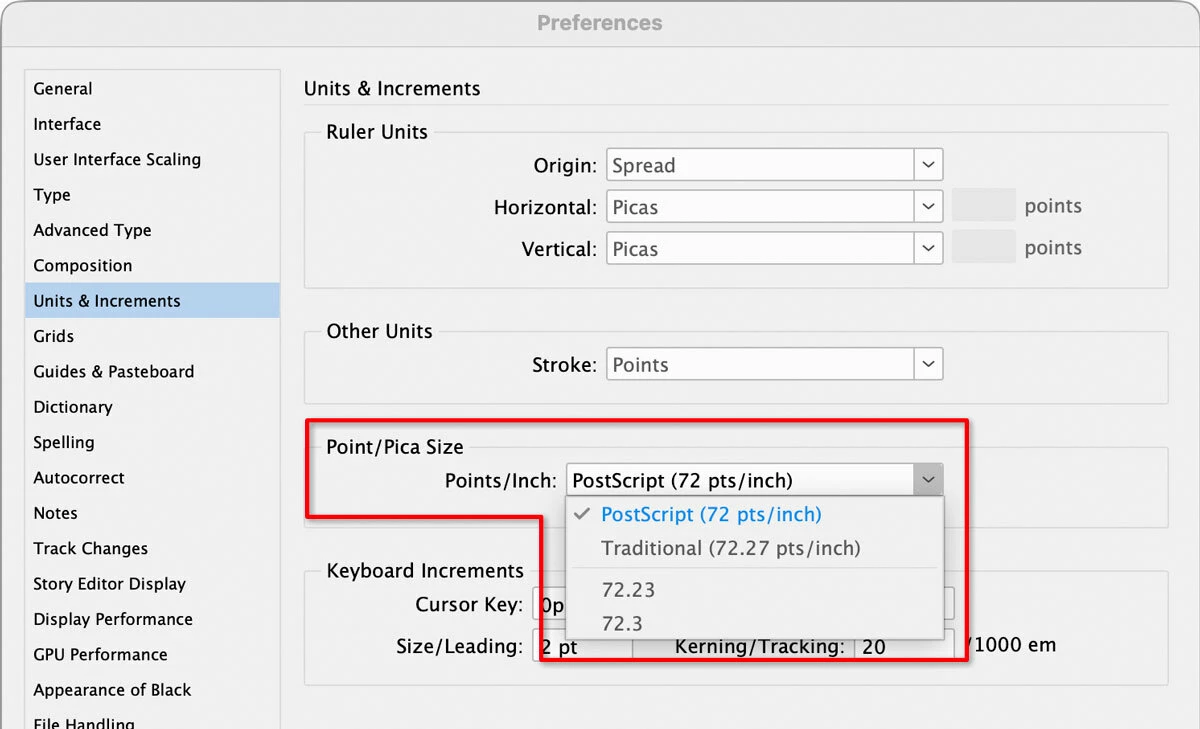
The traditional, pre-digital (French, American) definition of point is not exactly 1/72nd of an inch, because traditional points and picas do not divide evenly into inches. The decision to define a point as 1/72nd of an inch was only made about 40 years ago, not just by Apple, but also by Adobe who defined a point as 1/72 of an inch in the Adobe PostScript page description language for printers. (Apple and Adobe worked together to release that first PostScript-based 300 dpi Apple LaserWriter printer.)
So there are multiple accepted definitions of one “point.” Only one of those definitions is actually 1/72 of an inch; the rest are not.
Adobe InDesign is the most honest about this: As shown in the picture below, in InDesign Preferences you can choose which definition of point is the best match for the client, project, or medium you are working with. Digital? Traditional? Which country? Which era?
Also important: Pixels and points are not the same thing. In some contexts they can both resolve to 1/72 of an inch. But for example in digital typography, you can specify 12 point type and it may not measure exactly 12 pixels tall on screen at 1:1 magnification. This is especially true if a print-oriented application defines 12 points in terms of its traditional typographic height when printed. For example, on a 300 dpi printer, you definitely want 12pt type printed at 12 points tall; not 12 pixels tall which would be very tiny at 300 dpi and almost invisible on a 2400 dpi prepress platesetter.
Points and picas are traditional units of measurement from typography long predating the computer era. There are 12 points in a pica and 6 picas in an inch:
In the modern era, you most typically see “point” in reference to font size, e.g. a 12-point font. LR’s Image Settings panel displays the current Stroke Border width in points.
Thank you very much for the final explanation. Now it all makes sense. I really didn’t know that 1 Point has the physical size of 1/72 inch.
So the solution is to use 72 ppi and then all pt values will be exact the same pixel values in the resulting JPG file.
I got hold of an old laptop with LR5 installed and guess what: same behavior. So I might have used 72 dpi back then and never realized how important that value was for the JPG size. Case closed.
Interesting, that Apple chose 72 ppi screen resolution in the 80’s because it matches 1 pixel equal to 1 typographic point on screen. The birth of the 72 ppi myth for web images. :-)
Thank you for being patient with me and sharing your knowledge.
The origin of the point unit of length is 100’s of years ago and finds its origin in old style typesetting for print presses - you know with little letter blocks on a galley. The current US definition of 12 pica’s in an inch and 6 picas in an inch (so 72 points in an inch) is basically the same definition as a 18th century french system for typography with 12 lines in an inch and six points in a line. More here: https://en.wikipedia.org/wiki/Point_(typography)
So it is just a definition for a length unit like any other length unit is but it has a long history. It is still in wide use in the printing industry.
[View this post in your web browser. It contains formatting and images that don't appear in email.]
The Print module is about printing the pixels of the photo on paper. Paper has physical dimensions, and thus within the Print modules, sizes are specified as physical dimensions on paper.
The Ruler, Grid & Guides panel lets the user specify the units of measurements to use:
You can choose from these units:
The ruler and sizes of cells are displayed with those chosen units:
In the Print Job panel, when you choose Print To: JPEG File and Custom File Dimensions, it’s using the same units of measurement, since the Print module is about putting pixels to paper. So Print To File uses the border widths (always specified in points), the File Resolution (pixels per inch), and Custom File Dimension (specified in the chosen ruler units) to determine the size of the image and its borders as it would be put to paper.
For example, with these settings:
The created JPEG will have dimensions 15 cm x 20 cm when printed to paper at 150 ppi. 15 cm x 20 cm is 5.91 in x 7.87 in, which at 150 ppi is 885 pixels x 1181 pixels.
Print To File works the same way regardless of which you choose for Ruler Units: centimeters, inches, or points. (A point is 1/72 of an inch.)
I tested this in LR 13.1, and it works exactly the same way.
That is all true what you wrote, because you specified cm. The size in cm (or mm or inch) plus the ppi value will be used to calculate the pixel values of the resulting JPG file.
But what if you specify Points? The ruler does not show cm but pt, which has no physical size (to me).
What is the size of a point?
To me the size of a (Lightroom) point is one pixel. That makes sense because then I can specify all values as I want them in the final JPG file. E.g. 20 pt border = 20 pixel border. For anything print related I use the actual dimensions, like cm.
To you (and Lightroom) the size of a point is 1/72 inch. Where does that number come from??? It doesn’t make sense to me.
[View this post in your web browser. It contains formatting and images that don't appear in email.]
In the example shown in the screenshot, the 1200 pt x 415 pt file becomes a JPG file with 5000 x 1729 pixels!
That pixel size is the correct.
The screenshot shows you’ve selected Custom File Dimensions of 1200 pt x 415 pt. There are 72 points per inch, so the custom dimensions are 16.667 inches x 5.764 inches.
The screenshot also shows you’ve selected 300 pixels per inch (ppi). So16.667 x 5.763 inches should result in 5000 x 1729 pixels (16.667 inches x 300 pixels per inch = 5000.1 pixels). That’s the size of the output JPEG you’ve observed.
Thank you for the reply. That calculation explains the resulting pixels.
BUT what do you mean with “There are 72 points per inch”? We are talking about a digital JPG file here. A digital file has no physical size, just the amount of pixels.
There are no monitors with 72 ppi anymore. You look at 100 - 400 (mobile) ppi on your screen. The value of 72 makes no sense.
The reason why I posted it in the bug section was, that the behavior was different in older versions of LrC. I have saved .lrtemplate files that output 1600x1600 pt images and the resulting JPGs were always 1600x1600 pixels. The ppi value may get written in the pppi field of the JPG but never changed the pixel dimension.
One reason why 72ppi remains relevant is because this is still defined into physical measurement. For example, text sizing - or the width of the stroke border around an image - is expressed conventionally in “points” and LrC does not offer alternative physical units for those. When outputting to an image at 72ppi in particular, a 10-point stroke border width maps onto 10 pixels nominally.
Thus if your page sizing is also set to report in “points” - see “Ruler units” in the Layout tab - and you opt to output at 72ppi, then the relation between page layout scale (quasi physical), PPI, and resulting pixel output becomes easy to calculate.
A different PPI for your output indirectly varies the resulting pixel dimensions - and therefore the effective resampling of your images - but without altering what the overall page layout looks like.
Overriding the page dimensions will alter what the page layout looks like - I believe this always was defined in terms of physical units not pixels - hence PPI would have had the same significance before AFAICT - but I don’t recall the page layout elements visibly changing themselves around as if different page sizing had been ‘really’ chosen - only an on-the-fly output scaling being applied.
If it makes sense to you to generally work in inches for page sizing - for JPG output purposes you could impose whatever page sizing in whole inches makes that inch-related PPI calculation easier; perhaps using a custom page size rather than anything relating to physical printing. Varying PPI will not then alter the visual appearance of the overall page, unlike what happens now when you vary the page dimensions through an override. Example: when you want a 3000 pixels wide JPG and your page layout is made 10 inches wide (deliberately so for this purpose) you can set 300ppi. And when you instead want an 800px wide JPG you can set 80 PPI.
One comment is that in onward usage, the particular PPI found in image metadata (even though that may be in principle ignorable) may not be without workflow consequence in practice.
Also LrC sets limits on how physically large / small a given page layout can be made, or overridden.
So it’s a bad idea IMO to seek a really high / really low PPI number; OR to request really small / really large notional page dimensions onto which that PPI number will be applied.





 AdChoices