ManiacJoe - Thank you for your explanation above. I believe that I was indeed confusing "keyword set" with "nested keywords," since as a newbie to LR I do not have all of the LR jargon down as yet. The term "nested keywords" is briefly mentioned in the explanation whose link I mentioned towards the beginning of this thread on 11/23: (I followed instructions on https://helpx.adobe.com/lightroom/help/keywords.html under "Create keywords.")
Unfortunately this does nothing to solve the problem that I continue to have. Every new parent keyword that I attempt to create ends up under the parent WORK and child WEEDS. Step-by-step here is what I do to create a new parent keyword:
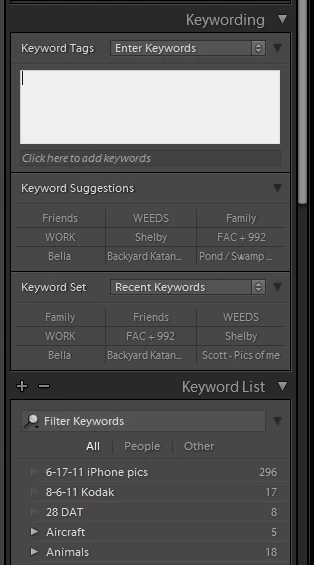
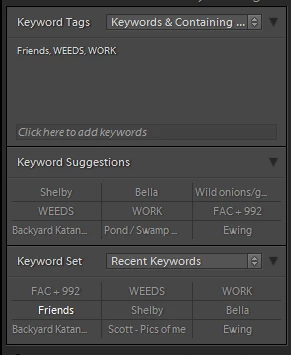
I begin with a "blank" Keyword Tags field as follows:
I then type in the word "Family" as an example:
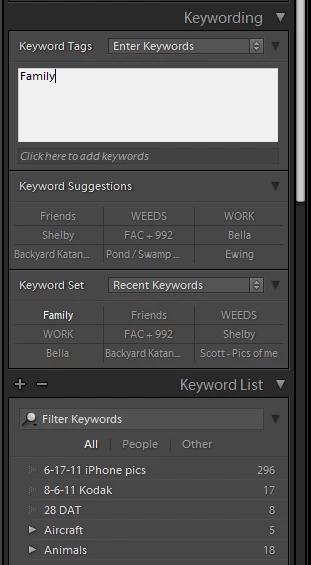
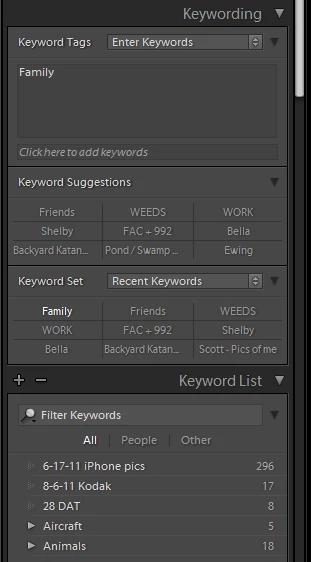
I press "enter," The white box turns dark grey and "Family" then immediately nests under WORK and then two deep under WEEDS:
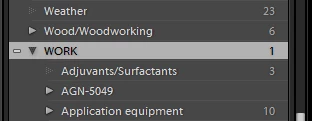
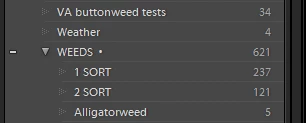
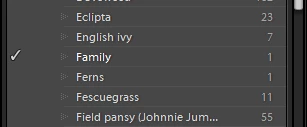
Why does this continually occur? I am trying to create a parent-keyword with Family, yet it continually shows up as a child-keyword under the parent keyword WORK and then the child keyword WEEDS. Attempting to create any new keyword results in the exact same thing happening: The new keyword ALWAYS ends up under the parent WORK and the child WEEDS. It is as though I have some hidden hierarchy set up that only allows new keywords to appear as a nested keyword under WEEDS. (The same thing occurs if I type "Family" in the "Click here to add keywords" box, or if I click the big plus sign to the left of "Keyword List" and type in Family.)
How can I create "parent" keywords that are not nested seemingly by default under WORK and WEEDS? Do I have a "broken" setting somewhere? Have I inadvertently set up a hidden default or other setting? Right now I am stuck and cannot create new keywords which is a critical step in my continuing to use Lightroom.
Thank you again for your patience and continued assistance!
Seems like you previously created "family" under "weeds" -- probably by mistake -- and never moved the child keyword elsewhere. Removing the keyword from the photo does not unnest it.
See the dot at the end of "weeds"? Right-click on the "weeds" keyword in the long Keyword List. Uncheck the "put new keywords inside this keyword".
Then delete the "family" keyword from the nested list.
Add the new version of "family" as an unnested word.
 AdChoices