Participant
October 5, 2017
Answered

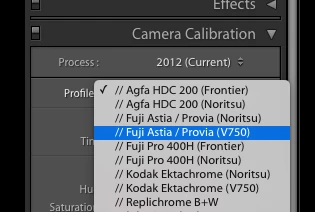
Deleting custom profiles in Camera Calibration

  • October 5, 2017
  • 1 reply
  • 1456 views

How do I get rid of these on Mac os?

Just the ones with the // in front of them, they are messing up my other presets.

Thank you.

    This topic has been closed for replies.
    Correct answer Jao vdL

    You appear to be looking at the System level library folder, not at the Library folder in your home directory. Unfortunately Mac OS hides this folder by default. You can get to it by in finder hitting shift-command-G (or selecting go to folder from the go menu and typing ~/Library/ in the dialog that comes (the tilde is essential). Now navigate to the Application Suppport/Adobe/CameraRaw/CameraProfiles folder and you should see your custom camera profiles.

    1 reply

    Todd Shaner
    Legend
    October 5, 2017

    You need to delete them from the User folder at the following location:

    Macintosh HD / Users / [your username] / Library / Application Support / Adobe / CameraRaw / CameraProfiles /

    Keep in mind if any of those custom camera profiles have been assigned to image files they will revert to the next available camera profile in alphanumeric order. That would be Adobe Standard assuming you have no other custom camera profiles installed. To check take a look at the list as posted and see what profile is below the last // camera profile. That's the one that will be assigned.

    Participant
    October 5, 2017

    Thanks trshaner, though when I look there those profiles are not present. This is what I see.

    Specific camera profiles but these appear to be printer profiles.

    Jao vdLCommunity ExpertCorrect answer
    Community Expert
    October 6, 2017

    You appear to be looking at the System level library folder, not at the Library folder in your home directory. Unfortunately Mac OS hides this folder by default. You can get to it by in finder hitting shift-command-G (or selecting go to folder from the go menu and typing ~/Library/ in the dialog that comes (the tilde is essential). Now navigate to the Application Suppport/Adobe/CameraRaw/CameraProfiles folder and you should see your custom camera profiles.