Inspiring
January 31, 2022
Answered

Develop Mode Pixelates - How to fix?

  • January 31, 2022
  • 1 reply
  • 337 views

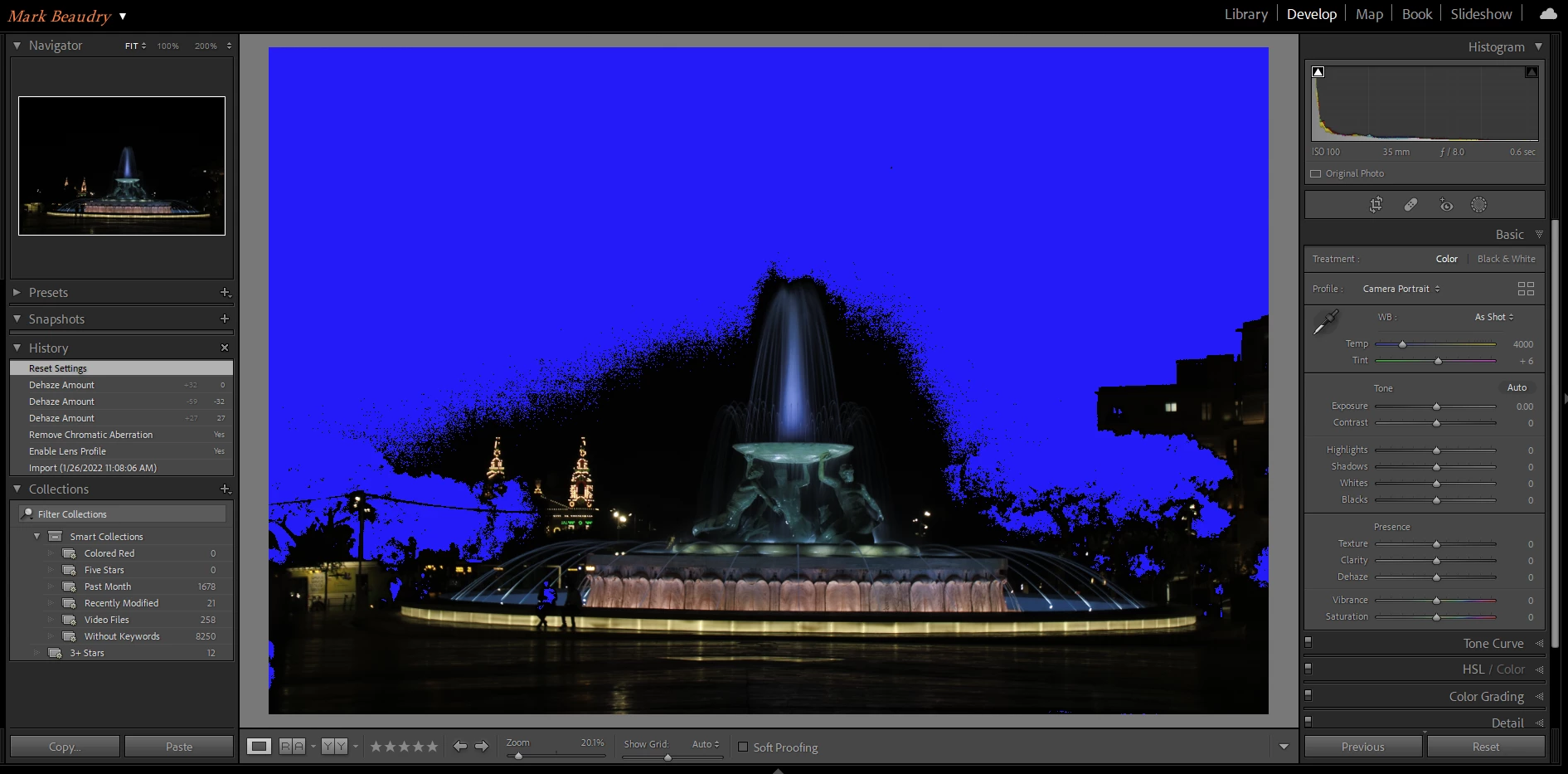
Been using lightroom on the same laptop for about a year now with no real problem. Just last week most images whack out when I enter the develop mode - See example below. I see them fine in the Library and in "F" full screen mode. I do regular updates (on auto update), so I'm using the latest and greatest version.

I followed instructions to set the color profile to sRGB and restarted. Also in the Preferences -Performance screen, cycled through all the GPU setting options. Neither made any difference. 

The only thing that has changed on my end is that I'm normally in the US, but am now traveling. All went well in Rome, and for several weeks in Malta. I don't think this is a factor, just thought I mention any change on my end.  

Any help on correcting this would be appreciated. 

Thanks

Mark


This topic has been closed for replies.
Correct answer AxelMatt

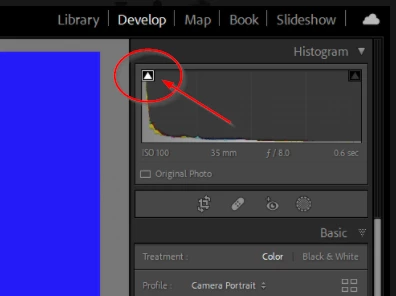
You have enabled the warning of clipped shadows. Click on the marked triangle in the screenshot to turn off this warning.


1 reply

AxelMatt
Community Expert
AxelMattCommunity ExpertCorrect answer
Community Expert
January 31, 2022

You have enabled the warning of clipped shadows. Click on the marked triangle in the screenshot to turn off this warning.


My System: Intel i7-8700K - 64GB RAM - NVidia Geforce RTX 3060 - Windows 11 Pro 25H2 -- LR-Classic 15 - Photoshop 27 - Nik Collection 8 - PureRAW 6 - Topaz Photo AI
Inspiring
February 2, 2022

Fantastic!

Just like that, it went away. I like the easy ones.

Thank you so much!


Per Berntsen
Community Expert
Community Expert
February 2, 2022

The shadow clipping indicator is blue, and the highlight clipping indicator is red.

You can turn them both on and off by pressing the J key on your keyboard, or activate them individually by clicking the triangles in the histogram.