Inspiring
March 10, 2024
Answered

Develop settings not copying properly

  • March 10, 2024
  • 1 reply
  • 752 views

I use LrC for editing and organizing my ARW photos. I use Topaz Photo AI for denoise and sharpening; it produces a DNG file from the original ARW file. I then do Develop editing on the DNG file.


On occasion, I edit the DNG in PS, primarily to remove distractions; PS produces a TIFF when I save back to LrC. On occasion, I find I need to do some more editing on the TIFF. I can copy the mask settings from the DNG and paste them to the TIFF. However, the masks don't really copy over properly. Something, usually part of a brush, always seems to be missing. I say always, but my sample size is only 3.


Is this a bug? Or am I doing something wrong?
This topic has been closed for replies.
Correct answer johnrellis

[This post contains formatting and embedded images that don't appear in email. View the post in your Web browser.]


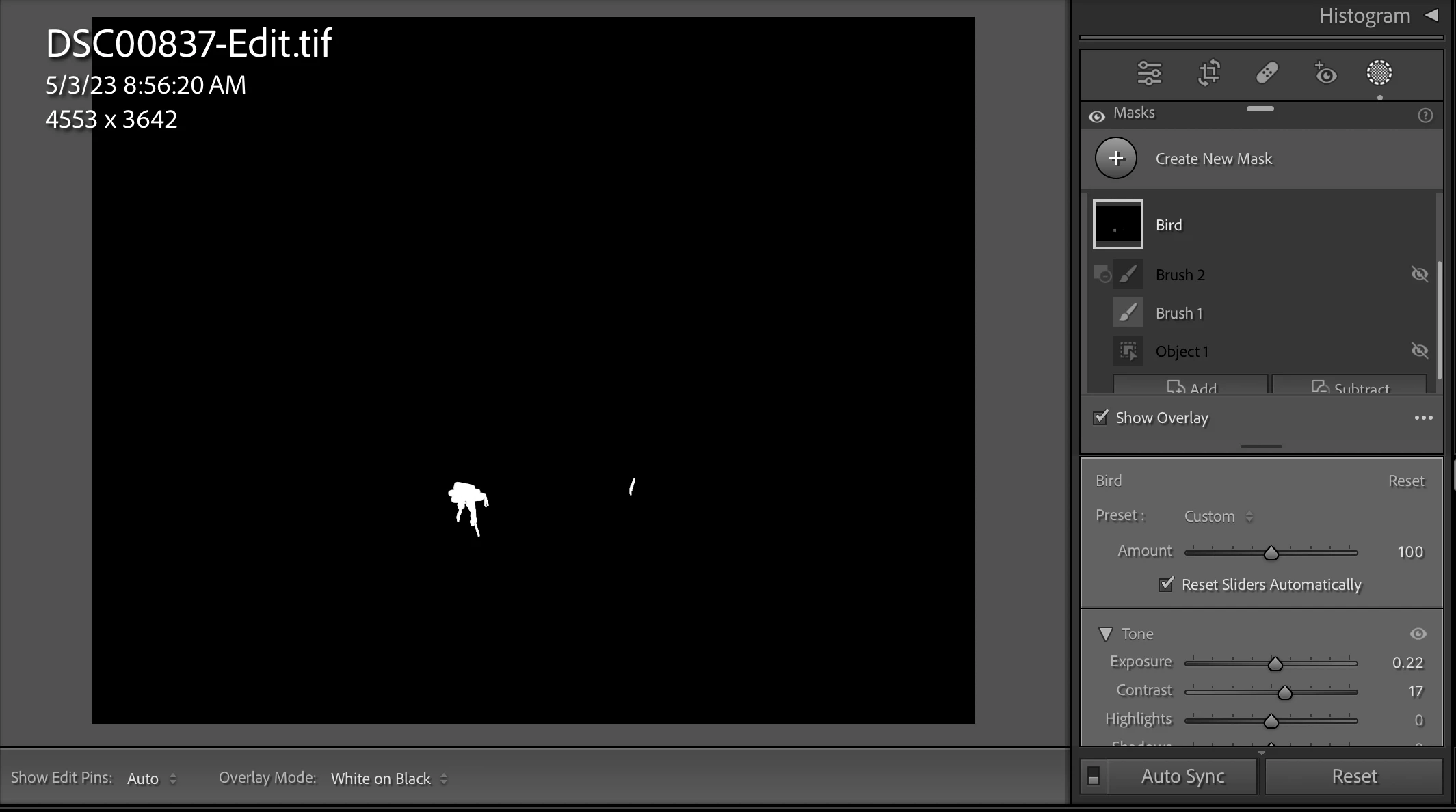
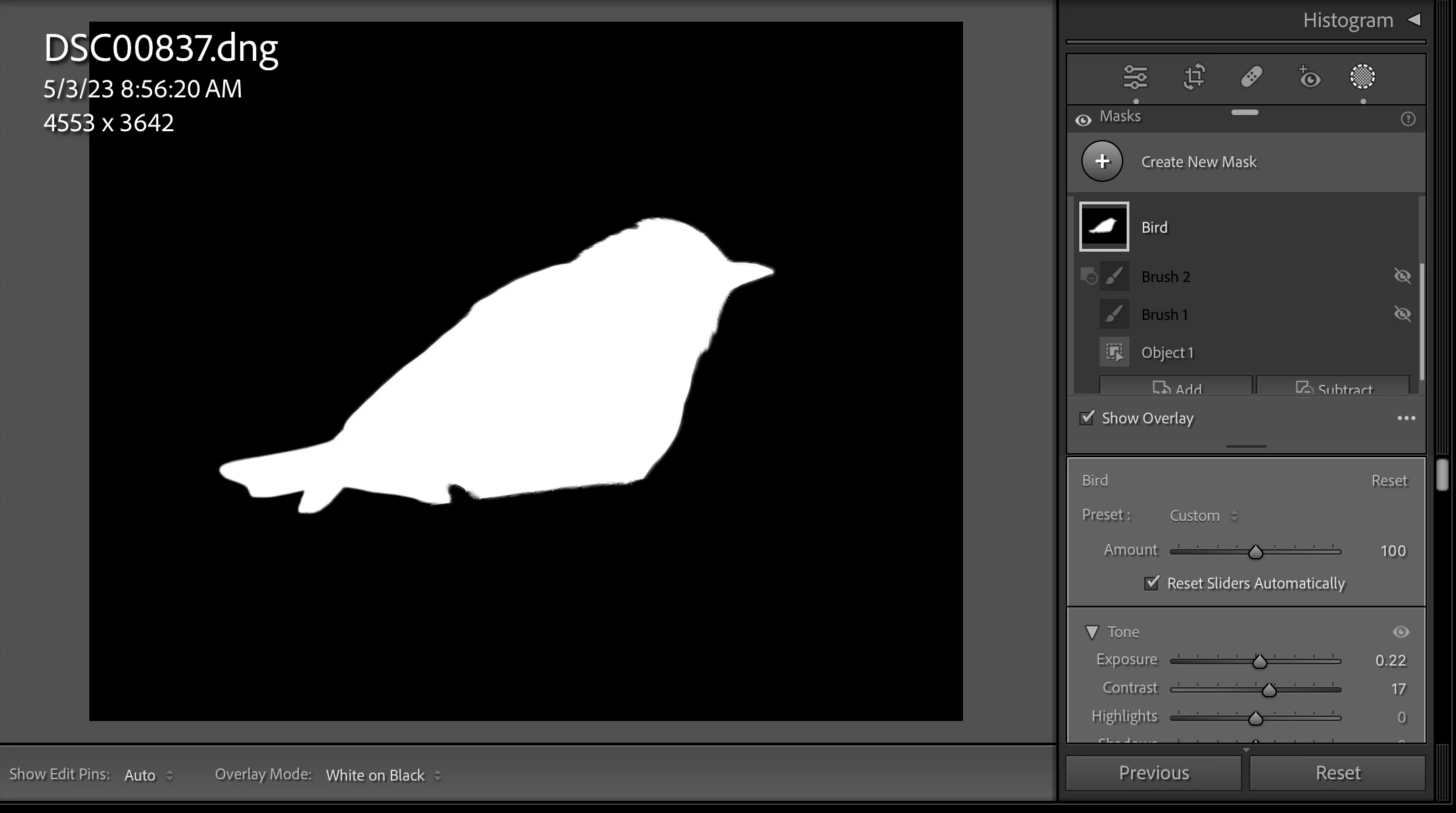
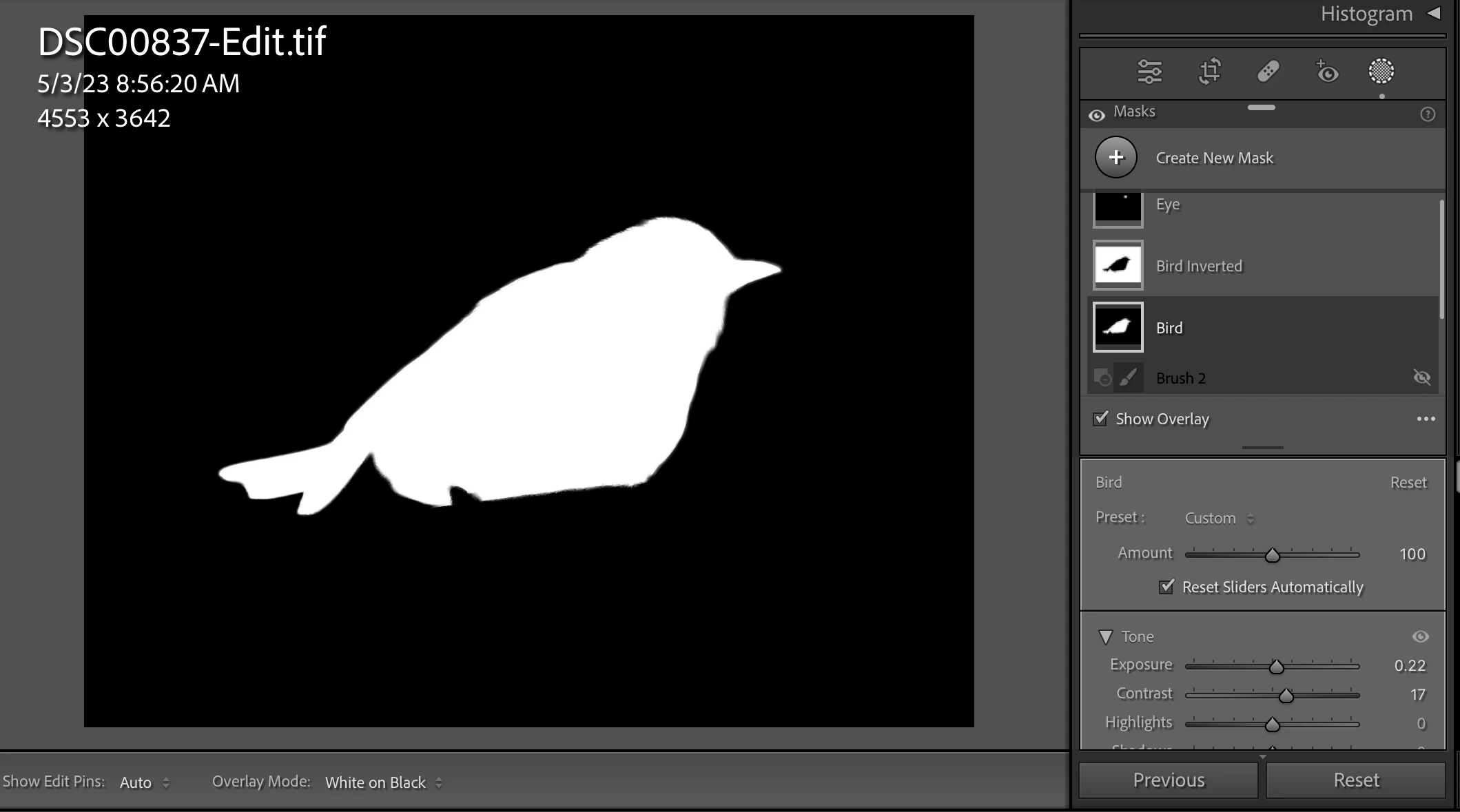
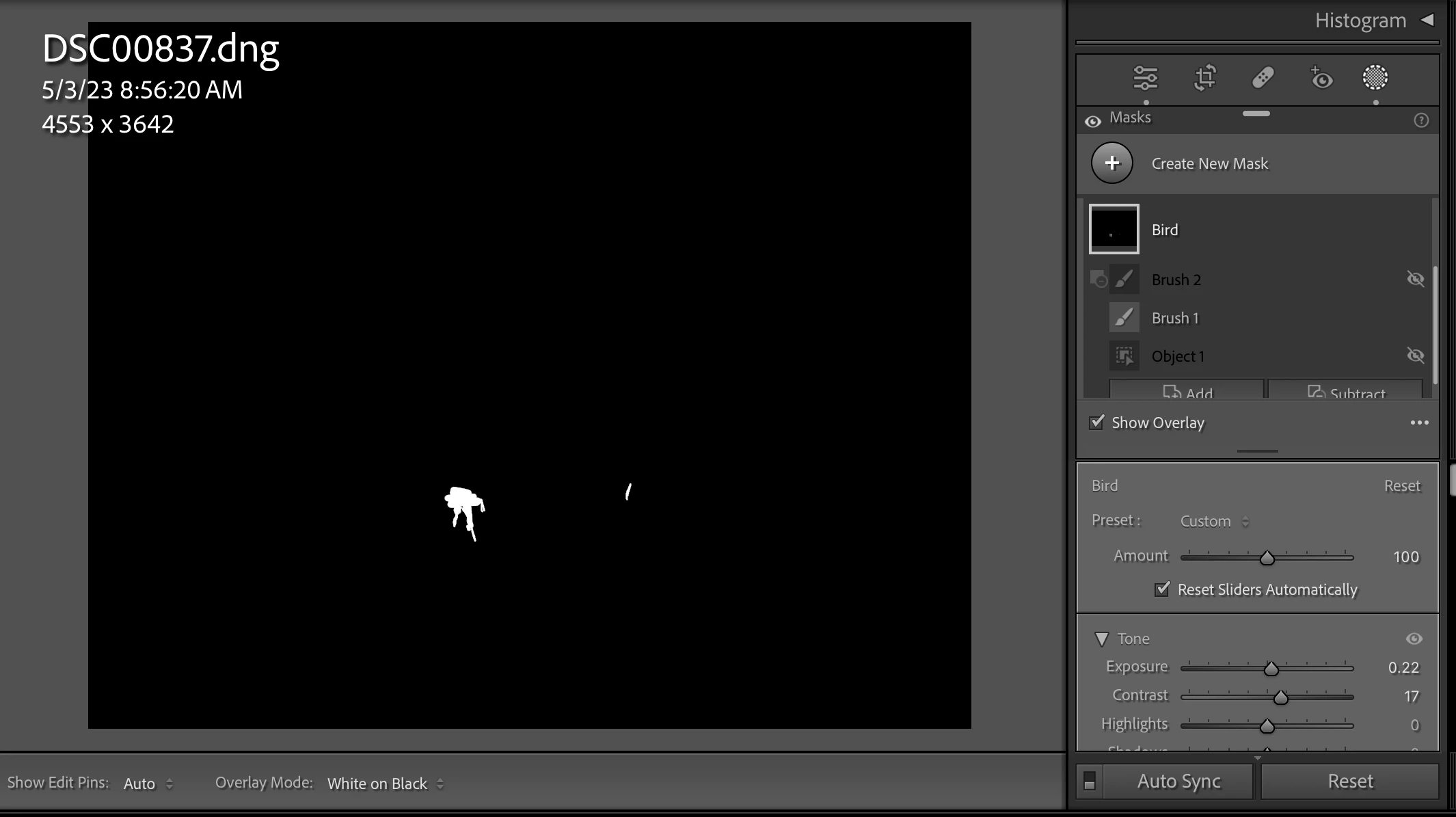
I copied the masks from the DNG to the TIFF. Then I used Overlay Mode: White On Black and enabled just one of the mask Bird's components at a time (Brush 1, Brush 2, Object 1) to see what's causing the difference. The brush masks are identical, but it's the Object 1 mask that is different, especially on the bottom of the tail:


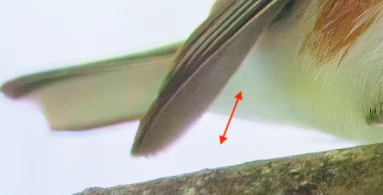
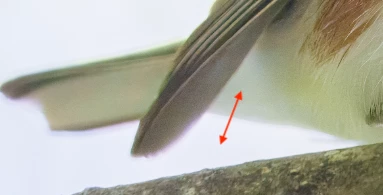
Looking more closely at the part of the DNG and TIFF where the Object masks differ (with no settings applied):


there are small differences in color and relative contrast between that part of the bird and the background. This is evidently causing the AI model for Object to consider that part of the bird in the TIFF to be more similar to the background than the rest of the bird. The AI models will produce identical outputs only when given identical inputs.


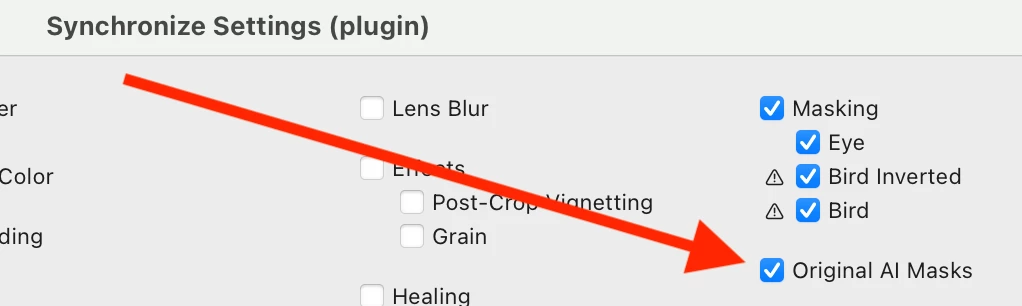
You could use the Copy Settings plugin's Synchronize Settings command to copy the masks, using the Original AI Masks option:


This copies the exact mask computed for the DNG without re-evaluating the AI model for the TIFF. I verifed that this does indeed yield the exact same mask on the TIFF.

1 reply

johnrellis
Legend
March 10, 2024

Are the images in portrait orientation?  There are known problems with that.


Otherwise, we'll need a lot more detail. The most efficient way of troubleshooting this is to select one of the problem DNGs and do Metadata > Save Metadata To File. Then upload the DNG and corresponding TIFF to Dropbox, Google Drive, or similar, and post the sharing link here.

Inspiring
March 10, 2024

At least two of the images are landscape; I cannot remember the third. 


This  is the DNG with the metadata. This is the TIFF.

johnrellis
johnrellisCorrect answer
Legend
March 10, 2024

[This post contains formatting and embedded images that don't appear in email. View the post in your Web browser.]


I copied the masks from the DNG to the TIFF. Then I used Overlay Mode: White On Black and enabled just one of the mask Bird's components at a time (Brush 1, Brush 2, Object 1) to see what's causing the difference. The brush masks are identical, but it's the Object 1 mask that is different, especially on the bottom of the tail:


Looking more closely at the part of the DNG and TIFF where the Object masks differ (with no settings applied):


there are small differences in color and relative contrast between that part of the bird and the background. This is evidently causing the AI model for Object to consider that part of the bird in the TIFF to be more similar to the background than the rest of the bird. The AI models will produce identical outputs only when given identical inputs.


You could use the Copy Settings plugin's Synchronize Settings command to copy the masks, using the Original AI Masks option:


This copies the exact mask computed for the DNG without re-evaluating the AI model for the TIFF. I verifed that this does indeed yield the exact same mask on the TIFF.