Participating Frequently
May 15, 2023
Answered

Disk space disappearing...Need to cull the Lightroom Catalog files. Where to start?

  • May 15, 2023
  • 4 replies
  • 1329 views

I use Lightroom Classic

I have a 2.5" Sata SSD drive dedicated to just my LR catalog and windows/LR scratch disk. It is about 95% full. I have read that you can delete old catalogs but I am not sure which one are old and deletable.
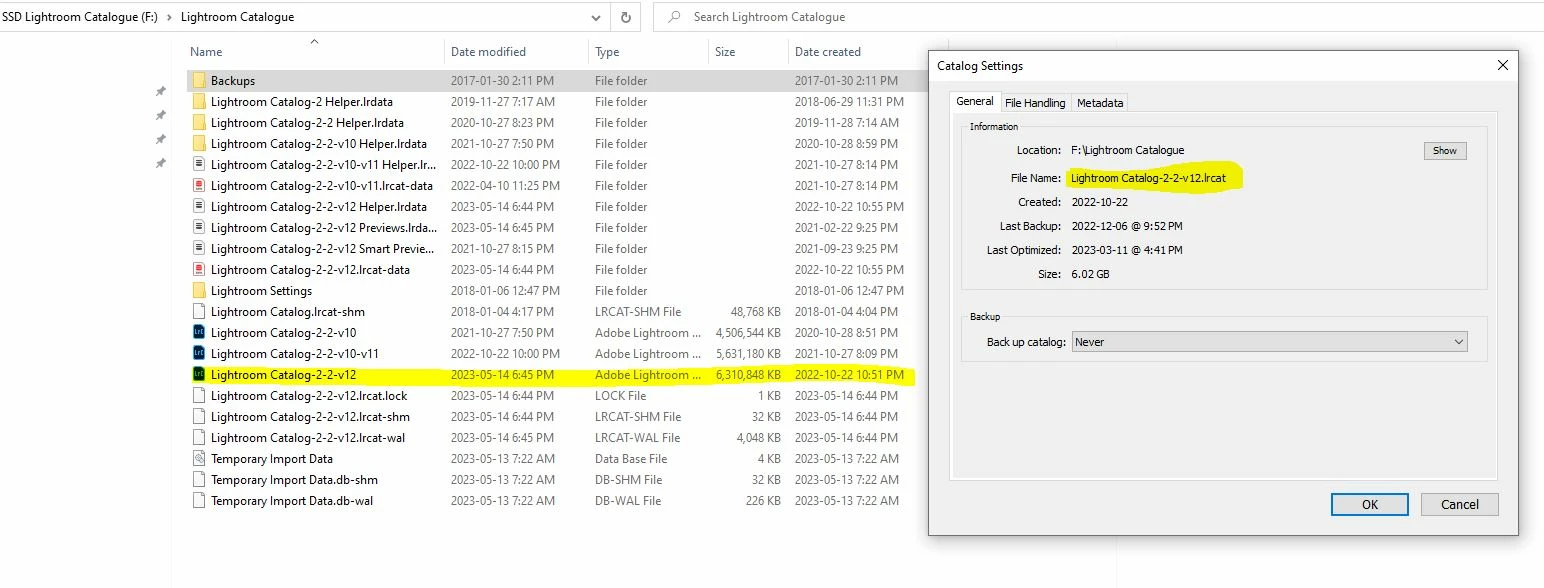
I screenprinted the Catalog settings in LR. i believe it is named LR Catalog-2-2-v12.lrcat

Does this mean the ones named LR Catalog-2-2-v10.lrcat and LR Catalog-2-2-v10-v11.lrcat are old and can be deleted?


If so, can I also delete the other folders associated with the old catalogs (the smart previews, previews,lrdata and Helper folders)?


....and I guess I should back the current one up before I do anything....looks like it has been a while.

This topic has been closed for replies.
Correct answer Conrad_C
quote

If so, can I also delete the other folders associated with the old catalogs (the smart previews, previews,lrdata and Helper folders)?

By @philmars


Smart Previews are usually manually created, so if you created them for a reason, keep them; if you can’t remember why you created them you can think about throwing them out.


The …previews.lrdata folder is a preview cache. As a cache, it’s completely expendable because Lightroom Classic will just rebuild it if you throw it out. This is often a prime candidate for being deleted if it has grown very large, especially if it’s become many times larger than the catalog itself. So look at the folder properties and if it’s now taking up a significant percentage of storage space (like 30GB) then throw it out.


Keep the Helper folders.

4 replies

Conrad_C
Community Expert
Conrad_CCommunity ExpertCorrect answer
Community Expert
May 16, 2023
quote

If so, can I also delete the other folders associated with the old catalogs (the smart previews, previews,lrdata and Helper folders)?

By @philmars


Smart Previews are usually manually created, so if you created them for a reason, keep them; if you can’t remember why you created them you can think about throwing them out.


The …previews.lrdata folder is a preview cache. As a cache, it’s completely expendable because Lightroom Classic will just rebuild it if you throw it out. This is often a prime candidate for being deleted if it has grown very large, especially if it’s become many times larger than the catalog itself. So look at the folder properties and if it’s now taking up a significant percentage of storage space (like 30GB) then throw it out.


Keep the Helper folders.

philmarsAuthor
Participating Frequently
May 25, 2023

Thanks - deleted the old catalogs...biggest gain was in deleting the previews cache. System is snappy again.

KR Seals
Community Expert
Community Expert
May 16, 2023

One more thought, just get another SSD drive, twice or four times as big. Copy every thing off the original to the new drive and you are golden.

Ken Seals - Nikon Z 9, Z 8, 14mm-800mm. Computer Win 11 Pro, I7-14700K, 64GB, RTX3070TI. Travel machine: 2021 MacBook Pro M1 MAX 64GB. All Adobe apps.
KR Seals
Community Expert
Community Expert
May 16, 2023

Yes, you can delete the older catalog .lrcat files. Do that after you close Lightroom Classic and back up the current/newest date .lrcat file. The file/folder sizes are not showing in your screen shot, but except for the previews and smart previews, those are probably very small in size.

As Golding says, the Backups folder should be on another drive. This is extremely important because if your main drive fails, then your backups are gone too. Once you get your Backups working on another drive, you can delete that Backups folder on the main drive. Take a look in that Backups folder. If you regularly back up LrC when you exit the program and have never deleted any of the back up files (.zip) there may be dozens or hundred of files in that folder. I only save 2 or 3 backups of my .lrcat file because I use LrC so often that older backups will be too out of date for me.

PS: The previews folder is essential to the proper operation of LrC however, the smart previews folder is helpful if you are working on a laptop and need to travel and be away from the external drive(s) where your image files are located.


Ken Seals - Nikon Z 9, Z 8, 14mm-800mm. Computer Win 11 Pro, I7-14700K, 64GB, RTX3070TI. Travel machine: 2021 MacBook Pro M1 MAX 64GB. All Adobe apps.
philmarsAuthor
Participating Frequently
May 16, 2023

I have been aware of the LR Backups issue - when I originally had disk space issues I learned about how LR stored old backups...that was the main reason I disabled automatic backup of the catalog.

My biggest disk space hog is the lrdata file...I have almost 480,000 photos in the catalog. Cullling photos was a major pain on my 3rd gen i7 pc so they accumulated over the years.

I just built a new 13th gen i7 pc and am starting to cull them all. But the culling is creating lrdata files it seems....they are the culprit not the catalogs


KR Seals
Community Expert
Community Expert
May 17, 2023

I wouldn't be concerned about sub gigabyte files when you presumably have a 1 or 2 TB drive or can get a bigger one.

As Conrad said, you can delete the preview folder. LrC will recreate it and then recreate the previews it needs. I suspect that you rarely look at many of the 480,000 images you referred to. When you do want to see them again, LrC will just make new previews. Unless you have smart previews, the drive(s) with the images will have to be attached for LrC to recreate the previews from the originals.

Ken Seals - Nikon Z 9, Z 8, 14mm-800mm. Computer Win 11 Pro, I7-14700K, 64GB, RTX3070TI. Travel machine: 2021 MacBook Pro M1 MAX 64GB. All Adobe apps.
GoldingD
Legend
May 15, 2023

I notice that folder named Backups.


Backups should be placed on hard drives and other destinations other than the hard drive containing the files they are backups of.


philmarsAuthor
Participating Frequently
May 16, 2023

"I notice that folder named Backups."

Thanks. Yeah it is an empty folder  - probably the original folder. As the screen print shows, it hadn't been modified since January 2017. My backups are saved to the same disk that my photos are saved on and one that is different from the Catalog.