Participant
July 9, 2018
Answered

Display Logo/Watermark in Develop screen

  • July 9, 2018
  • 3 replies
  • 594 views

Hi all,

We do a lot of event photography and use the tether to display shots to guests on a large monitor.

We already have our name on top left of screen but we want to add our logo on the develop screen as well as when we export or run the slideshow.

This is something we want for real time photos. We take the shot and a couple of seconds later the guest sees their shot.

I'm sure most photographers would want to add their logo for event photo previews so why has Adobe not looked into this?

Can you sort this please Adobe?

Regards

Ian Griggs
This topic has been closed for replies.
Correct answer Rob_Cullen

I think you might be able to use an "Onion Skin Overlay" in Lightroom.

LIGHTROOM HAS THIS FEATURE, CALLED "IMAGE OVERLAY".

You need an "Onion Skin" overlay image created preferably as a PNG type file with transparent areas. (Without transparency the overlay must be reduced in opacity to see the image below.)

Select the Onion Skin Overlay from its system folder [Ctrl+Shift+Alt+O]  or Menu>View>Loupe Overlay>Choose Layout Image. The overlay can be re-sized by dragging the box 'handles', and hold [Ctrl] to adjust opacity with the mouse 'scrubby' adjustment below the image.

With Loupe view active, and camera tethered, as the images import you will see them with the Overlay in place. Ctrl+Alt+O  will toggle the overlay Visible/Hidden.

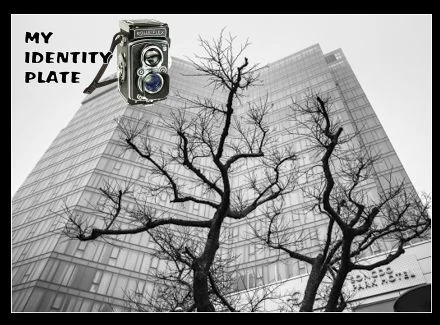
eg. An identity plate used as overlay-  (these images are NOT watermarked)

This is a screen-clip of an image in the Develop module with an image Overlay of a Frame and matte-


https://havecamerawilltravel.com/lightroom/layout-image-loupe-overlay/

3 replies

IangukAuthor
Participant
July 12, 2018

Many thanks WobertC. This is why its best to ask the forum first instead of Adobe. Great job.

Rob_Cullen
Community Expert
Rob_CullenCommunity ExpertCorrect answer
Community Expert
July 9, 2018

I think you might be able to use an "Onion Skin Overlay" in Lightroom.

LIGHTROOM HAS THIS FEATURE, CALLED "IMAGE OVERLAY".

You need an "Onion Skin" overlay image created preferably as a PNG type file with transparent areas. (Without transparency the overlay must be reduced in opacity to see the image below.)

Select the Onion Skin Overlay from its system folder [Ctrl+Shift+Alt+O]  or Menu>View>Loupe Overlay>Choose Layout Image. The overlay can be re-sized by dragging the box 'handles', and hold [Ctrl] to adjust opacity with the mouse 'scrubby' adjustment below the image.

With Loupe view active, and camera tethered, as the images import you will see them with the Overlay in place. Ctrl+Alt+O  will toggle the overlay Visible/Hidden.

eg. An identity plate used as overlay-  (these images are NOT watermarked)

This is a screen-clip of an image in the Develop module with an image Overlay of a Frame and matte-


https://havecamerawilltravel.com/lightroom/layout-image-loupe-overlay/

Regards. My System: Windows-11, Lightroom-Classic 15.1.1, Photoshop 27.3.1, ACR 18.1.1, Lightroom 9.0, Lr-iOS 10.4.0, Bridge 16.0.2 .
27shutterclicks
Inspiring
September 28, 2022

That's a great idea for a frame overlay. I typically use the overlay layout image for watermarking or magazine cover previews, but not for frames. Awesome!

dj_paige
Legend
July 9, 2018

You might want to ask Adobe, instead of posting in this forum, which is 99% other Lightroom users, and we Lightroom users can't answer your questions. Lightroom Classic CC | Photoshop Family Customer Community