Does not the triangle with exclamation mark mean it is clipping?
By @davepastern
It does not. The triangle doesn’t tell you anything about clipping. In fact, the entire Photoshop histogram is completely useless for troubleshooting clipping, because it has no clipping indicators whatsoever. Sure, you can see that there might be a pileup of pixels at the left or right edge, but that doesn’t actually tell you whether any image pixels are visually blown out, or if they are specular highlights (which are OK to clip). It also doesn’t tell you where on the image any clipped pixels are.
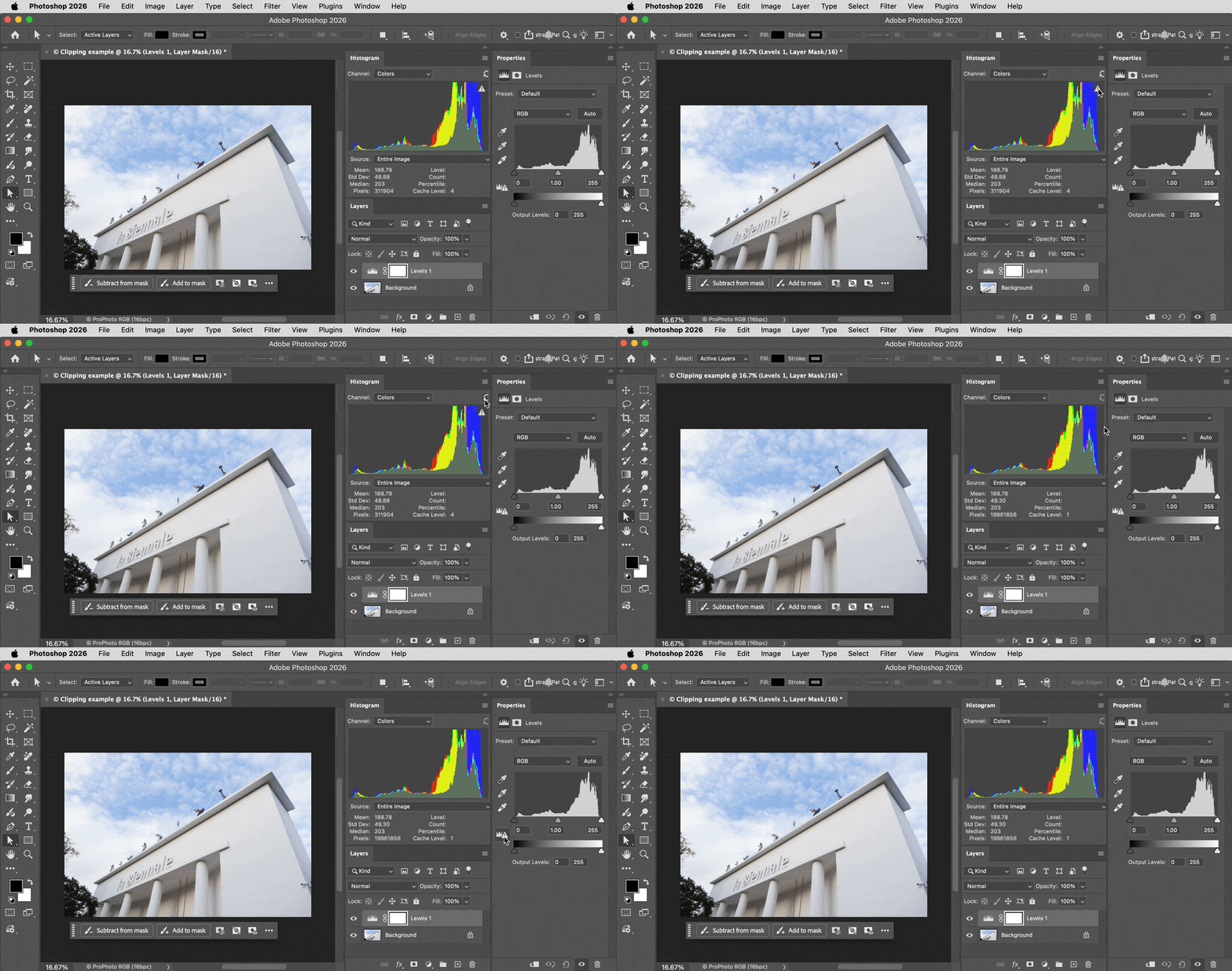
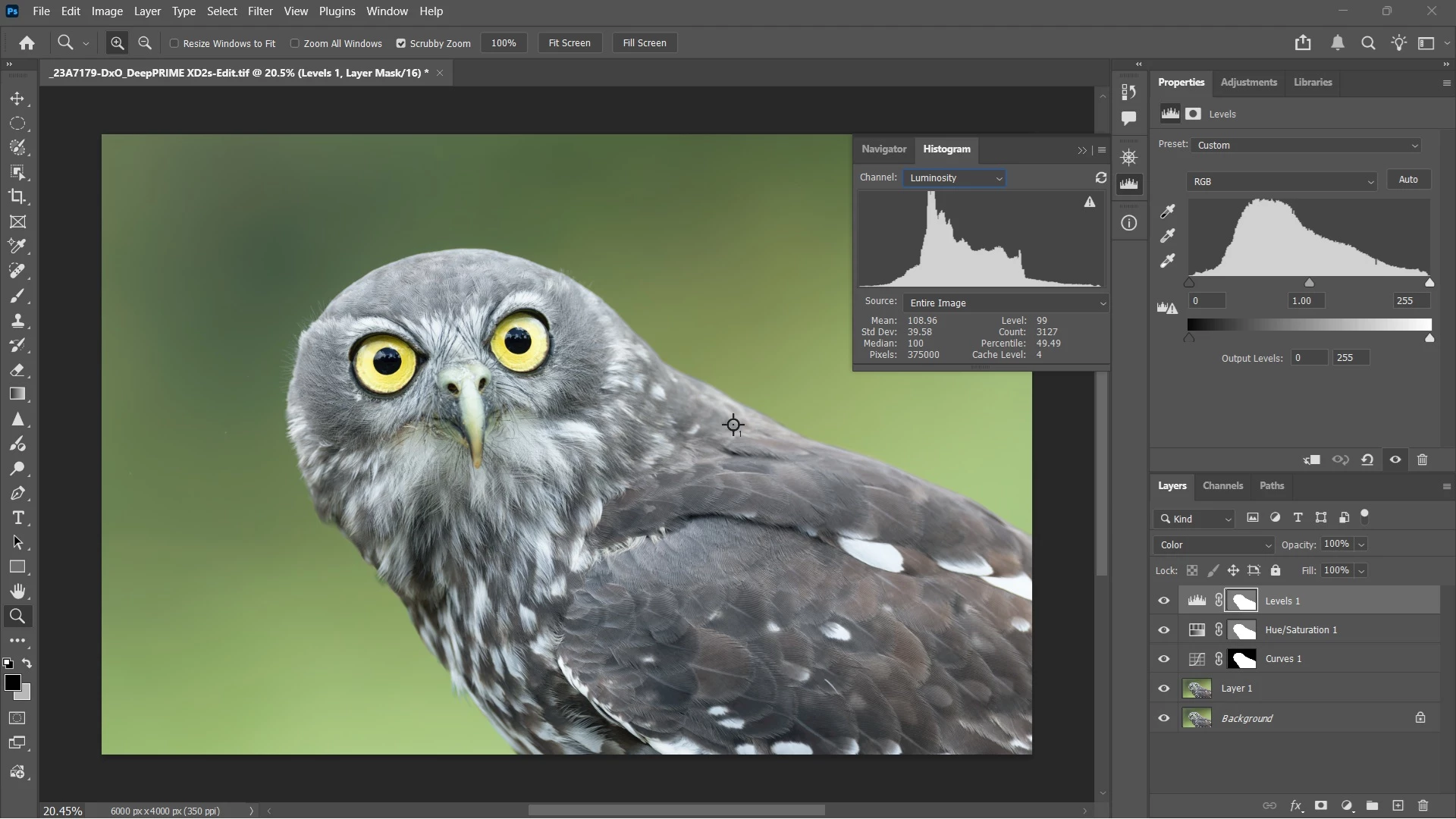
Both the Histogram panel and the Levels/Curves properties can display an alert triangle. If you hover the pointer over them and read the tool tip, it will tell you that the alert indicates a lower precision histogram. That’s because Photoshop initially displays the histogram based on cached data. Photoshop does that for performance reasons, it’s faster. (But Photoshop started doing that in the 1990s because of the much weaker hardware then; some might argue that with current GPU-accelerated hardware it’s time for Photoshop to get rid of the confusing cached preview icons and always display a full quality real time histogram). In the demo below, you see me show the tool tips for the alert triangles in both the Histogram and Levels panels. In both cases, clicking the alert triangles forces a histogram refresh based on full resolution, current image data.
None of that has anything to do with clipping.
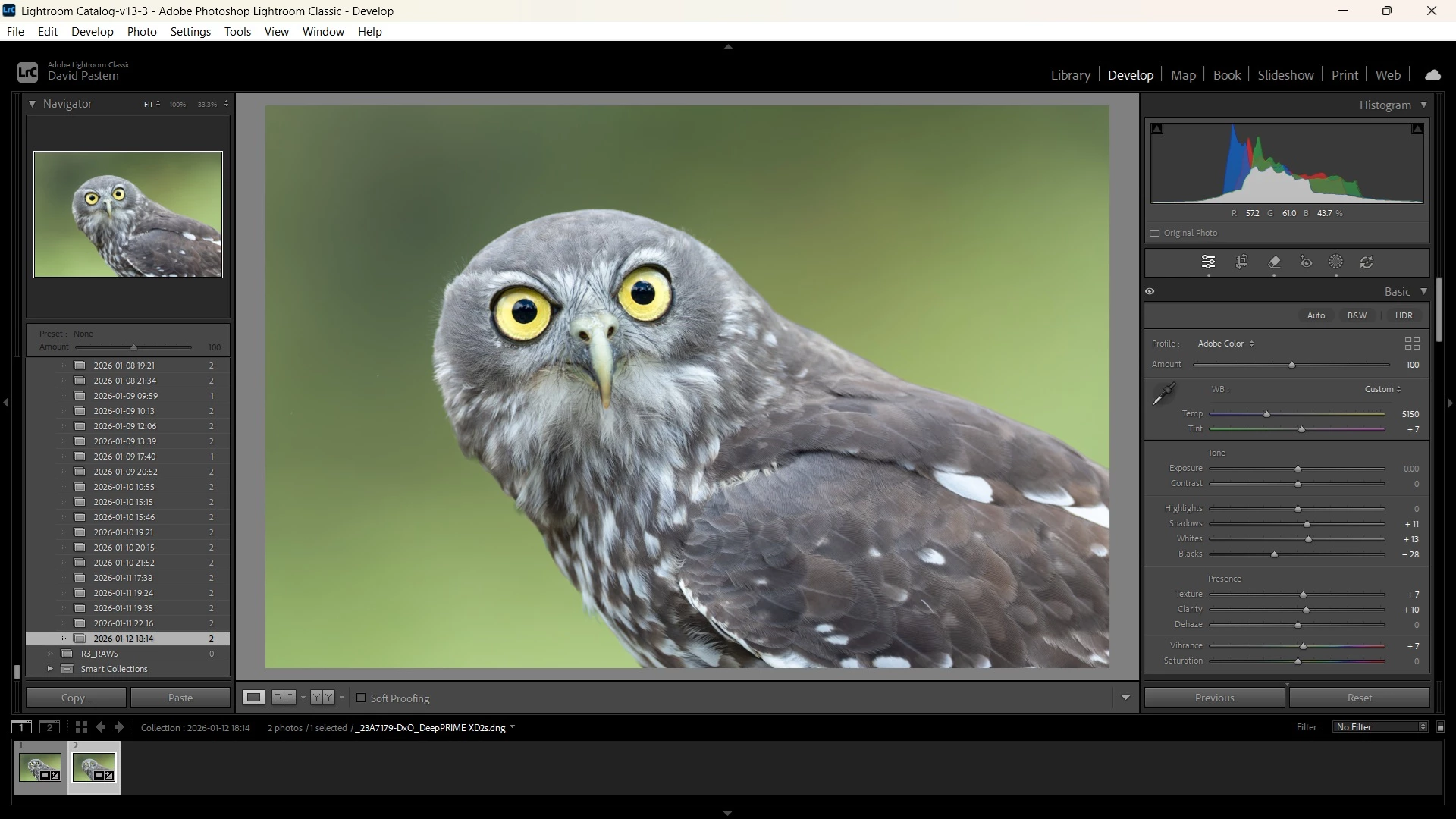
In Lightroom, Camera Raw, and Photoshop, clipping is shown visually, not in the histogram*. In Lightroom Classic and Camera Raw, you might already know that clipping is shown by clicking the icons in the corners of the histogram, or in Lightroom Classic choosing View > Show Clipping (or toggling the single-key J shortcut). When enabled, any shadow clipping is indicated in solid blue and any highlight clipping is indicated by solid red.
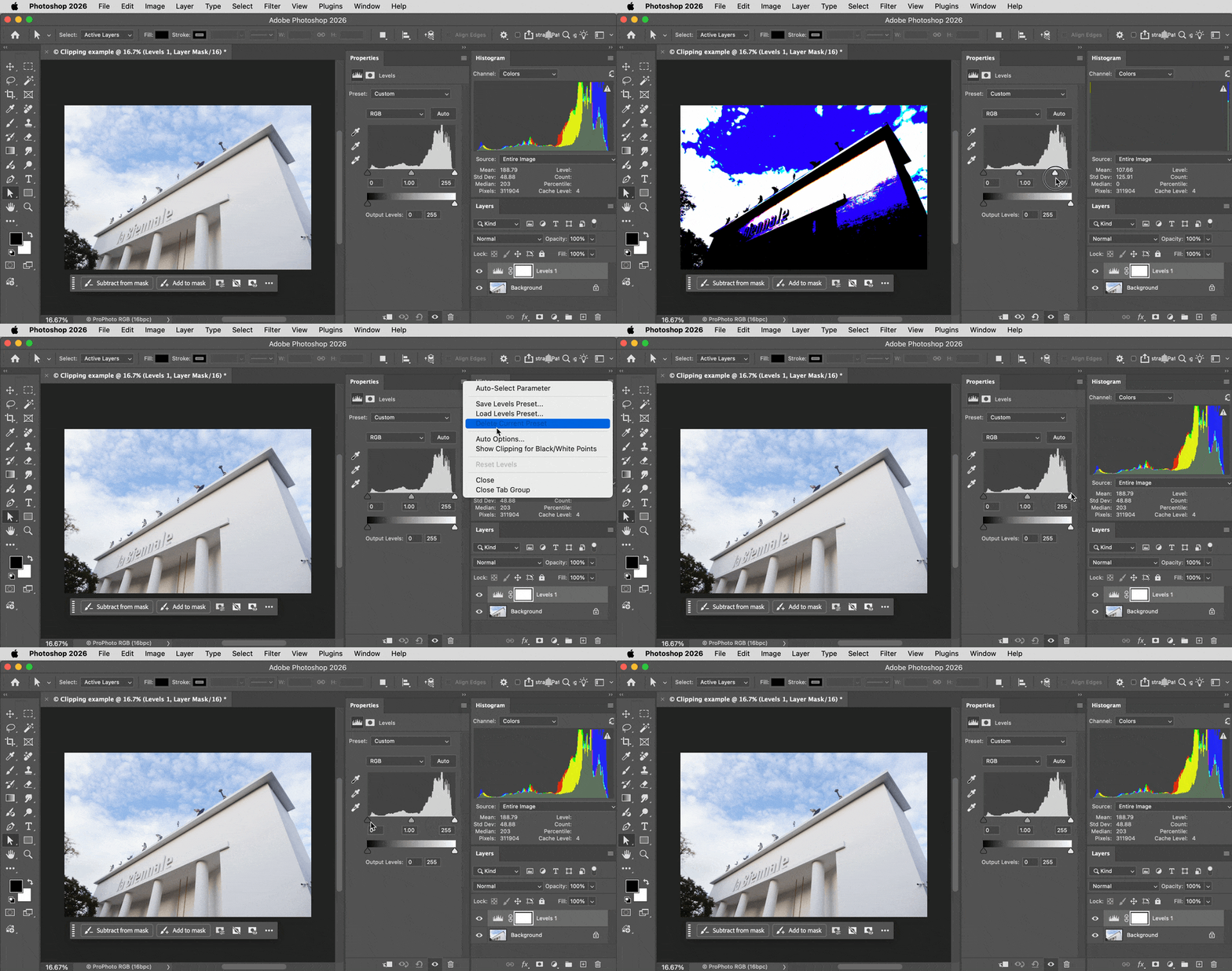
In Photoshop, it works differently. When using Levels or Curves, the tradition is to hold down the Alt key (Windows) or Option key (macOS) while pulling in the black point or white point triangle on the Input slider. This is what you see me do in the demo below.
- When Alt/Option-dragging the white point triangle, any white areas are fully clipping, black areas are not clipped at all, and any color means one or more color channels is clipping.
- When Alt/Option-dragging the black point triangle, any black areas are fully clipping, white areas are not clipped at all, and any color means one or more color channels is clipping.
The demo below also shows me choosing Show Clipping For Black/White Points in the Properties panel menu when a Levels adjustment layer is selected. This is the same as choosing Show Clipping in Lightroom Classic: You don’t have to hold down any keys, but the clipping display is always on which could get in the way when editing the image itself. So a lot of people use the on-demand clipping display instead. (By the way, Alt/Option-dragging a slider triangle to preview clipping also works for many Basic panel options in Lightroom Classic and Camera Raw.)
At the end of the following demo you see a fully black image as I hold down Alt/Option while holding the white point slider at 255 (maximum white). Because it’s fully black, no pixels are clipped. Try this with your own image. If the image is fully black when previewing clipping at Input white point 255, then there is no highlight clipping in your image.
These are the advantages of using the visual clipping displays over the histogram: You can actually see which image pixels are clipping (if any), where they are in the image (so you know what to target for corrections), and also whether they are specular highlights (no editing needed) or important image details that have been blown out (correction is necessary).
*Correction: Unlike Photoshop, Lightroom Classic and Camera Raw can indicate clipping in the histogram; if the icon in the corner lights up, that end of the histogram is clipping. If you see that, then you investigate further using a visual clipping indicator so that you can see where in the image the problem actually is.






 AdChoices