kentmcpherson
Inspiring
September 23, 2017
Answered

Duplicate Photo - Not a Virtual Copy

  • September 23, 2017
  • 2 replies
  • 34971 views

If I want 2 copies of a photo in my library with 2 different names, how do I create the 2nd independent photo?  I don't want a virtual copy because if I rename one, the virtual copy gets renamed as well.  I don't see a Duplicate function anywhere.   Thanks.
This topic has been closed for replies.
Correct answer Abambo

Lr does everything to avoid duplicates. And you do not need it. As simple as that:

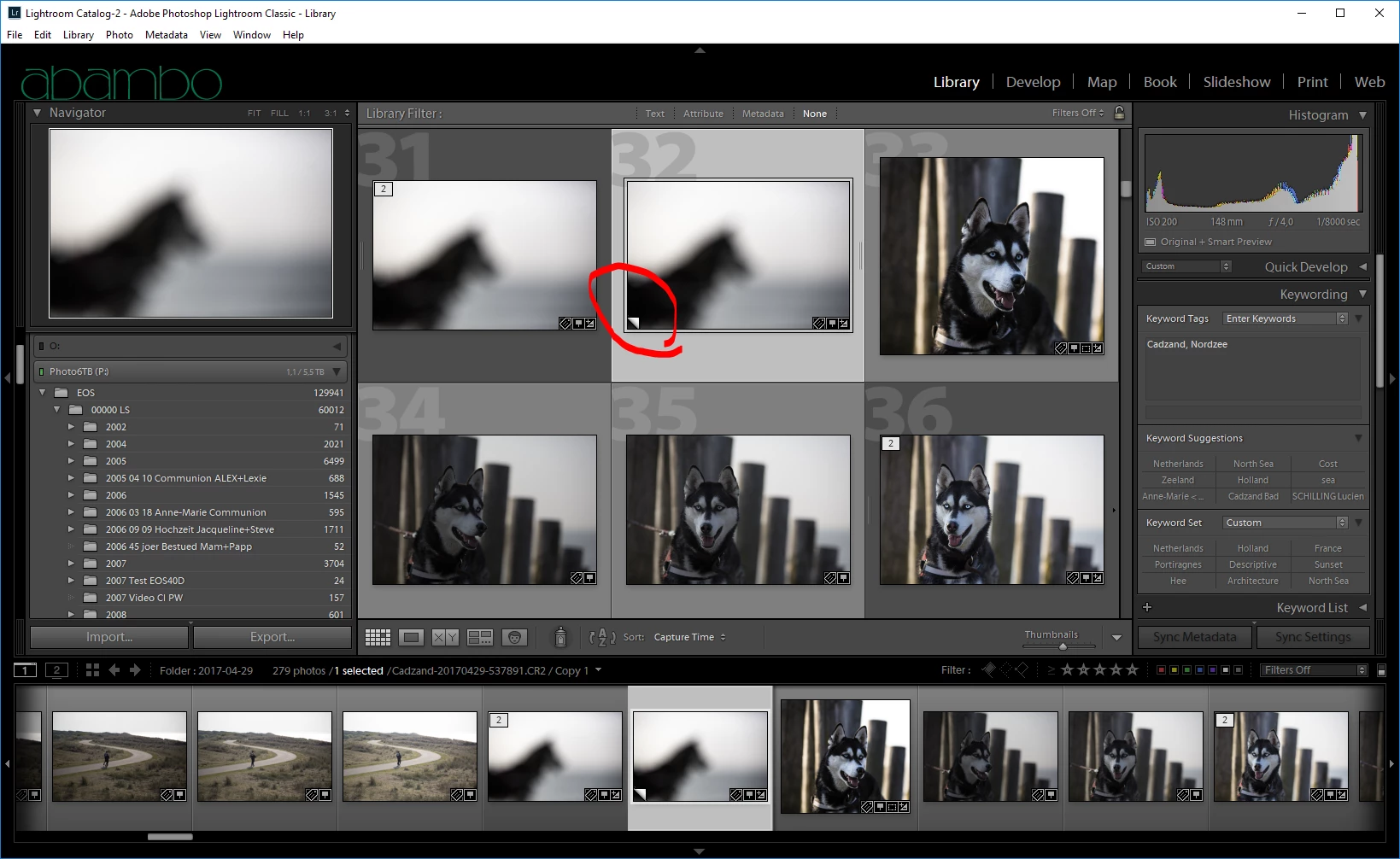
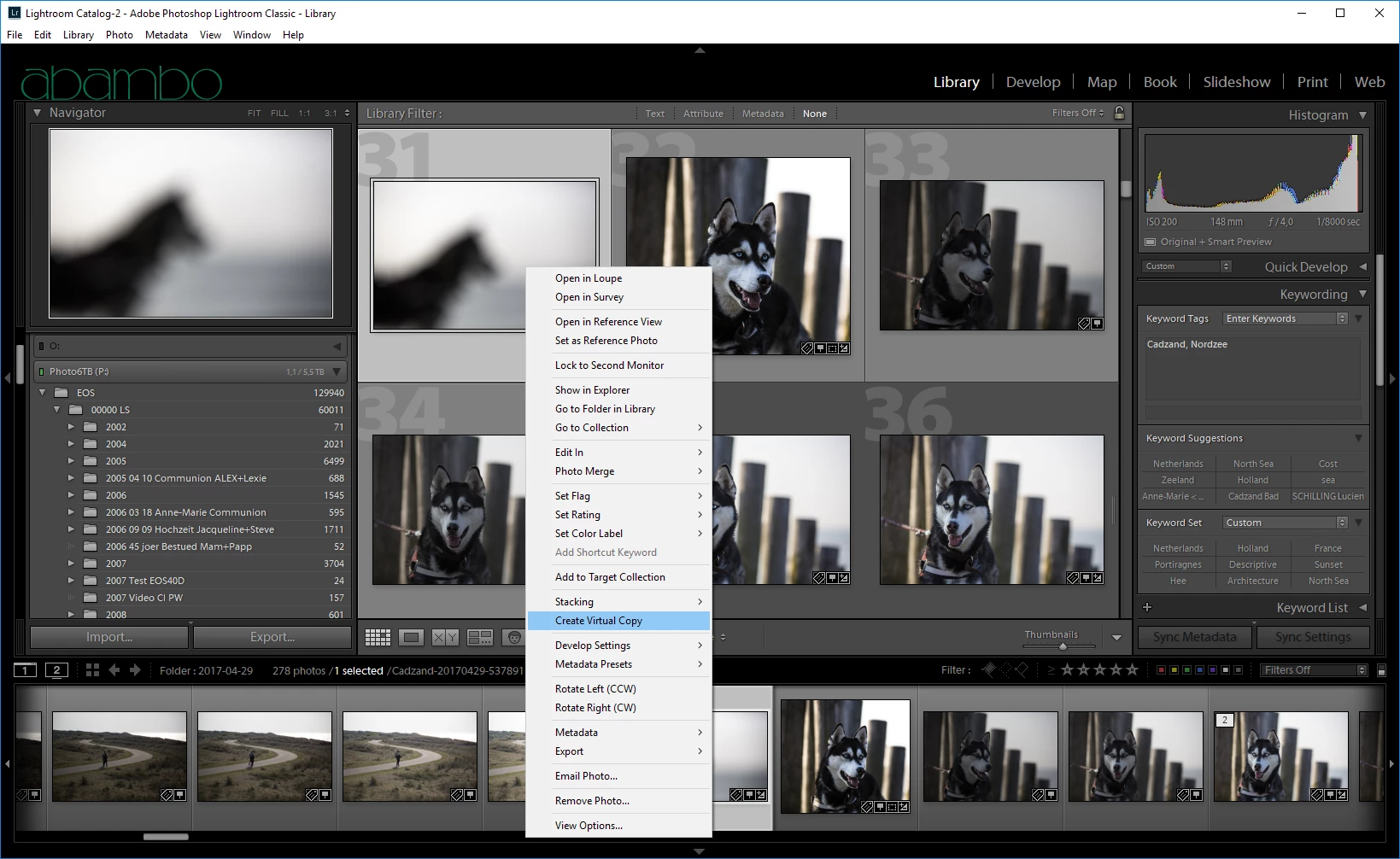
  1. Select your file, RMB, Virtual Copy
  2. Virtual Copy done:
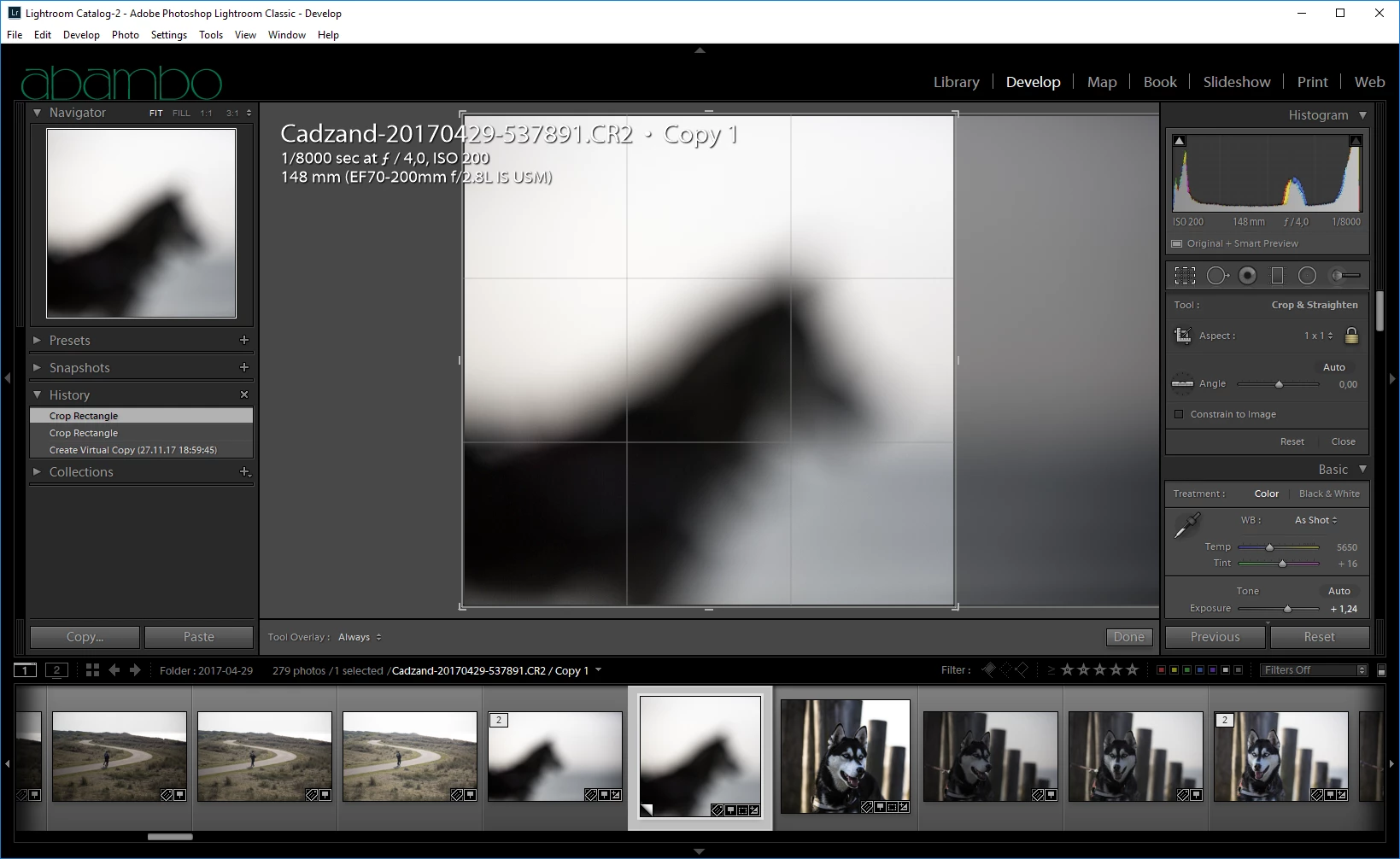
  3. Do your square crop (or what ever you want doing):
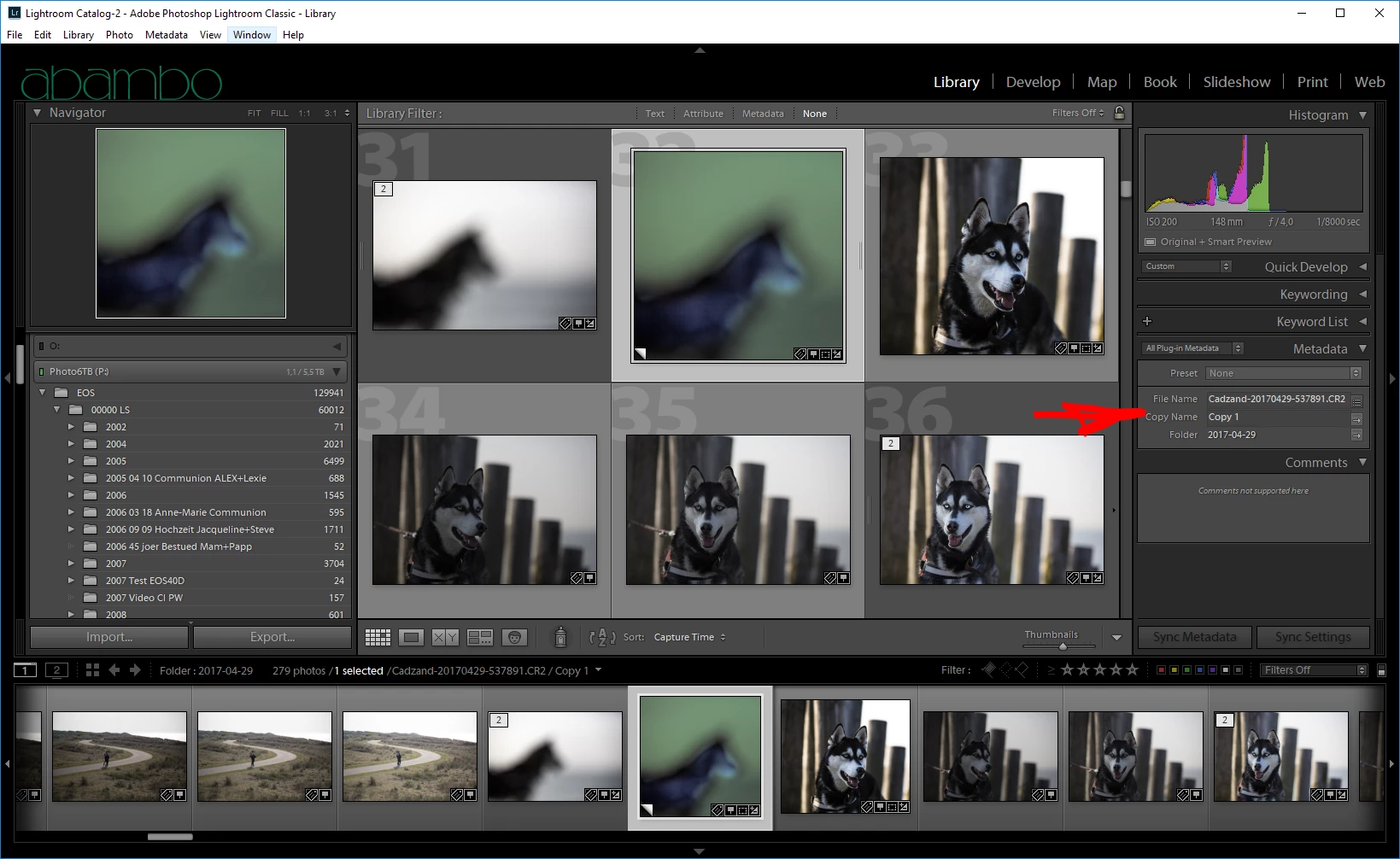
  4. Give your virtual copy a name:

2 replies

dj_paige
Legend
September 23, 2017

Agreeing with Abambo, and stating furthermore that your request is for the opposite of what Lightroom does. I think you DO want a virtual copy. And you can rename the virtual copy. It's certainly the easiest thing to do.

If you must make an actual COPY of the photo, then please know that there is no function or capability in Lightroom to make actual copies of photos.

Participating Frequently
December 7, 2018

Sadly, This does not work exactly as you describe.

If I change the filename on any virtual copy, it changes the filename on every copy to be the same,

but of course The Copy name stays as  COPY 1 ,2,3, etc

but If I export the files to give to someone they all have the same filename- the original not the individual COPY name for example.

My need is to take a group photo and send a copy of just each person in the photo to each person with  a filename comprised of their name ony.

I think this is a legitimate need as I do Family tree research and need to separate out each person in a photo and keep their name with it.

The only way  I can see is to export to PS, then do just the person crop and export back to Lr then export as a JPG .

The JPG is then used in Genealogy programs to link to the person.

It is also essential to keep each of these files separate as I need the persons name as a keyword associated with it.

Using Virtual copies , this keeps all person name keywords in the group on every individual person photo. Very confusing !

Rob_Cullen
Community Expert
Community Expert
December 7, 2018

If I change the filename on any virtual copy, it changes the filename on every copy to be the same,

but of course The Copy name stays as  COPY 1 ,2,3, etc

Do not change the "Filename" of the Master file, instead change the "Copy Name" of each VC.

I can change the "Copy Name" of each Virtual Copy to anything I want. Then I can Export and name every photo exported with the "Copy Name".

So I find it is possible to "Send a copy of just each person in the photo to each person with a filename comprised of their name only."

eg. My master image is NUMBERS-5.jpg

I change the "Copy Name" of several VCs as "One of Five", "Two of Five", "Three of Five", etc.

For the Export I create a preset in the Rename Template Editor-

In The Export Dialog - File Naming-

The Exported JPG files-

Regards. My System: Windows-11, Lightroom-Classic 15.1.1, Photoshop 27.3.1, ACR 18.1.1, Lightroom 9.0, Lr-iOS 10.4.0, Bridge 16.0.2 .
Abambo
Community Expert
Community Expert
September 23, 2017

This is a strange request, as Lr does everything to awoid this. You have for virtual copies a field, called copy name, that is used for this purpose. By default, Lr writes "copy" in this field for virtual copies.

ABAMBO | Hard- and Software Engineer | Photographer
tomash20714083
Participant
November 27, 2017

It is not a strange question at all, I for instance can have a photo which I like to with square composition and for prints I print the rectangle composition so I want to have two copies to work with

dj_paige
Legend
November 27, 2017

  wrote

It is not a strange question at all, I for instance can have a photo which I like to with square composition and for prints I print the rectangle composition so I want to have two copies to work with

As stated, virtual copies meet this requirement perfectly.