
EPICDirector
Known Participant
February 19, 2019
Answered

Edited DNG images pink in Library until I go to Develop modules

  • February 19, 2019
  • 5 replies
  • 5952 views

Using Classic ver 8.2 with CR 11.2 + Graphics card assist in preferences, I now find some of my edited DNGs to be grossly pink in Library Module until I switch to Develop module. Not just a tint. A gross overwhelming pink.
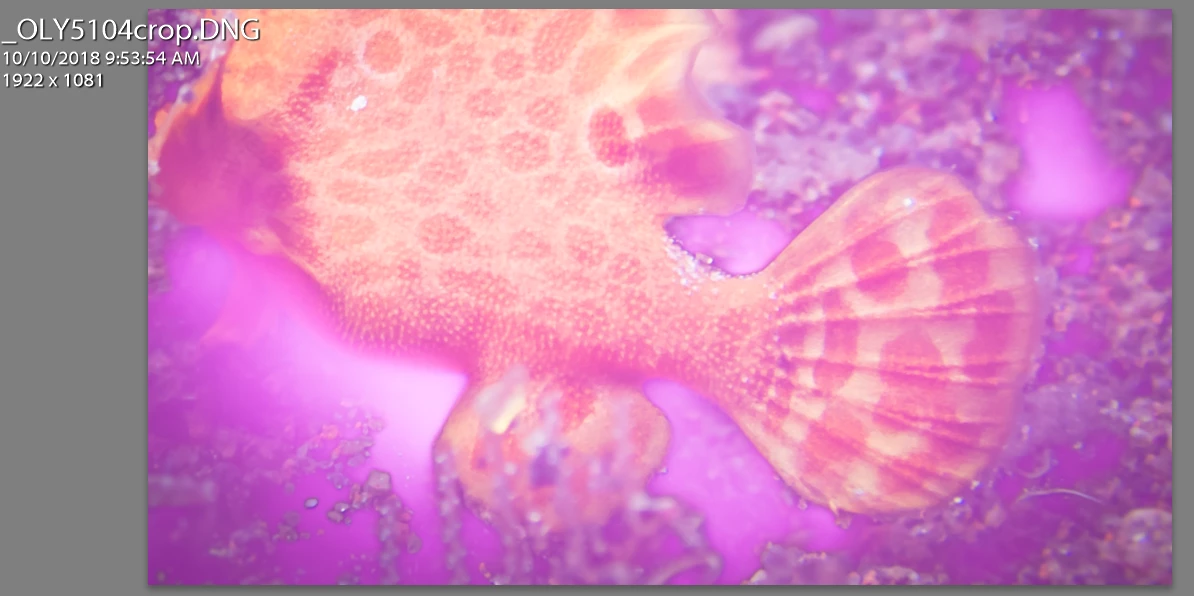
Screenshot of Library Module showing filmstrip
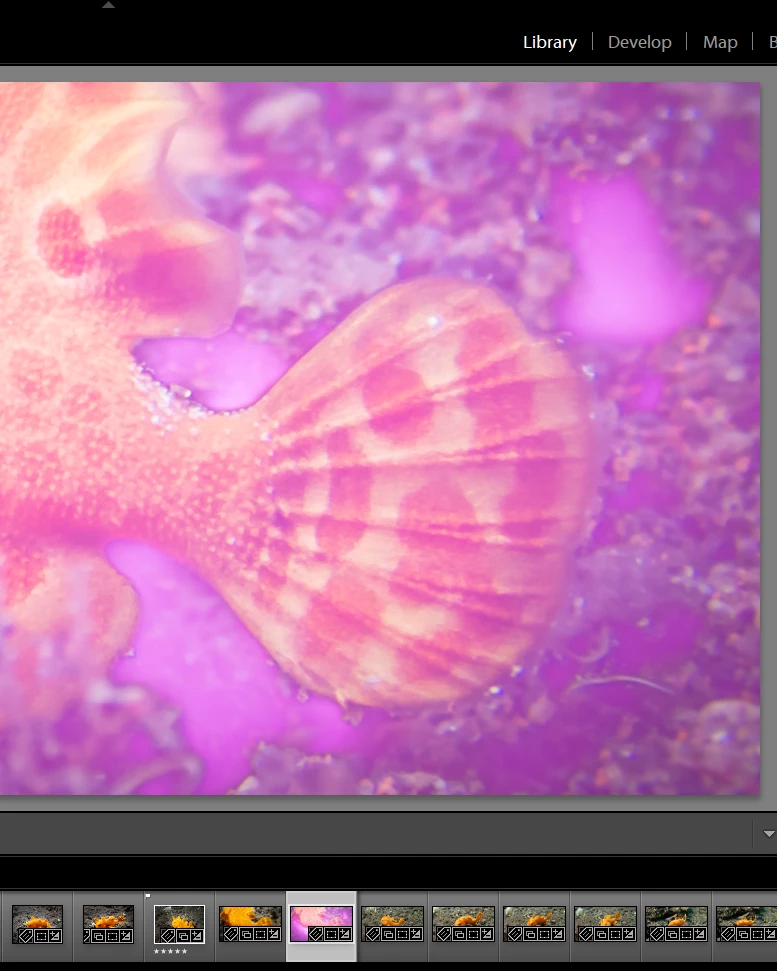
and the original as it should look...

It does not tint all images. Just some. Does anyone know if this is graphics card or Raw cache related? I'd really rather not be turning on/off graphics card assistance.

    This topic has been closed for replies.
    Correct answer Todd Shaner

    DavidG36166309

    You said

    "Interesting in that your new screenshot of Develop no longer shows an odd filmstrip preview." That is exactly the problem I am experiencing - pink in Library Module; normal color in Develop Module.

    Furthermore Normal before I made changes in the Develop module (crop, radial filter, profile, highlights, shadows, clarity etc sliders); pink in Library previews after making those slider adjustments.


    EPICDirector  wrote

    DavidG36166309

    Furthermore Normal before I made changes in the Develop module (crop, radial filter, profile, highlights, shadows, clarity etc sliders); pink in Library previews after making those slider adjustments.

    Hit the master Reset button in the Develop module lower right pane with that image file selected. Does it now look normal? If so try to narrow it down to a particular setting being applied that causes the issue. If no change select that image file and then select 'Remove' and not 'Delete from Disk.' Next right click the containing folder and select 'Synchronize Folder.' How does it look now?

    5 replies

    EPICDirector
    Known Participant
    March 2, 2019

    Okay I've investigated more. I got it to repeat,this time caused by "cropping" a DNG orig., then spot removal on a DNG, then export as DNG (lossy compression). If I spot removal FIRST, then export as DNG (lossy) and check "add to this catalog" it comes out discolored. If I export first and spot removal on the exported DNG second, it looks fine.

    Original non-cropped

    Cropped and rotated

    Export the "cropped" (the original is still uncropped) DNG as a "lossy DNG" - this reduces file size from 12MB orig to 6.78MB lossy.

    This reduces filesize to 6.78MB and yields a normal colored "[filename] cropped" that is free to be spot removal.

    If instead, I spot remove the cropped area of the original BEFORE exporting...

    and export the cropped + spot removal as a lossy DNG and name it "Filename crop-2" I get the problem in Library module:

    Which does not quite disappear in Develop module but is apparent the "spots" are pixelated and not working.

    Can anyone duplicate this phenomenon? Here are my settings for "export as"

    Todd Shaner
    Legend
    March 2, 2019

    EPICDirector  wrote

    Okay I've investigated more. I got it to repeat,this time caused by "cropping" a DNG orig., then spot removal on a DNG, then export as DNG (lossy compression). If I spot removal FIRST, then export as DNG (lossy) and check "add to this catalog" it comes out discolored. If I export first and spot removal on the exported DNG second, it looks fine.

    I can confirm what you are seeing with an even simpler processing.

    1) Apply a Spot Removal Tool Clone spot to a raw file.

    2) Export tto DNG FIle Format with 'Use Lossy Compression checked.

    3) The returned lossy DNG export file exhibits magenta coloration!

    In the below screenshot the left image is a CR2 raw file with a Spot Removal Tool clone spot applied to the upper grayscale patch and source set to the Blue patch. The right image is the resulting export to lossy DNG file. Opening the Spot Removal tool and moving the source or destination clone spot restores the original rendering. Clearly there's something wrong with lossy DNG conversion process. I'll search the Photoshop Family forum for similar posts.

    Todd Shaner
    Legend
    March 2, 2019

    I've reported this issue at a post in the Photoshop Family forum with a similar issue concerning lossy DNG file format. Please add any additional comments and click on the 'Me To' and 'Follow' buttons in the top header of the below post. Thank you.

    Lightroom/Camera Raw: Converting raw files to lossy DNG sometimes results in purple-cast previews in the Library module …

    GoldingD
    Legend
    February 20, 2019

    As for enabling use of GPU, probably Ok, cost nothing to try. Do be aware of:

    https://www.lightroomqueen.com/lightroom-performance-debunking-myths/

    GoldingD
    Legend
    February 19, 2019

    Looking at your screenshots, looking at the filmstrip, you are selecting, apparently, different images, hard to prove as your additional info on the filmstrip (file name) is turned off.

    in that filmstrip, notice the one image that is flagged, notice that you are selecting on the second image to the right in one screenshot, one image to the right in the other screenshot.

    need to compare same image.

    EPICDirector
    Known Participant
    February 19, 2019

    To davidg36166309
    I can assure you that I have both images the same selected but I understand the confusion of my original 3 screen grabs because I was selective with my selection. I was trying to avoid the whole module monitor screen.
    To simplify, here are what my module monitor screen shows in Library module (top), and in Develop module (bottom). Not shown are the full screen views from my second monitor showing Pink (from Library) and normal (from Develop).
    Thanks for your selection to delete the 1:1 previews. I'll try that next. Could my preview cache be getting overfilled?

    I

    GoldingD
    Legend
    February 19, 2019

    Interesting in that your new screenshot of Develop no longer shows an odd filmstrip preview.

    It’s not that the preview cache is getting overfilled, but that some corruption might exist

    TheDigitalDog
    Inspiring
    February 19, 2019

    1. Check GPU settings (on or off) and try a different setting. This is found in preferences.

    2. It could be a faulty ICC display profile. Recalibrate and build a new one.

    3. It could be how the profile was built. Set your software to build Version 2 (V2) not V4 profiles.

    4. It could be the type of profile built. Try Matrix instead of LUT based profile. Again, that's a setting in whatever software you use to calibrate and profile the display.

    Author “Color Management for Photographers" & "Photoshop CC Color Management/pluralsight"
    EPICDirector
    Known Participant
    February 19, 2019

    To Digital Dog -

    In Library Module, Edit>Preferences>[Performance Tab] uncheck Use Graphics Processor
    Then shut down and restart Lightroom resulted in no improvement. Both of my monitors showing pink images until I go to develop Module.
    Also, If my ICC display profile was faulty, wouldn't all images display the problem? Also why would switching to develop module "fix" it. No other apps exhibit the problem in Library Module. Not Bridge. Not Photoshop. Not Windows Photos.

    <NEW>However I just discovered that LR's Slideshow and Print modules, when highlighting the pink image in Library Module and "taking" it to those modules by clicking the module selection, still shows a pink "version", not the correct color Bridge, Photoshop, Photos shows.
    Also that particular edited image is pink on both of my monitors.

    TheDigitalDog
    Inspiring
    February 19, 2019

    EPICDirector  wrote

    To Digital Dog -

    Also, If my ICC display profile was faulty, wouldn't all images display the problem? Also why would switching to develop module "fix" it.

    Not necessarily. Some applications have issues with either corrupted display profiles or V4 profiles, other's do not.

    The two modules have vastly different preview architectures too. So to eliminate possible issues, again, good idea to recalibrate and ensure the software isn't creating a version 4 ICC display profile. If that doesn't work we have to look elsewhere.

    Author “Color Management for Photographers" &amp; "Photoshop CC Color Management/pluralsight"
    Todd Shaner
    Legend
    February 19, 2019

    Try selecting all of the pink images in the Library Grid view and go to menu Library>Previews> 'Build Standard Previews' or 'Build 1:1 Previews' if you need to view at 1:1 Zoom view.

    EPICDirector
    Known Participant
    February 19, 2019

    Rebuilding 1:1 Previews did not work. I got a message:

    "No 1:1 previews were built.
    All 1:1 previews were up to date".

    GoldingD
    Legend
    February 19, 2019

    You would have to delete them first