Known Participant
February 7, 2019
Answered

Edits in Lightroom Do Not Show in Photoshop or Bridge

  • February 7, 2019
  • 2 replies
  • 4335 views

I am using Lightroom Classic CC and Photoshop CC 2019 (monthly subscription) with everything up to date. My problem is that none of the edits I make in Lightroom are showing in other Adobe programs such as Photoshop or Bridge.

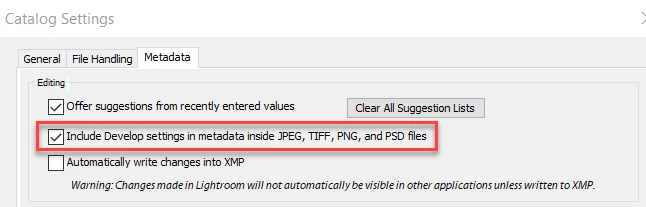
I have checked the box in Lightroom --> Catalog Settings --> Metadata,  "automatically write changes into Metadata" and I have tried manually writing metadata to files with edits by right clicking and selecting that option.

I have restarted the programs and attempted different types of light, color transformation corrections in Lightroom (each time writing the metadata to the file) but none show in other Adobe programs.

What am I doing wrong? If anyone can help I would be very grateful.

Thanks,

Michael
This topic has been closed for replies.
Correct answer Todd Shaner

michaelsgoldman  wrote

I also tried working with a jpg and tiff as a test. The jpg immediately updated in bridge to reflect my edits in Lightroom as soon as I "saved metadata to file." The tiff did not though.

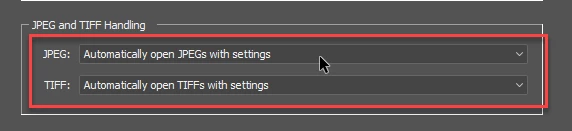
Both JPEG and TIFF should update automatically in Bridge after manual or automatic 'Save Metadata to File' XMP update inside LR. Check the below settings and then close both LR and Bridge and restart your system. Just be aware that when using the LR 'Automatically write changes into XMP' setting there could be a delay in updating the develop metadata. Try CTRL/CMD + S keys in the Develop module to update the metadata immediately.

LR Catalog Settings

Bridge Camera Raw Preferences

michaelsgoldman  wrote

Also, I don't see an option to open the tiff in camera raw when I right click on it in Bridge. My camera raw settings are the same as in Johan's screen grab.

This is most likely due to one or more of the above settings not set properly or corruption of the Bridge Preferences file. If the issue remains after checking the settings and restarting your system then reset the Bridge Preferences file and purge the cache as outlined at the below link:

Troubleshoot Adobe Bridge for freezes and performance issues

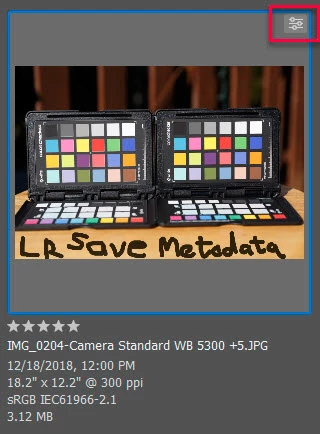
When working properly you should see a camera raw icon in the upper right-hand corner of the Bridge thumbnail. double-clicking that icon will launch it in ACR and the right-click and File> Open in Camera Raw selections should also be available.

2 replies

TheDigitalDog
Inspiring
February 7, 2019

To add what Johan has written, you need to be aware that edits in many kinds of docuemnts are not visible OUTSIDE Lightroom until you actually render them. So if you have say a TIFF or JPEG and apply edits in LR, but then open that JPEG or TIFF in Bridge or Photoshop, the edits are only applied within the metadata and not the actual image data. Only once you use LR to export that to a new JPEG or TIFF will the edits be applied and then you will see those edits in Bridge or PS. Or as shown above, open them from LR into Photoshop via the ACR settings seen. ACR then applies the edits, akin to Export from LR.

Author “Color Management for Photographers" & "Photoshop CC Color Management/pluralsight"
Known Participant
February 7, 2019

Thank you both for the tips. I am working with PSD files, but looks like those cannot be opened in camera raw…

To clarify, If I make edits in Lightroom and save the metadata to the file, it is impossible to see those edits in another adobe program without exporting a new file with the edits baked in. Is that correct? In that case I guess I had misinterpreted what I read about setting up a workflow between Lightroom and Photoshop…

TheDigitalDog
Inspiring
February 7, 2019

michaelsgoldman  wrote

To clarify, If I make edits in Lightroom and save the metadata to the file, it is impossible to see those edits in another adobe program without exporting a new file with the edits baked in. Is that correct?

Correct. The metadata might be in the catalog, might be saved in the files but NOT burned into the existing pixels yet.

Author “Color Management for Photographers" & "Photoshop CC Color Management/pluralsight"
JohanElzenga
Community Expert
Community Expert
February 7, 2019

What kind of images are these? RAW or JPEG? If these are JPEG or TIFF images, then the edits will only show in Photoshop if you let Photoshop use Camera Raw for opening JPEG's and TIFF's. That is an option in the Camera Raw Preferences.

-- Johan W. Elzenga
Known Participant
February 8, 2019

I also tried working with a jpg and tiff as a test.

The jpg immediately updated in bridge to reflect my edits in Lightroom as soon as I "saved metadata to file."

The tiff did not though. Also, I don't see an option to open the tiff in camera raw when I right click on it in Bridge. My camera raw settings are the same as in Johan's screen grab.

So are jpgs the only file type that allow you to see Lightroom edits in other adobe apps? Are there any lossless file types that would do the same?

JohanElzenga
Community Expert
Community Expert
February 8, 2019

In Bridge, don't you have the 'File - Open in Camera Raw' menu?

-- Johan W. Elzenga