

Answered
Error While Moving Files / File Was Missing / XMP Files (that do not exist)
Interesting annoyance.
I get an error message when moving photos (within LrC) about missing XMP files. This despite having no XMP files to move.
Here is the File Explorer screen capture of before the move:
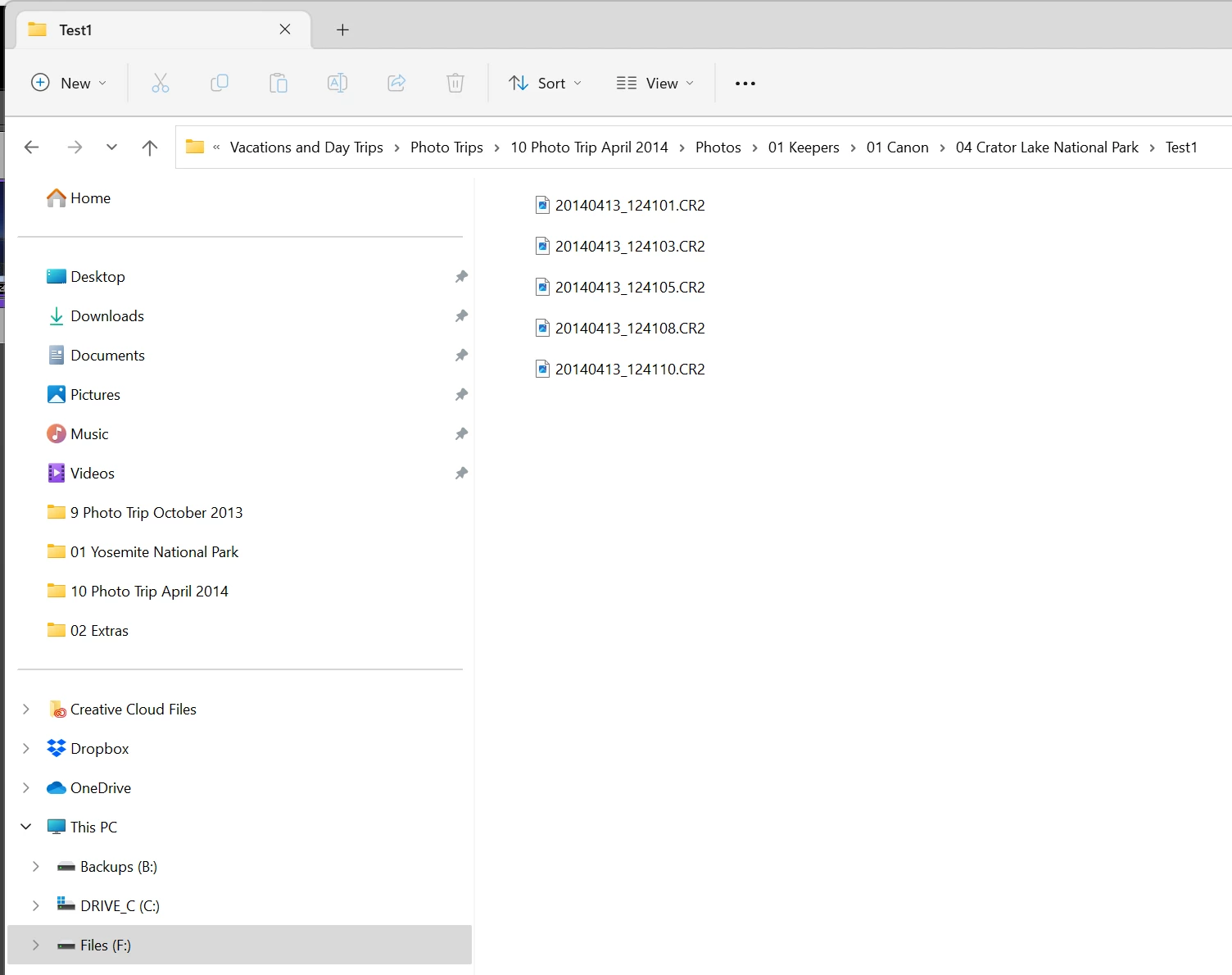
As you can see, no XMP files (as I want it)
Here is the error message:
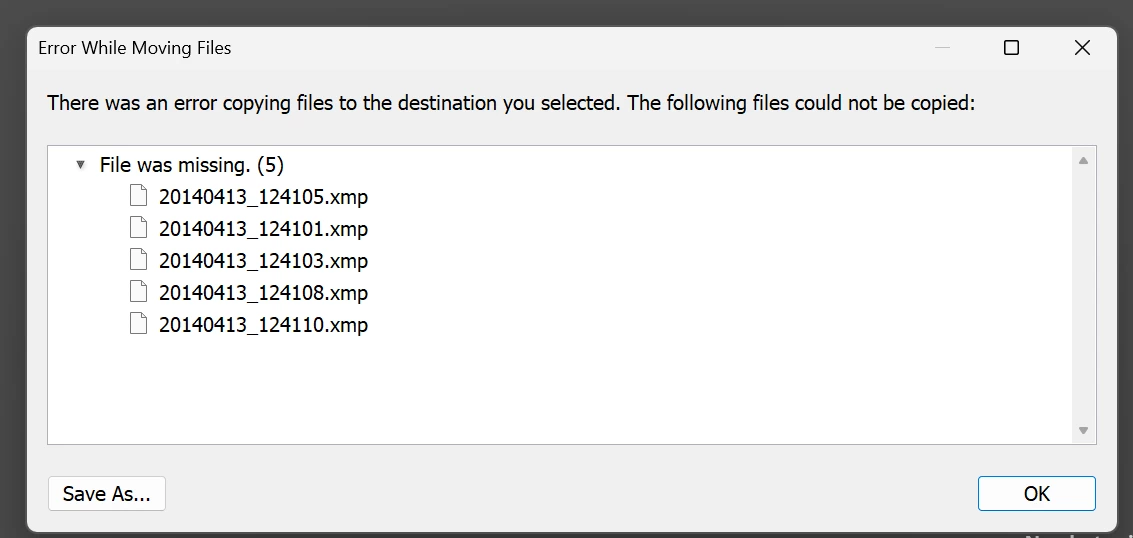
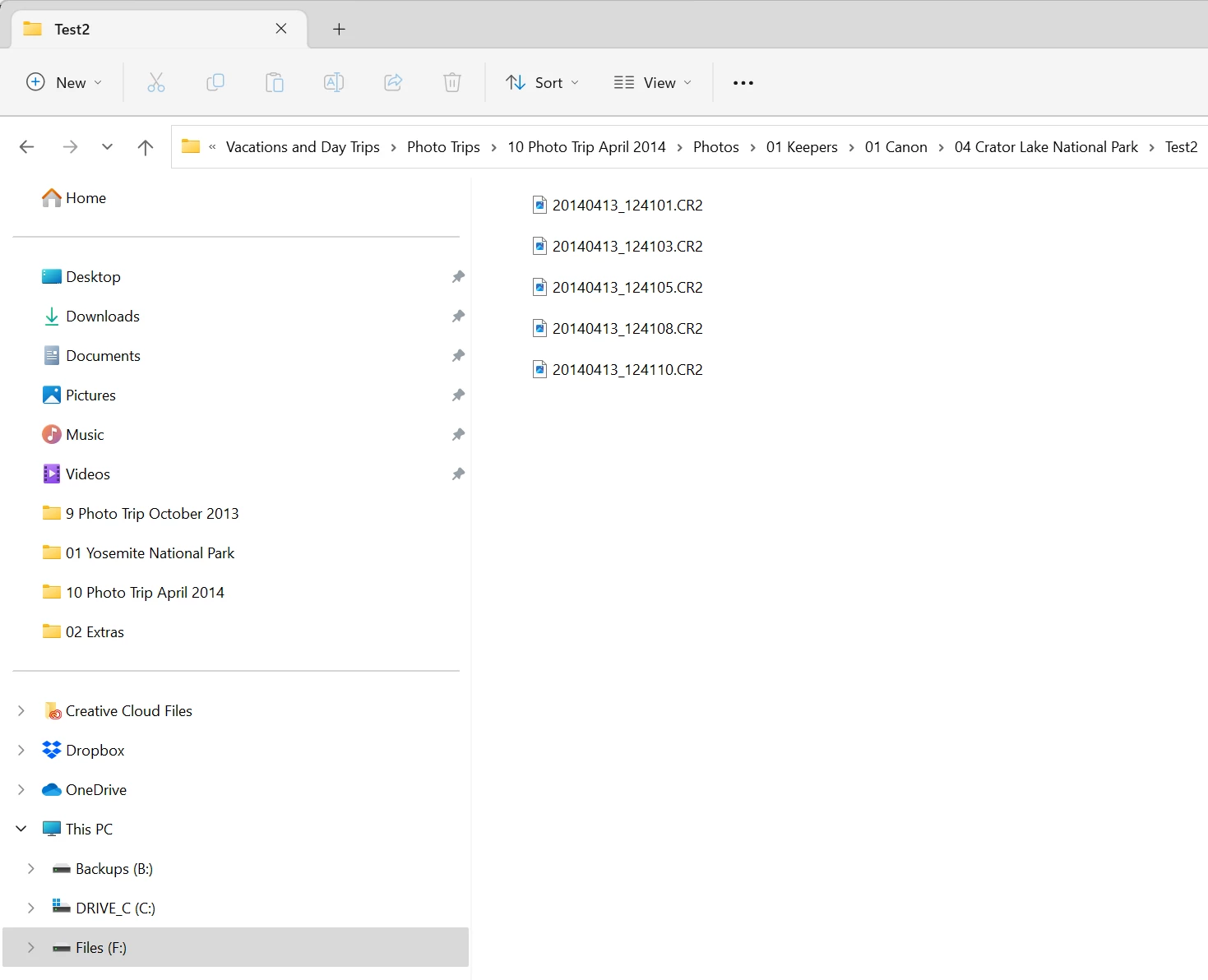
I just press on Ok, and it moves on, results as , in folder I moved photos to:expected
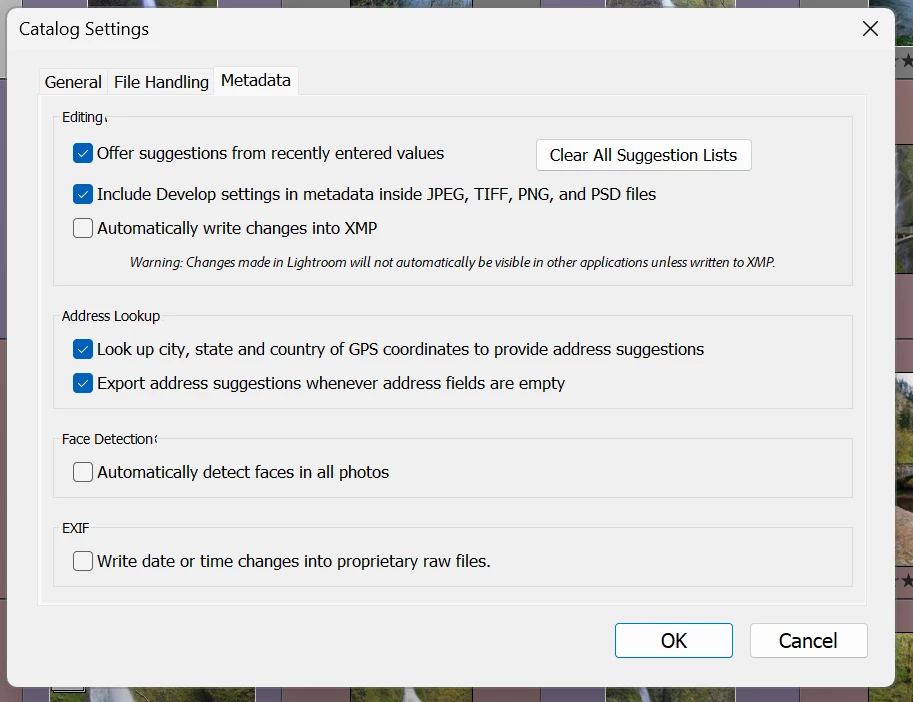
Note that I do not have the option to automatically write changes into XMP turned on:
And here is my SYS Info:
Lightroom Classic version: 12.4
License: Creative Cloud
Language setting: en
Operating system: Windows 10 - Home Premium Edition
Version: 10.0.22621
Application architecture: x64
System architecture: x64
Logical processor count: 32
Processor speed: 2.9GHz
SqLite Version: 3.36.0
CPU Utilisation: 0.0%
Built-in memory: 65243.7 MB
Dedicated GPU memory used by Lightroom: 2555.2MB / 8032.0MB (31%)
Real memory available to Lightroom: 65243.7 MB
Real memory used by Lightroom: 10218.7 MB (15.6%)
Virtual memory used by Lightroom: 14140.0 MB
GDI objects count: 1173
USER objects count: 3309
Process handles count: 4839
Memory cache size: 864.8MB
Internal Camera Raw version: 15.4 [ 1508 ]
Maximum thread count used by Camera Raw: 5
Camera Raw SIMD optimization: SSE2,AVX,AVX2
Camera Raw virtual memory: 5943MB / 32621MB (18%)
Camera Raw real memory: 4136MB / 65243MB (6%)
System DPI setting: 144 DPI (high DPI mode)
Desktop composition enabled: Yes
Standard Preview Size: 3840 pixels
Displays: 1) 3840x2160
Input types: Multitouch: No, Integrated touch: No, Integrated pen: Yes, External touch: No, External pen: No, Keyboard: No

Graphics Processor Info:
DirectX: NVIDIA GeForce RTX 3070 (31.0.15.3667)
Init State: GPU for Export supported by default
User Preference: GPU for Export enabled

Application folder: C:\Program Files\Adobe\Adobe Lightroom Classic
Library Path: F:\My Photography\Vacations and Day Trips\Photo Trips\10 Photo Trip April 2014\10 Photo Trip April 2014-v12.lrcat  (This is an internal M.2 NVMe)
Settings Folder: C:\Users\DavidsLocal\AppData\Roaming\Adobe\Lightroom

Installed Plugins:
1) AdobeStock
2) ASUSDCP
3) Aurora HDR
4) ColorChecker Camera Calibration
5) DxO PhotoLab 5
6) DxO PhotoLab 5 Importer
7) Flickr
8) HDR Efex Pro 2
9) Helicon Focus Export
10) jf Bag-o-Goodies
11) jf Extended Search
12) jf Metadata Viewer
13) jf Metadata Wrangler
14) jf System Info
15) Loupedeck2
16) Luminar 4
17) Nikon Tether Plugin
18) ON1 Effects 2023
19) ON1 HDR 2023
20) ON1 NoNoise AI 2023
21) ON1 Photo RAW 2023
22) ON1 Portrait AI 2023
23) ON1 Resize AI 2023
24) Plugin Parameters
25) Show Focus Points
26) SmugMug
27) Topaz Photo AI
One Point. The catalog I am working on is an old one. I cannot assert that the use of XMP files was never turned on then turned off in the past. Working in a brand new catalog, a completely different session, does not have this annoyance.
 AdChoices