Participant
August 24, 2024
Question

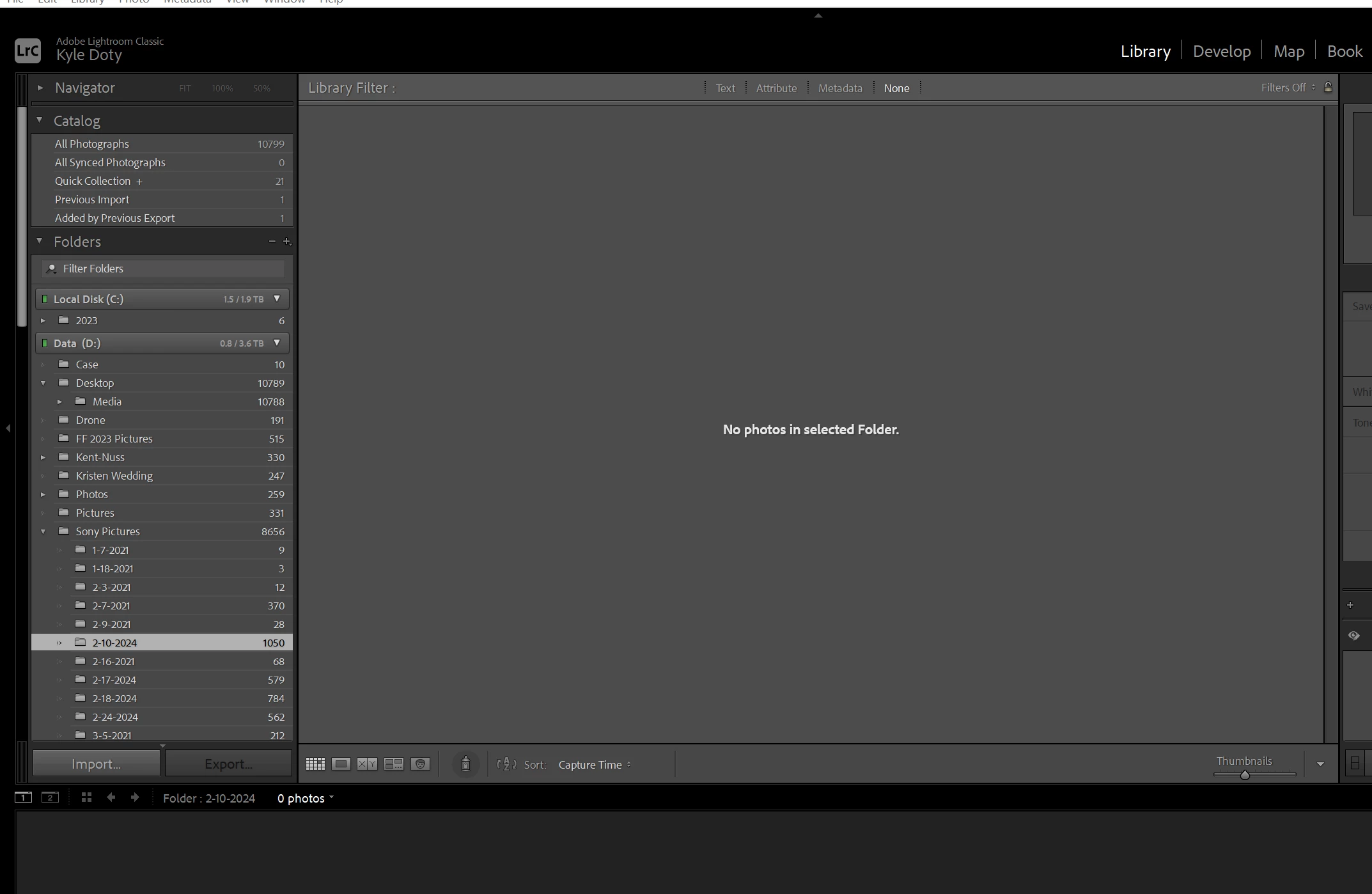
Every folder says "No Photos in Selected Folder" (internal hard drive)

  • August 24, 2024
  • 1 reply
  • 645 views

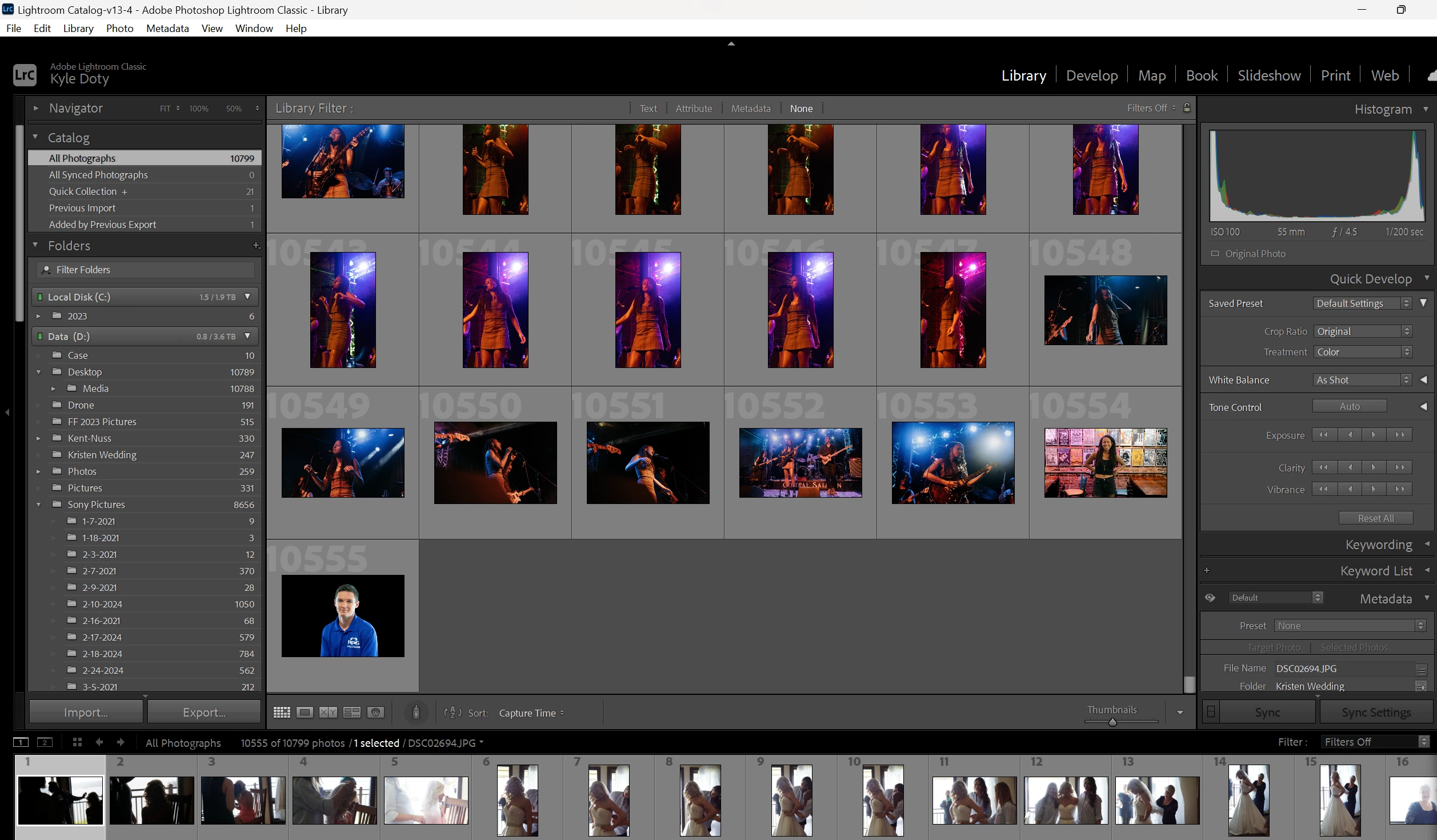
I was editing pictures and closed Lightroom to edit a recently exported photo in Photoshop. When I opened Lightroom back up, no files are showing in my D drive folders. They still show up under All Photographs with their most recent edits, but are not separated into their folders. There have been no changes to any pathways, and the last Lightroom catalog before the current one is from May. I really need these to be organized back in their folders without losing the edits. Using Windows. 
This topic has been closed for replies.

1 reply

johnrellis
Legend
August 25, 2024

Your screenshot shows an inconsistency -- Library filters are off, the selected folder contains many photos, but none are showing in Grid view.  LR can sometimes write inconsistent preferences and cache files that cause such screwy behavior. Try beating LR over the head:


1. In the Library Filter bar, click the preset dropdown menu and do Restore Default Presets. (That won't delete any custom presets you've saved).


2. Ensure the menu item File > Library Filters > Enable Filters is unchecked.


3. Restart LR.


4. Try deleting the Helper.lrdata folder:

a) Do Catalog Settings > General > Show to open Finder / File Explorer on the current catalog folder.
b) Exit LR.
c) In that folder, delete the folder "<catalog> Helper.lrdata".
d) Restart LR, and it will rebuild the folder.

The Helper.lrdata folder caches information about metadata, keywords, folders, collections, and other things to speed the performance of LR and it can sometimes get corrupted. In recent versions, LR has used it more heavily to improve the speed of displaying metadata, and there have been a fair number of bugs with it.


5. Try resetting LR's preferences:
https://www.lightroomqueen.com/articles-page/how-do-i-reset-lightrooms-preferences/


LR sometimes soils its preferences file, and resetting it can fix all sorts of wonky behavior. That article explains how to restore the old preferences if resetting doesn't help.

Participant
August 26, 2024

Thanks for the response! I kept trying things after I posted, and could not get one of my weekly backups to load. I finally realized that I had to unzip the backup before loading it, so I only lost 3 days of history. Everything showed right back where it was supposed to. If for some reason this happens again, I will absolutely follow the steps outlined above so I  don't lose anything. Thanks!