
Inspiring
April 25, 2017
Answered

EXIF data for scanned photos

  • April 25, 2017
  • 3 replies
  • 4039 views

I have scanned over 250 negatives from a vacation trip taken some time back.  Via Windows 10 I inserted a taken date for each of those scanned photos.  My problem is that for two rolls of those negatives scanned a capture date does not show in the EXIF Metadata window and consequently the photos are out of order.  What is causing this data not to appear in some rolls and not others?  I am using Lightroom 3.
This topic has been closed for replies.
Correct answer johnrellis

http://www.zucksrototillers.com/A001.jpg

The above photo shows no date captured in Lightroom 3.

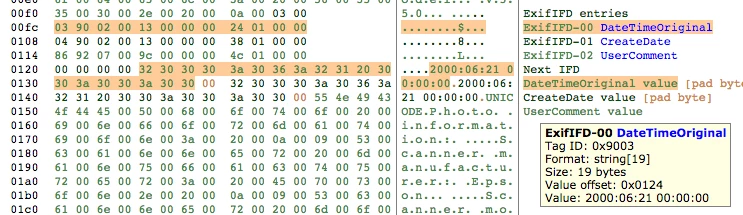
The EXIF:DateTimeOriginal field (aka capture date, aka date taken) in this file does not conform to the EXIF standard.  It is 19 bytes long, whereas the standard calls for it to be 20 bytes long:

It's a fluke that some programs that aren't as carefully coded can still read the date -- they read 20 bytes anyway, and there just happens to be a 0 byte following the 19 bytes, so they read the correct data anyway.

LR generally takes a pretty strict approach to the standards, and thus rejects the field as invalid.

This is an elementary programming error -- which program did you use on Windows 10 to modify the date? Windows File Explorer or something else?

3 replies

chzuckAuthor
Inspiring
April 25, 2017

After posting the photo I imported the photos into Elements 10 Organizer and notice that those photos that did not have any dates in the EXIF data showed a much later date under the thumbnail.  I used Elements to change that date to when the photos were taken and then imported the photos into LR3 again and now the date taken info shows for all photos.  Don't have any idea why, but now I can proceed in making a slide show with the photos in the order I want them.  I know I could have re-arranged them by drag and drop, but it was a lot of photos and I wanted to know why the EXIF data was not there.

johnrellis
Legend
April 25, 2017

I used Elements to change that date to when the photos were taken and then imported the photos into LR3 again and now the date taken info shows for all photos. 

You can also change the capture date in LR using the Metadata > Edit Capture Time command.

chzuckAuthor
Inspiring
April 25, 2017

I could not change the capture date in LR because there was none listed on 2 of the rolls.  However when I imported them into Elements Organizer those with no capture date in LR had a capture date in Elements 10 which equaled the date I scanned the negatives.  Some of the info I edited in a program called AnalogExif which allowed me to insert scanner data.  It has been a long process,  but I think I initially added the taken date in Windows 10 Explorer, because I was hoping it would put the photos in somewhat the order they were taken.  Thanks so much for your in depth analysis.

chzuckAuthor
Inspiring
April 25, 2017

http://www.zucksrototillers.com/A001.jpg

The above photo shows no date captured in Lightroom 3.

johnrellis
johnrellisCorrect answer
Legend
April 25, 2017

http://www.zucksrototillers.com/A001.jpg

The above photo shows no date captured in Lightroom 3.

The EXIF:DateTimeOriginal field (aka capture date, aka date taken) in this file does not conform to the EXIF standard.  It is 19 bytes long, whereas the standard calls for it to be 20 bytes long:

It's a fluke that some programs that aren't as carefully coded can still read the date -- they read 20 bytes anyway, and there just happens to be a 0 byte following the 19 bytes, so they read the correct data anyway.

LR generally takes a pretty strict approach to the standards, and thus rejects the field as invalid.

This is an elementary programming error -- which program did you use on Windows 10 to modify the date? Windows File Explorer or something else?

chzuckAuthor
Inspiring
April 25, 2017

I initially put in a taken date in Windows File Explorer. 

Apparently this is not uncommon as I saw similar posts by others when working with scanned images.  A tutorial on how to process scanned images would be great.  The 275 photos I am working on were taken over 4 days with two cameras and I am trying to get them into the order they were taken to make a slide show.  I realize I will need to drag and drop some of the photos into the order I need them.  The way it was, those 2 rolls of shots were near the end instead at the beginning.  And apparently because of a date error that i could not see until I imported them into Elements.

johnrellis
Legend
April 25, 2017

I just tested Windows File Explorer, and it appears to be following the industry standards when changing what it calls Date Taken.  So I suggest uploading a sample problem photo to Dropbox or similar and posting the sharing link here.  We can put it under the microscope to figure out what's going on.