
Participating Frequently
February 1, 2025
Answered

Expensive new monitor (Dell Ultrasharp U3223QE) but now Develop mode way too saturated. Help!

  • February 1, 2025
  • 2 replies
  • 2652 views

I recently went from a $100 used LG monitor to a $1000+ Dell Ultrasharp U3223QE, pre-calibrated monitor. I was excited, until... 


My photos now look way too saturated in the develop module.  I have spent hours reading other people's posts and understand that the color profile used in Library and Develop are different. But they are SO different that I don't know which is "correct" and I don't know which one I should edit to make look good.


I wouldn't care so much, except that the issue doesn't go away when I export the jpgs.  They look like the less saturated version when I view them in Windows explorer, but revert to the more saturated version when I upload them to my website (and view them in Chrome). 
Correct answer Per Berntsen

The issue is most likely caused by a defective monitor profile installed with the monitor, or by a Windows update.

Dell is notorious for making low quality monitor profiles that are defective out of the box.

You have a wide gamut monitor, and the normal advice would be to try setting the monitor profile to Adobe RGB.

Dell doesn't specify Adobe RGB coverage for your monitor, but specifies 98% coverage for DCI-P3.

So – as troubleshooting and as a possible temporary fix, try setting the monitor profile to DCI-P3.

If this fixes the issue, you should calibrate the monitor with a hardware calibrator, which will also create and install a custom monitor profile that will be more accurate than DCI-P3.

There's also a possibility that this is a GPU issue, but try changing the monitor profile first.


Close all color managed software, like LrC, Photoshop and web browsers.

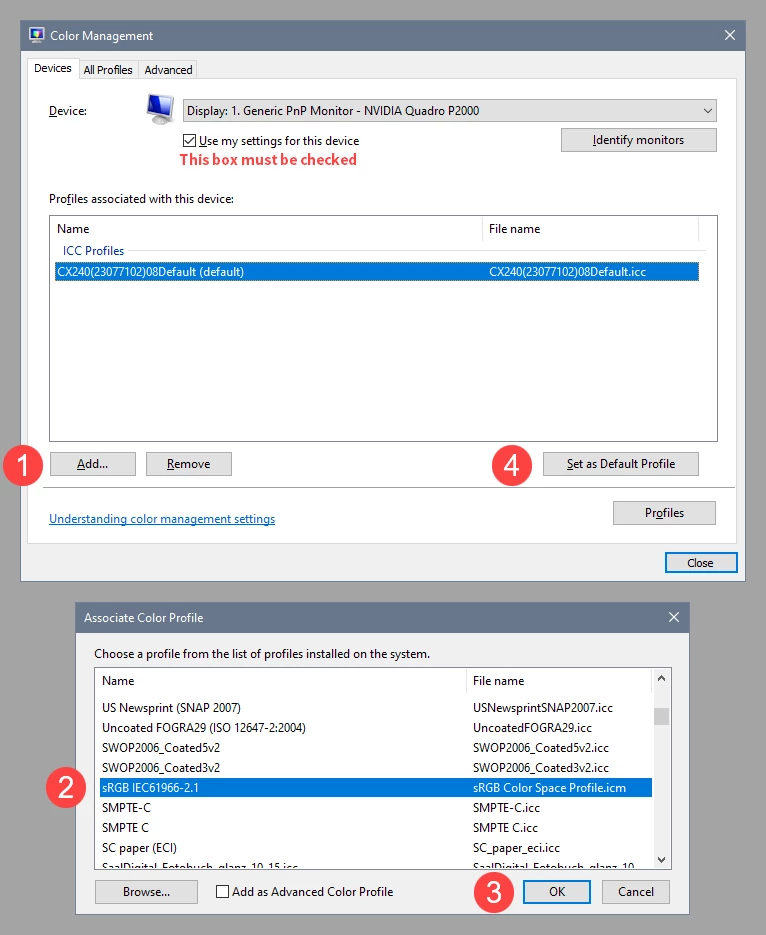
Press the Windows key + R, type colorcpl in the box and press Enter.

Add the DCI-P3 profile, then set it as default. (the screenshot shows sRGB, but use DCI-P3)


2 replies

GoldingD
Legend
February 1, 2025


pre-calibrated monitor.


Hmm, I have this very same monitor, I never noticed that statement. And I never looked for that. Ahh, you mean this:


"The Dell UltraSharp U3223QE monitor comes factory calibrated for color accuracy, gamma, and greyscale. It includes a report in the box that details the calibration for the sRGB, Rec. 709, and DCI-P3 color gamut modes. "


What do you use for monitor calibration? A Datacolor SpyderX, X-rite i1 Display Pro,  or similar?


Hopefully one of the members that have skills in calibration will reply. Ah, I see one has.


Participating Frequently
February 1, 2025

I don't use any monitor calibration tools, which is why I chose this monitor. I assumed it would have accurate colors right out of the box, so I wouldn't have to worry about adjustments—since that's not my expertise. I guess I was wrong!

Per Berntsen
Community Expert
Community Expert
February 1, 2025

Calibration adjusts the monitor to a state suitable for profiling. The second, and more important step (which a hardware calibrator will do) is to create and install a custom monitor profile that describes your monitor's color response.

So when you 're viewing an image that for instance is in the Adobe RGB color space in a color managed application, the colors are converted from the source profile (Adobe RGB) to the monitor profile, ensuring that correct colors are displayed.


If the monitor profile does not describe your monitor's color response correctly, or is defective or corrupted, wrong colors will be displayed. Note that different applications can react differently to a bad profile. In this context, Library and Develop can be considered as different applications since they use separate previews that are created in different ways.

As mentioned previously, Dell's canned profiles are known to be low quality, so follow the steps suggested in my previous post, and let us know how it goes.

Per Berntsen
Community Expert
Per BerntsenCommunity ExpertCorrect answer
Community Expert
February 1, 2025

The issue is most likely caused by a defective monitor profile installed with the monitor, or by a Windows update.

Dell is notorious for making low quality monitor profiles that are defective out of the box.

You have a wide gamut monitor, and the normal advice would be to try setting the monitor profile to Adobe RGB.

Dell doesn't specify Adobe RGB coverage for your monitor, but specifies 98% coverage for DCI-P3.

So – as troubleshooting and as a possible temporary fix, try setting the monitor profile to DCI-P3.

If this fixes the issue, you should calibrate the monitor with a hardware calibrator, which will also create and install a custom monitor profile that will be more accurate than DCI-P3.

There's also a possibility that this is a GPU issue, but try changing the monitor profile first.


Close all color managed software, like LrC, Photoshop and web browsers.

Press the Windows key + R, type colorcpl in the box and press Enter.

Add the DCI-P3 profile, then set it as default. (the screenshot shows sRGB, but use DCI-P3)


Participating Frequently
February 1, 2025

Thank you, I have tried this!


Soo... I did not have any DCI-P3 option in my window except the Dell one which was the current default, however, I found an interesting one called "CalibratedDisplayProfile-7.icc" and I tried that, and it seems to have fixed the issue.  The colors render the same in both modules, and they look good to my eye (not too saturated or too dull). Could this be all I need to do? (Yes, I did click the "Add" button, and there were a lot of others, just none that said DCI-P3). I will try to attach a screenshot

Per Berntsen
Community Expert
Community Expert
February 1, 2025

The DCI-P3 profile should be there. You have to scroll down quite a bit, the profiles are listed in reverse alphabetical order. You could also use Adobe RGB. They are both better than a Dell profile.


quote

 Could this be all I need to do?

By @naomi_5283


It might be good enough, depending on how accurate colors you need, and how close your monitor's color gamut is to the gamut of the profile you use as monitor profile.

If accurate colors are important to you, get a calibrator, for instance this one:

https://calibrite.com/us/product/display-pro-hl/