Participating Frequently
May 21, 2025
Answered

Exported lightroom catalogs not displaying images

  • May 21, 2025
  • 5 replies
  • 808 views

Hello,

I often set up a collection of images, then generate smart previews of them and export them as a catalog.

I do this so I can edit them on my laptop while traveling.

I've been doing this for ages and works great for editing on the road, but yesterday I exported a lightroom catalog, and now that I wanted to do some editing, my images are not appeating (The file could not be found mesage)

If I click the images for editing,  they are not appearing  (I can see the small thumbnails)

I also tried with an old exported lightroom catalog that I worked on it las week, and had the same result,  same message.

I am using the latest version  14.3.1 for windows on both computers

Correct answer Rob_Cullen

"I only have checked "Include available previews", since I generated the smart preview before..."   That does not work for the [Export as a Catalog].!   The Smart Previews you create in the master catalog are associated with the Master catalog only, and are not included in the Exported catalog (See my example below).

You must check the box to [Build / Include Smart Previews], or you will see missing photos when you copy the exported catalog to the laptop.


"this does not happen when I open the catalog (from the same USB) on the "original" machine"-  As expected because the original photos ARE IN the 'original' machine (or a drive connected), and the exported catalog recognises them there. The exported catalog always 'remembers' where the original files are located so as to re-link remote edits when you bring the exported catalog back to merge with the Master catalog by an [Import from another Catalog].


Here is my example of an Exported catalog- (With [Build / Include Smart Previews]  UN-checked:  Note there are NO Smart Previews with this (TEMP CATALOG).
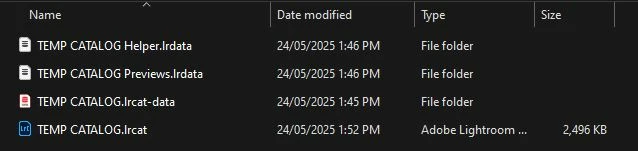
And when the parent folder (containing these catalog files) is copied to my laptop- Result all files are shown as "MISSING".


Your laptop must have either Original files or Smart Previews created in the catalog export if you are going to be able to edit photos.

If you have been "doing this for ages" as you suggest, then something has changed in the Catalog Export dialog that you haven't noticed.

"lightroom will include these on the exported directory with the catalog."- NOT unless you check the box for SPs!

 

5 replies

Rob_Cullen
Community Expert
Community Expert
May 23, 2025

@javieri Can we see a screen-clip of your dialog page when you [Export as a Catalog].?

And can you confirm you Check the box [Build / Include Smart Previews].

If your original image files do exist on the USB drive, then perhaps the exported catalog is recognising they are available, but not in the location expected (as on the PC internal drive), and so showing them as 'missing'.

Can you copy the exported catalog, previews & smart Previews to an internal drive in the laptop and open the catalog from there?


Regards. My System: Windows-11, Lightroom-Classic 15.0, Photoshop 27.0, ACR 18.0, Lightroom 9.0, Lr-iOS 10.4.0, Bridge 16.0 .
javieriAuthor
Participating Frequently
May 23, 2025

Hi @Rob_Cullen

Let me explain my process

I usually create a collection from the pictures I took on an event
Then cull the images with 1-5 stars
Then I filter all the 3 stars images
Then I generate smart previews for all of the 3 stars images
Once that is done I export all the 3 star images to a catalog for editing.

a) I only have checked "Include available previews", since I generated the smart preview before, lightroom will include these on the exported directory with the catalog.

b) I export the catalog directly to mi USB drive, lightroom creates a folder in the USB with all the necessary files, so there is no need for me to copy mi pictures/raw files manually to mi USB

I've been doing this for many years and it worked fine until now, it seems that lightroom is not updating the location for the smart previews on the exported catalog, that is why I'm getting that error when opening the catalog on another machine, but this does not happen when I open the catalog (from the same USB) on the "original" machine

Like I mention before, this is my process, you can always skip generating the smart previews manually and select "Build/Include smart previews" and lightroom will include those into the catalog.

Rob_Cullen
Community Expert
Rob_CullenCommunity ExpertCorrect answer
Community Expert
May 24, 2025

"I only have checked "Include available previews", since I generated the smart preview before..."   That does not work for the [Export as a Catalog].!   The Smart Previews you create in the master catalog are associated with the Master catalog only, and are not included in the Exported catalog (See my example below).

You must check the box to [Build / Include Smart Previews], or you will see missing photos when you copy the exported catalog to the laptop.


"this does not happen when I open the catalog (from the same USB) on the "original" machine"-  As expected because the original photos ARE IN the 'original' machine (or a drive connected), and the exported catalog recognises them there. The exported catalog always 'remembers' where the original files are located so as to re-link remote edits when you bring the exported catalog back to merge with the Master catalog by an [Import from another Catalog].


Here is my example of an Exported catalog- (With [Build / Include Smart Previews]  UN-checked:  Note there are NO Smart Previews with this (TEMP CATALOG).

And when the parent folder (containing these catalog files) is copied to my laptop- Result all files are shown as "MISSING".


Your laptop must have either Original files or Smart Previews created in the catalog export if you are going to be able to edit photos.

If you have been "doing this for ages" as you suggest, then something has changed in the Catalog Export dialog that you haven't noticed.

"lightroom will include these on the exported directory with the catalog."- NOT unless you check the box for SPs!


Regards. My System: Windows-11, Lightroom-Classic 15.0, Photoshop 27.0, ACR 18.0, Lightroom 9.0, Lr-iOS 10.4.0, Bridge 16.0 .
GoldingD
Legend
May 22, 2025

An additional issue is the empty Histogram.

Rob_Cullen
Community Expert
Community Expert
May 22, 2025

You do not need to manually generate Smart Previews before you select images and export them as a catalog.

The Export as a Catalog provides that option in the Catalog export dialog- Check the box [Build / Include Smart Previews]

If you copy the smart previews folder separately to the exported catalog, they are not linked and thus not available to edit.

So check the box and you will get linked Smart Previews exported with the catalog.


There are limitations with the Smart Previews. eg. a full-size file is not available for Photoshop derivatives. (I don't know the limitations with AI generative actions.) You need to [Export Negative files] if you want this capability.


Regards. My System: Windows-11, Lightroom-Classic 15.0, Photoshop 27.0, ACR 18.0, Lightroom 9.0, Lr-iOS 10.4.0, Bridge 16.0 .
javieriAuthor
Participating Frequently
May 22, 2025

Hello Rob,

I know that i don't have to do the previews manually, but  this is something I always do, and also by checking include available previews, always worked.

I understand about the limitations, but the convienece of having a small file for travel, works great for me.

KR Seals
Community Expert
Community Expert
May 21, 2025

You don't mention if you checked the "Export Negative Files" in the Export Catalog dialog box. See the screen clip below.

Ken Seals - Nikon Z 9, Z 8, 14mm-800mm. Computer Win 11 Pro, I7-14700K, 64GB, RTX3070TI. Travel machine: 2021 MacBook Pro M1 MAX 64GB. All Adobe apps.
javieriAuthor
Participating Frequently
May 22, 2025

Hello,

Export negative files is NOT selected, but the  "include available previews" is

the reason is that i don't include the negative files is  that it will make  the exported catalog huge 


Community Manager
May 21, 2025

Hi @javieri — welcome to the community!
Sorry to hear you’re running into issues with Lightroom Classic — let’s see if we can get things sorted out.

Could you share a screenshot of the exact error message you’re seeing? Also, do you notice any question mark icons on your image thumbnails or folders?

And just to help narrow things down — where are your photos stored? If they’re on an external hard drive, it’s worth double-checking the connection (sometimes a loose cable or a finicky USB port can cause problems).

Thanks, and looking forward to helping you out!
Alek

*(If you mention me with an @, like @Aleke, I’ll get a notification and can respond faster.)*
javieriAuthor
Participating Frequently
May 22, 2025


Hello @Aleke, thanks for the prompt response 

Attached the screenshot,

I'm Getting the " ! " on the thumbnails (photo is missing)

The photos are stored on a USB drive,  I export the lightroom catalog straight to the USB drive, so all the files should be in the directory that is created by lightroom.

like I mentioned earlier, this is also happening with an old exported catalog (that i alrady edited and imported back on my PC)

Another thing that i discovered today, If I open the exported catalog (insert the USB drive on my PC, where I originally exported, I can see all the images


