


Participating Frequently
June 24, 2019
Answered

Exported Pictures different from Pictures in Lightroom

  • June 24, 2019
  • 3 replies
  • 3409 views

Hi!

I have the problem, that pictures that I edit in Lightroom look completely different from the exported JPEGs on the same screen. I provides some Screenshots for you to see what I mean.
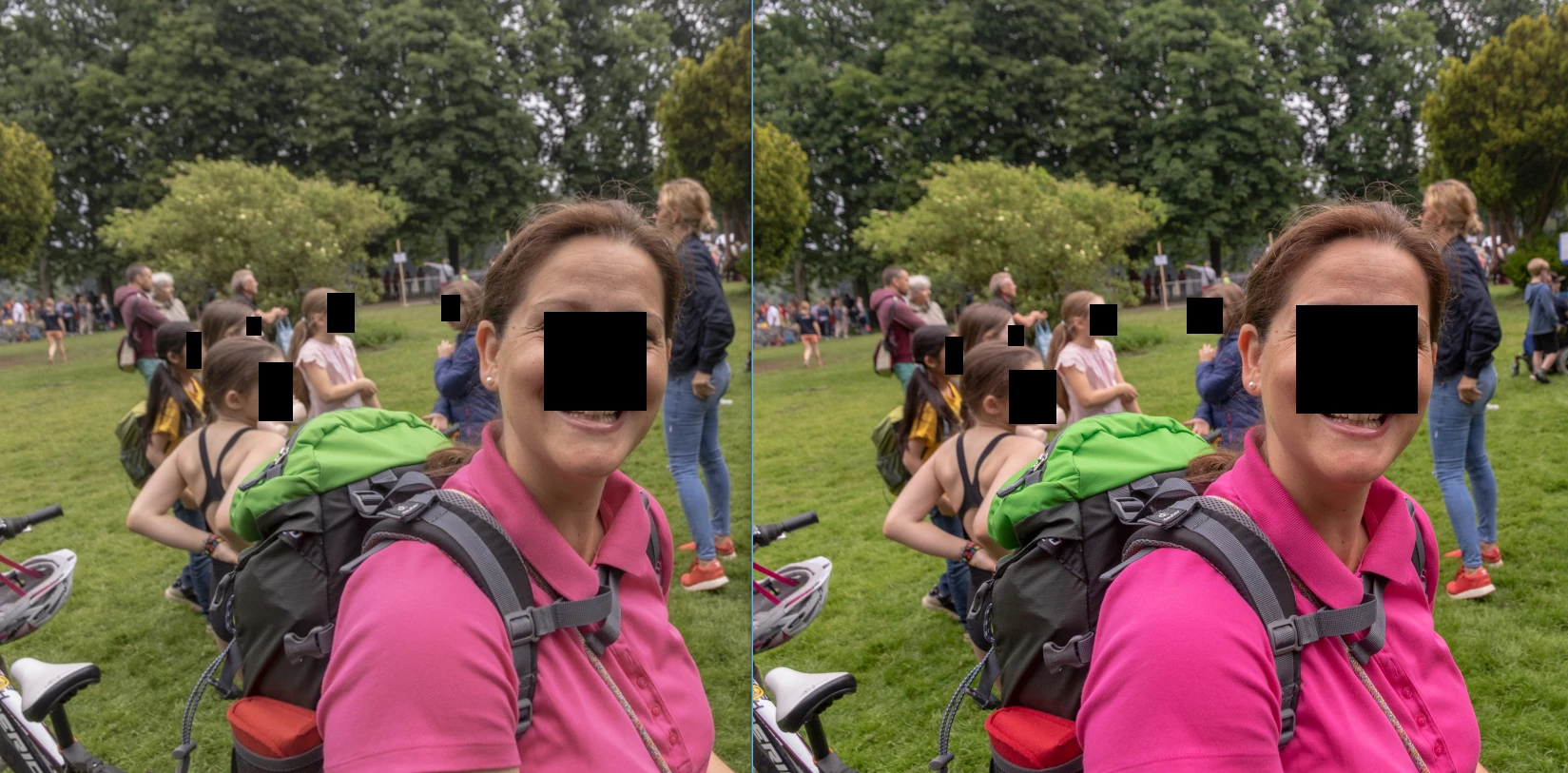
As I already read quite a bit on this and other forums, I can report the following:

  • The problem is the same (although may be not 100% identical) on all three computers I am using (two Desktops at home and at the office plus one Laptop) and on all the five associated displays of these computers.
  • Graphic Cards and Displays are differently between the computers
  • I just bought a SypderX-Pro from Datacolor to calibrate my main display with no effect to the problem (yes, the picture I see when calibration-profile is active is different from the uncalibrated profile, but the Lightroom-Problem remains the same.
  • All windows viewers show the same, there is no obvious difference between various windows viewers incl. the built-in viewer (Windows 10).
  • Photoshop shows the same (dull) colors as Lightroom, Exports to JPEG are again bright in color.
  • Thus: It’s a collision between all Windows programs (bright) vs. all Adobe Programs (dull).
  • My Camera ist a CANON EOS 7D-MkII in sRGB Mode, Exports from Lightroom are sRGB, Lightroom runs in PhotoPro-RGB (according to the Photoshop import dialogue) and exports to Photoshop in PhotoPro (which is converted in Photoshop into sRGB during import)
  • According to Adobe, the “Library” Module uses Adobe RGB, while the Develop Module uses PhotoPro RGB and the Web Module uses sRGB. Accordingly, my pictures look as follows:
    • Library: Close to Windows-Programs
    • Develop: Dull and totally different to Windows Programs
    • Web: Bright, as in Windows.

I have been using Lightroom all the way from Version 1, yet I feel the problem has either developed in the last year or at least has grown to be on ma radar since.

  1. I am not a professional (as you might have guessed   ). As I work as a lecturer in the dental-surgical field, I hardly ever print out pictures professionally, but need them in Power-Point. Thus, I do not care, which picture (LightRoom or Windows) is more realistic, I just need them to look the same!
    The same goes for my privately used pictures: Mostly I use them on screen or for simple Photobooks, which just use sRGB.

Thus: I need the Develop-Module in Lightroom to show the picture as it will be exported and as most windows Programs use sRGB without asking, the pictures in the develop Module should look as in the Web-Module.

Please help me!

PS: My guess: I am almost sure, that I need to change the color Profile in Lightroom from PhotoPro to sRGB, I just don’t know how!

This topic has been closed for replies.
Correct answer Todd Shaner

Jan112  wrote

  • According to Adobe, the “Library” Module uses Adobe RGB, while the Develop Module uses PhotoPro RGB and the Web Module uses sRGB. Accordingly, my pictures look as follows:
    • Library: Close to Windows-Programs
    • Develop: Dull and totally different to Windows Programs

When the LR Develop and Library module previews are different it's usually due to an incompatible display profile. Follow the instructions at the below link and assign sRGB profile if using a standard gamut display or Adobe RGB profile if using a wide gamut display. Please also tell us what model systems and displays you are using that exhibit the issue. Tell us if that "fixes" the differences you are seeing.

https://www.lightroomqueen.com/how-do-i-change-my-monitor-profile-to-check-whether-its-corrupted/

3 replies

TheDigitalDog
Inspiring
June 25, 2019

Jan112  wrote

Thus: I need the Develop-Module in Lightroom to show the picture as it will be exported and as most windows Programs use sRGB without asking, the pictures in the develop Module should look as in the Web-Module.

ONLY programs that are color managed know what sRGB is. Non color managed applications have no idea what sRGB means. They have no idea of the condition of your display. They have no idea of the scale of the numbers in your documents. It's as if I wrote the above in a language you didn't read then wondered why you didn't reply to questions or suggestions. Color managed applications know what sRGB is along with the conditions of the display to produce a preview. A preview that IS color managed. Without color management, sRGB is as meaningless as expecting anyone to decipher the meaning of: asdgsa agoiasdg.

Maybe this video will help in that one important concept about sRGB and what sRGB really doesn't mean outside of color management:

sRGB urban legend & myths Part 2

In this 17 minute video, I'll discuss some more sRGB misinformation and cover:

When to use sRGB and what to expect on the web and mobile devices

How sRGB doesn't insure a visual match without color management, how to check

The downsides of an all sRGB workflow

sRGB's color gamut vs. "professional" output devices

The future of sRGB and wide gamut display technology

Photo print labs that demand sRGB for output

High resolution: http://digitaldog.net/files/sRGBMythsPart2.mp4

Low resolution on YouTube: https://www.youtube.com/watch?v=WyvVUL1gWVs

Author “Color Management for Photographers" & "Photoshop CC Color Management/pluralsight"
Participating Frequently
June 25, 2019

Thanks!
I will watch and learn!
Jan

Todd Shaner
Todd ShanerCorrect answer
Legend
June 24, 2019

Jan112  wrote

  • According to Adobe, the “Library” Module uses Adobe RGB, while the Develop Module uses PhotoPro RGB and the Web Module uses sRGB. Accordingly, my pictures look as follows:
    • Library: Close to Windows-Programs
    • Develop: Dull and totally different to Windows Programs

When the LR Develop and Library module previews are different it's usually due to an incompatible display profile. Follow the instructions at the below link and assign sRGB profile if using a standard gamut display or Adobe RGB profile if using a wide gamut display. Please also tell us what model systems and displays you are using that exhibit the issue. Tell us if that "fixes" the differences you are seeing.

https://www.lightroomqueen.com/how-do-i-change-my-monitor-profile-to-check-whether-its-corrupted/

Participating Frequently
June 24, 2019

Halleluja!

This seems to habe done the trick!

Thank you so much.

I will now try it out in full, but a first test-picture looks great!

Thank you again!

Jan

DdeGannes
Community Expert
Community Expert
June 24, 2019

Assigning sRGB or Adobe RGB as your monitor profile will allow consistent color to be display using all the applications on you computer. However the color displayed may not be accurate. To have your monitor display accurate color you need to calibrate your monitor with a calibration device.

See the link below for help. How to manage color in Lightroom Classic

Regards, Denis: iMac 27” mid-2015, macOS 11.7.10 Big Sur; 2TB SSD, 24 GB Ram, GPU 2 GB; LrC 12.5,; Lr 6.5, PS 24.7,; ACR 15.5,; (also Laptop Win 11, ver 24H2, LrC 15.3; PS 27.0; ) Camera Oly OM-D E-M1.
cmgap
Community Expert
Community Expert
June 24, 2019

PS: My guess: I am almost sure, that I need to change the color Profile in Lightroom from PhotoPro to sRGB, I just don’t know how!

Good guess : ) When you Export your jpgs, change the color space here:

Participating Frequently
June 24, 2019

Hi!

Thanks, but that is what I do anyway, in the Export-Dialoge I have "sRGB" set, as most Print-Sevices use sRGB and exports in AdobeRGB or PhotoRGO lead to strange colors in printed Photobooks as a I had to learn the hard way.
Also, most Windows Programs show the pictures as if they were exported in sRGB anyway: Fast-Stone Picture-Viewer correctly shows the pictures in the same colors an Lightroom, wehn exportig in Adobe RGB, yet, all other Windows-Viewers (inlc. Windows-Explorer and PowerPoint) still show the brighter colors.

See Screenshot below: Picture was exported using AdobeRGB. Lft ist Windows Photo-Viewer (bright), right ist Fast-Stone (dull, exactly as in Lightroom develop mode)

JohanElzenga
Community Expert
Community Expert
June 24, 2019

Image viewers that are not color managed don't use your monitor profile to correct the colors for your monitor, and so they show the wrong colors. That is especially relevant if you use a wide gamut monitor. So:

1: Make sure you have calibrated your monitor.

2: Don't use non-color managed viewers.

-- Johan W. Elzenga