Participant
April 10, 2018
Answered

Exporting Lightroom preset (lightroom 7.3)

  • April 10, 2018
  • 3 replies
  • 7831 views

so in the previous Lightroom update I could easily export my presets to a dropbox folder just by right clicking and hitting and export but with the new Lightroom 7.3 I'm not able to do such action. is there another way to export Lightroom preset to another folder, please help.

This topic has been closed for replies.
Correct answer Rob_Cullen

You will need to use the Operating system (Mac Finder / Windows File Explorer) to copy and paste the Presets folder, until Adobe restore the 'Export' function to Presets.

(Method detail may be different if you store presets with the catalog!)

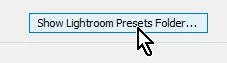
1. Open the Preferences dialog, Presets Tab, and click to show the Presets folder.
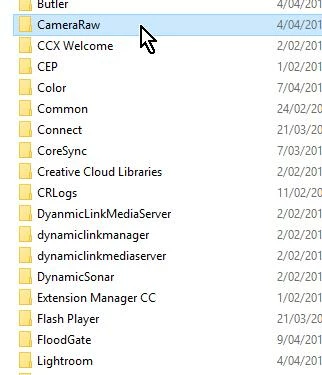
2. The {Lightroom} folder will be highlighted, Scroll up the folders in the window to the {CameraRaw} folder and open this folder-
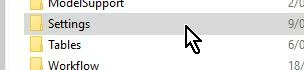
3. The {Settings} folder in {CameraRaw} contains the XMP Preset files. Copy this {Settings} folder to place in your Dropbox folder.
Hint:  In Windows, I have placed the {Settings} folder in my Quick Access panel of File Explorer for easy access to copy. But **Warning** do NOT rename the folder in the Quick Access panel as this will rename the folder making it  and all your Presets disappear from Lightroom!

3 replies

arianedevous
Participant
August 20, 2018

Is this the steps I need to follow if I want to convert my presets into something I can send via email so they can download the presets from email and export to lightroom?

Rob_Cullen
Community Expert
Community Expert
August 21, 2018

You do not need to "convert" them to anything! They are what they are- XMP files.

Just locate them in the {Settings} folder and copy (and zip) to share anywhere, email or otherwise..

[You should be making backups also for your own purpose! ]

Regards. My System: Windows-11, Lightroom-Classic 15.1.1, Photoshop 27.3.1, ACR 18.1.1, Lightroom 9.0, Lr-iOS 10.4.0, Bridge 16.0.2 .
arianedevous
Participant
August 21, 2018

So if I open that email attachment, I can directly use it to my mobile lightroom right?

Participant
April 20, 2018

I don't know why the "fix" stuff in upgrades that doesn't need fixing. It was so uncomplicated to just right click before... why change it?

Sean McCormack
Community Expert
Community Expert
April 20, 2018

Why change it? Well the old presets were essentially Lua programs, so loading them meant running loads of little programs. For people with thousands and thousands it start to become an issue, so Adobe decided to change to the format that's been used by Camera Raw-the XMP preset. It wasn't done willy nilly, but at the same time, there's been some rather obvious teething problems with it.

Sean McCormack. Author of 'Essential Development 3'. Magazine Writer. Former Official Fuji X-Photographer.
Rob_Cullen
Community Expert
Rob_CullenCommunity ExpertCorrect answer
Community Expert
April 10, 2018

You will need to use the Operating system (Mac Finder / Windows File Explorer) to copy and paste the Presets folder, until Adobe restore the 'Export' function to Presets.

(Method detail may be different if you store presets with the catalog!)

1. Open the Preferences dialog, Presets Tab, and click to show the Presets folder.

2. The {Lightroom} folder will be highlighted, Scroll up the folders in the window to the {CameraRaw} folder and open this folder-

3. The {Settings} folder in {CameraRaw} contains the XMP Preset files. Copy this {Settings} folder to place in your Dropbox folder.

Hint:  In Windows, I have placed the {Settings} folder in my Quick Access panel of File Explorer for easy access to copy. But **Warning** do NOT rename the folder in the Quick Access panel as this will rename the folder making it  and all your Presets disappear from Lightroom!

Regards. My System: Windows-11, Lightroom-Classic 15.1.1, Photoshop 27.3.1, ACR 18.1.1, Lightroom 9.0, Lr-iOS 10.4.0, Bridge 16.0.2 .
Participant
April 10, 2018

Ah! it worked! thank you so much