
Participant
August 8, 2024
Question

Exporting to a set resolution does not export it to a set resolution

  • August 8, 2024
  • 6 replies
  • 979 views

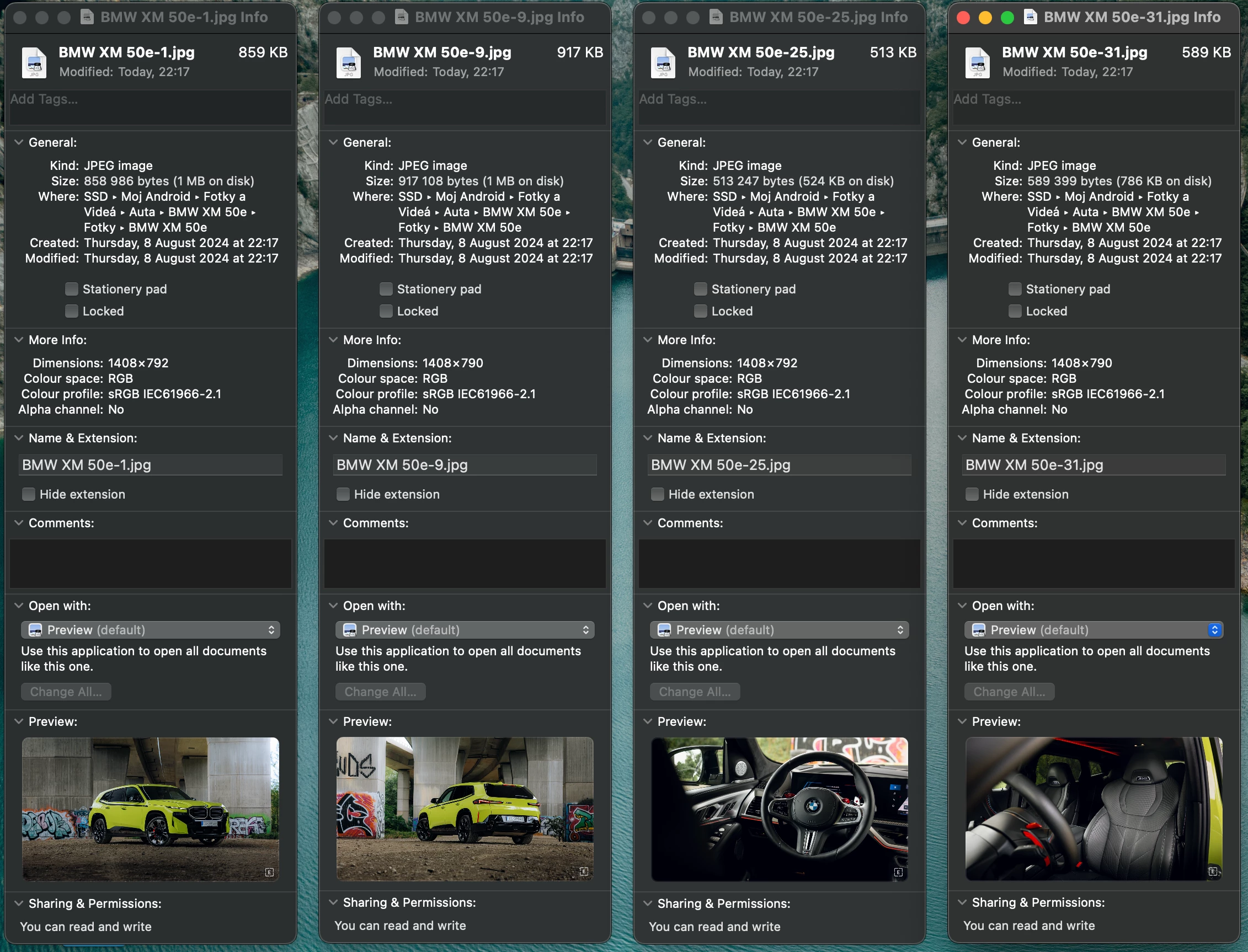
Hi, when i am exporting images for a fixed resolution it is allways off by 1 or 2 pixels, this is dealbreaking for me because our online gallery depends on the exact same picture dimensions. When trying it throug PS image processor it is the same result.



This topic has been closed for replies.

6 replies

Legend
August 9, 2024

Open in Photoshop, fix the sizing, and export from there. This can be automated in Photoshop.

Conrad_C
Community Expert
Community Expert
August 9, 2024

Precise cropping is difficult in Lightroom Classic because of the way it crops by aspect ratio only. If you need to export with absolute precision, you might try the AnyCrop plug-in (paid, but 30 days free trial):

https://johnrellis.com/lightroom/anycrop.htm

Legend
August 9, 2024

If you have the crop tool active, you can press the I key to show current crop size.

JohanElzenga
Community Expert
Community Expert
August 9, 2024

True, but unfortunately the crop size that is displayed will not dynamically update when you are changing the crop. That means it will still be a lot of trial and error if you need to crop with up to one pixel accuracy. If you want to do this in Lightroom Classic, then I would advise using the plugin mentioned by @Conrad_C .


-- Johan W. Elzenga
GoldingD
Legend
August 8, 2024

Another option is to use ON1 Resize. Or the AI Resize in ON1 Photo RAW MAX 2024, etc.

GoldingD
Legend
August 8, 2024

Are you cropping to 1408 x 792 before exporting? This can be done in a virtual copy.


Remember, in the Export Screen, when in Image Size, you select to fit Width & Height, LrC will create an image that fits within that Width & height, within that box. Either the Width or the Height will match the number you select, the other dimension may or maynot, it might be smaller. Depends upon width/Height ratio of image. LrC is not going to stretch the image to fit exactly in that box.


See if cropping before exporting helps.


Community Expert
August 8, 2024

This is because Export can unfortunately only achieve a "zoom to fit (within rectangle)" outcome rather than a "zoom to fill (entire rectangle)" outcome. 


Alternative 1 is to export to JPG from the Print module instead, which does offer a zoom to fill option. This is however no good for preserving individualised file naming, keywords etc into the output.


I would suggest alternative 2: add Postprocessing steps using a utility such as ImageMagick directly (controlled by commandline options) or else in the form of a LrC plugin (Mogrify) to trim off any surplus pixels present. So calling that in would be specified in your export settings, and made easily repeatable for the future by saving those settings into a named export preset. 


One more thought first: you are quite certain the identical aspect ratio of crop was consistently in place?

Participant
August 9, 2024

Thanks for you suggestion, i will try it out

Community Expert
August 9, 2024

There is more that you can do "for free" if such a postprocessing step is being included, for example adding a border line (which is not otherwise offered by the standard LrC export)..


The suggestion has been made to subcontract this cropping to Photoshop - if you want to research that, the key concept is to save an action as a 'droplet' which LrC can then tell PS to execute onto each image in turn. Calling in PS is more 'computationally heavy' I would think, compared with a compact and simple image processing utility.

JohanElzenga
Community Expert
Community Expert
August 8, 2024

You can only export to exact pixel dimensions if your image has the exact same aspect ratio, because exporting will only resize, not crop. So in other words: let's say that the original image is 2000 x 3000 pixels. If you tell Lightroom to export a 200 x 310 pixels image, then you will find that this won't be possible. Lightroom can only export a 200 x 300 pixels image, or a 207 x 310 pixels image with these export settings (no idea which one it will choose). In Lightroom this might be quite difficult to achieve, because the crop tool does not show the crop in pixels. In Photoshop you can achieve this a lot easier by exporting a very slightly larger image (that you can do from Lightroom), and then use the Canvas Size option in Photoshop to cut this down to the exact pixel dimensions you need.


-- Johan W. Elzenga
Participant
August 8, 2024

I'm shooting these pictures on my camera then i'm croping them to 16:9 and then i rotate some of them bcs all of them are not perfectly straight every time and this results in a different pixel width but not aspect ratio, ratio is allways set to 16:9.

JohanElzenga
Community Expert
Community Expert
August 8, 2024
quote

I'm shooting these pictures on my camera then i'm croping them to 16:9 and then i rotate some of them bcs all of them are not perfectly straight every time and this results in a different pixel width but not aspect ratio, ratio is allways set to 16:9.


By @Michal-JingSpiral


The problem is that the aspect ratio of your original image might not be exactly 16:9 after you rotated it. We are talking one or two pixels difference, so we are talking rounding off errors.


-- Johan W. Elzenga