
Known Participant
June 20, 2026
Question

Extern harddrive cannot be seen any more in folder
  • June 20, 2026
  • 2 replies
  • 47 views

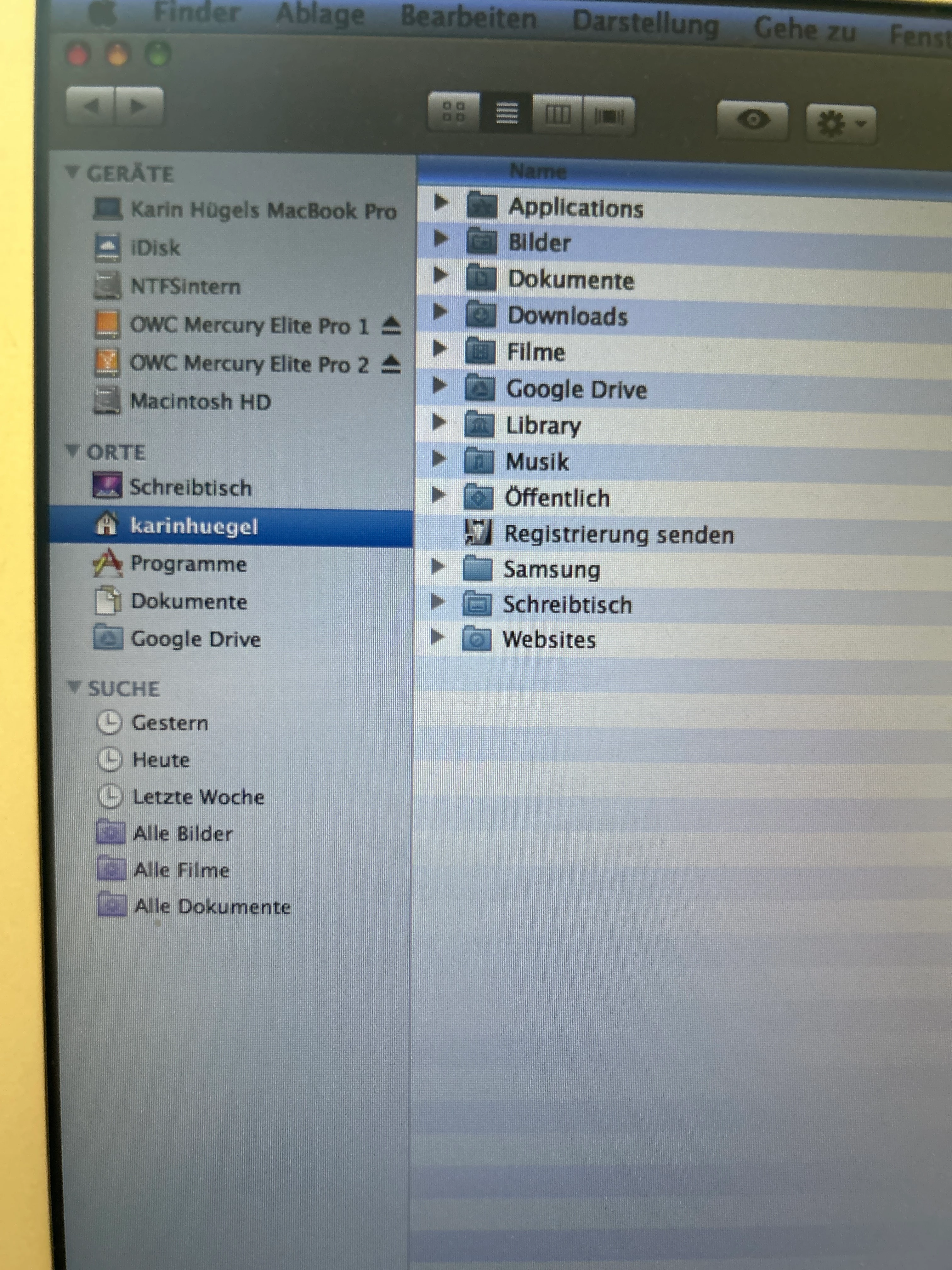
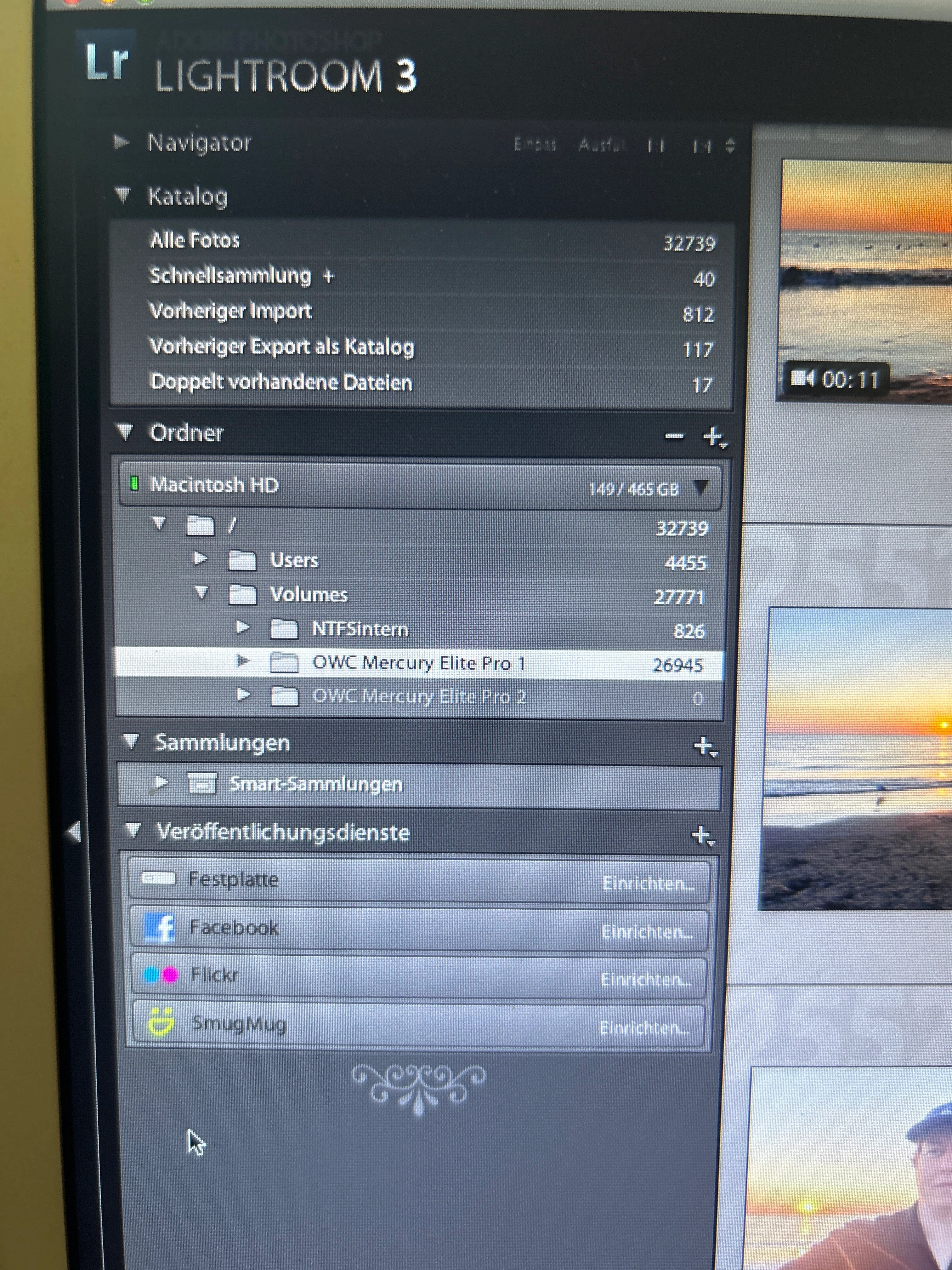
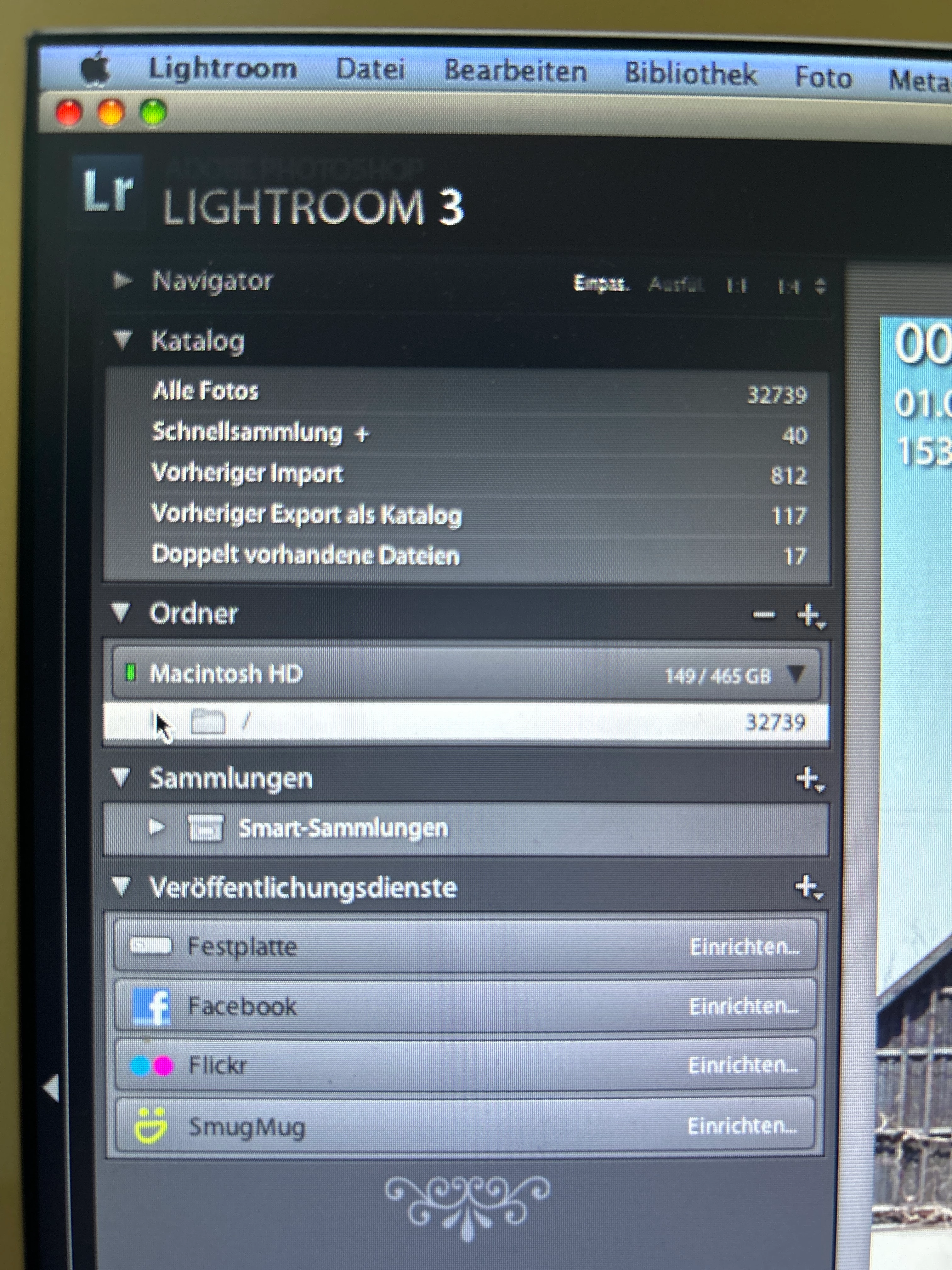
I do not find my two external hard drives any more in the folder besides the internal hard drive in Lightroom 3.6 although I did not change anything. Or is it correct that the external hard drives appear here in the subfolder in the internal hard drive named Macintosh HD?
 

    2 replies

    JohanElzenga
    Community Expert
    Community Expert
    June 20, 2026

    It is not correct that drives show as subfolders, but easy to fix. First, just as a precaution, make a catalog backup. Now open Lightroom and right-click on the ‘/‘ folder. Choose ‘Hide this parent’ from the pop-up menu. The folder should now disappear. Then right-click on ‘Volumes’ and choose ‘Hide this parent’. That folder (and the  ‘Users’ folder) should now disappear. Now restart Lightroom and the problem should be gone. Your external drives should now correctly show as separate drives again.

    -- Johan W. Elzenga
    khuegellAuthor
    Known Participant
    June 23, 2026

    Whete do I find „hide this parent“ here?


    JohanElzenga
    Community Expert
    Community Expert
    June 23, 2026

    In German that seems to be “Unterordner in einen höhere Ebene verschieben”. No idea why they translated it so cryptically.

    -- Johan W. Elzenga
    gary_sc
    Community Expert
    Community Expert
    June 20, 2026

    Hi, ​@khuegell,

    This is not the fault of Adobe or anyone; this is Apple making sure that applications that have not been given permission to access areas of your computer cannot access those areas of your computer.


    The following instructions were written for Acrobat but it’s the same for all software. Also, visually these instructions may be a bit dated, but again, the basics are the same. The reason for this issue is becuase you updated, and sometimes, the instructions need to be done again. You did nothing wrong.


    Go to your Mac's Settings, and search for "security." That will get you to the settings that Apple uses to let you bypass their default "vault" protection. (This is a good thing.)


    Starting off, you see this, note I have three things marked out.

    Starting from the 2nd, Full Disk Access, if you select that, you'll see all of the applications that have been granted Full Disk Access. If you see Acrobat but it is not turned on, click on the switch on the far right side. If you do not see Acrobat, click on the "+" symbol on the bottom, locate Acrobat to add it, then turn on the switch.

    Next go to Accessibility, same conditions as above.

    Lastly, go to Files & Folders, this should already be set but depending on where it's located (such as a server), you may have to set this as well.

    Again, all of the above may have already been done by you, but it's wise to check.


    Good luck!

    khuegellAuthor
    Known Participant
    June 23, 2026

    Can you use pictures so that I can follow your instructions?  Lightroom 3 is installed in Snow Leopard!


    JohanElzenga
    Community Expert
    Community Expert
    June 23, 2026

    Forget about that. ‘Full disk access’ and other privacy options were introduced later. That cannot be the cause of your problem.

    -- Johan W. Elzenga