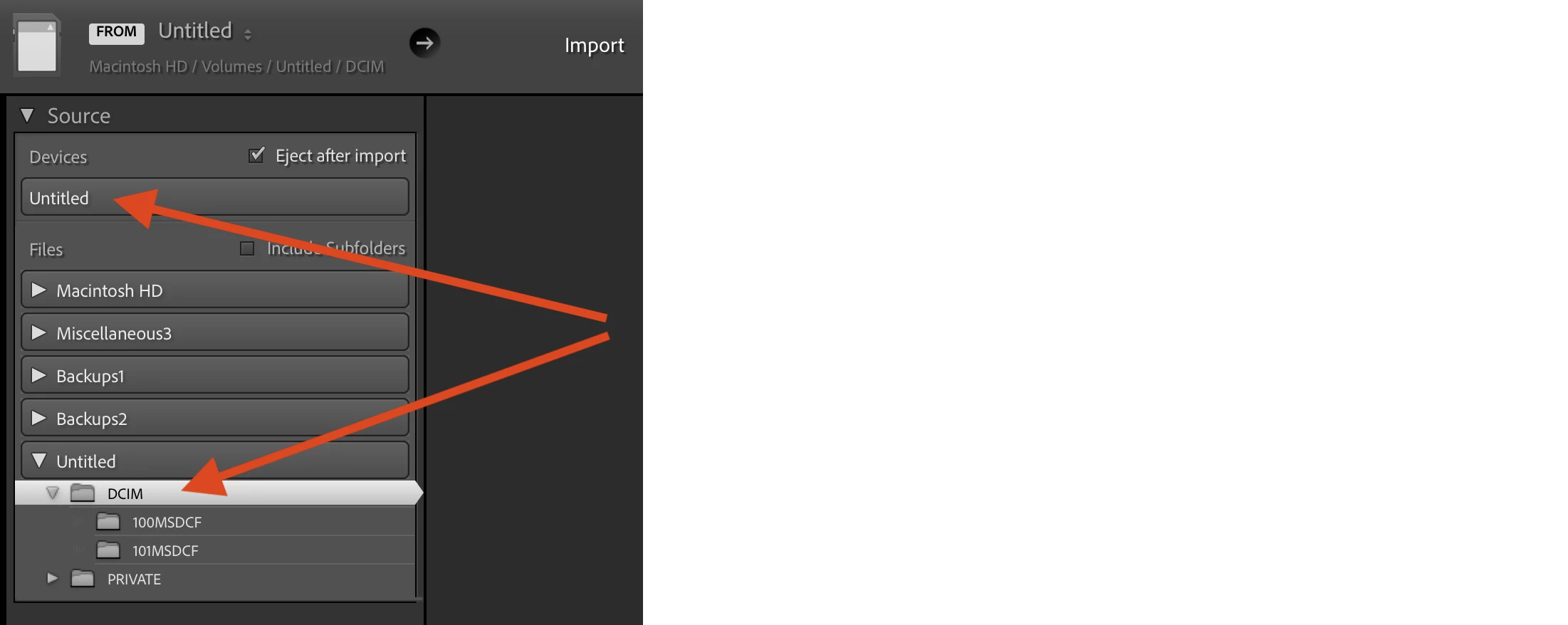
I’ll disagree with Gary on this. When you have the choice between Devices and Files for accessing external media, use Files, which is usually much faster:
Accessing via Devices uses the ancient Picture Transfer Protocol (PTP), which is slow. Over the years, LR has tripped over many problems with Mac OS PTP (evidenced by problems importing via USB cables), and I’ve got the sense that Apple would rather it go away. PTP has functional limitations as well.
Accessing via Files uses the operating system’s method for accessing the device as a file storage volume (with files and folders that appear in Finder / File Explorer). External USB devices (e.g. USB drives and SD cards) use the USB Mass Storage Device Class (MSC or UMS) protocols. MSC is much faster than PTP.
Only the Copy option is available when importing via Devices. Add and Move may be available when importing via Files if the operating system tells LR that the device is not “removable media”.
The Eject Files After import option is available for both Devices and Files when the operating system tells LR that the device is “removable media”.
By manufacturer design, Mac and Windows consider Cfexpress cards as non-removable media, so you can use the Add and Move options, and you can’t use the Eject option.
I’ll disagree with Gary on this. When you have the choice between Devices and Files for accessing external media, use Files, which is usually much faster:
Accessing via Devices uses the ancient Picture Transfer Protocol (PTP), which is slow. Over the years, LR has tripped over many problems with Mac OS PTP (evidenced by problems importing via USB cables), and I’ve got the sense that Apple would rather it go away. PTP has functional limitations as well.
Accessing via Files uses the operating system’s method for accessing the device as a file storage volume (with files and folders that appear in Finder / File Explorer). External USB devices (e.g. USB drives and SD cards) use the USB Mass Storage Device Class (MSC or UMS) protocols. MSC is much faster than PTP.
Only the Copy option is available when importing via Devices. Add and Move may be available when importing via Files if the operating system tells LR that the device is not “removable media”.
The Eject Files After import option is available for both Devices and Files when the operating system tells LR that the device is “removable media”.
By manufacturer design, Mac and Windows consider Cfexpress cards as non-removable media, so you can use the Add and Move options, and you can’t use the Eject option.
I believe that importing via the Files option is typically faster than using “Devices”, which is why the Import process defaults to “Files” when a camera card is the import source. That has certainly been my experience whenever I’ve done some timing tests.
If you import from “Source,” that implies that the files are already on your computer and in the place you want them to be. So, it’s only adding them to the catalog. “Device” implies that the files are on an image card and need to be placed on a computer or hard drive.
Remember that there are four options when adding images to a Catalog:
“Add” is the fastest because it’s just adding the files from where they are to the catalog.
“Move” means to move them from one location to another, and if that is from your computer to an external hard drive, that will take more time.
“Copy” means to leave the files where they are and make a copy of them in a new location. If the files are originally on a camera card, you HAVE TO copy.
“Copy as DNG” takes the most time because it converts the images to DNG as it copies them. FWIW, I do this one because I prefer the DNG format, because it is a container file, and all of the adjustments can be “contained” within the file, so there is much less chance to inadvertently separate the sidecar files from the original image.
The extra time for me is when I can stretch my legs without feeling guilty. 😁




 AdChoices