Inspiring
February 22, 2025
Answered

Folders in workspace gone

  • February 22, 2025
  • 2 replies
  • 1467 views

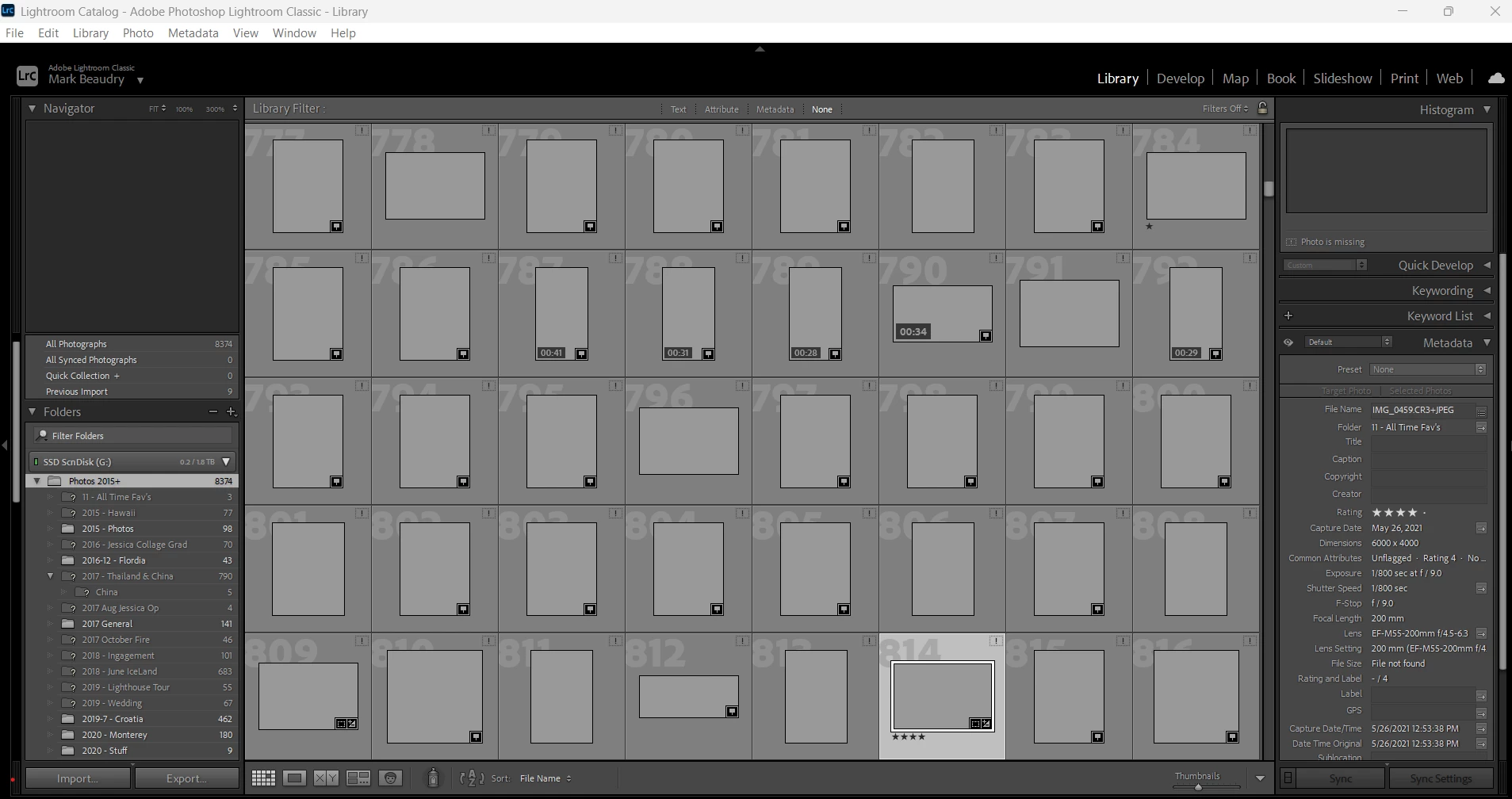
Been using Lightroom classic for several years on the same system – PC, Windows 11, with external harddrive. Opened it today and an error window popped up. Clicked on Next and LRC opened, but my photos could not be found.

My workspace folder list looks like a version I had 3 years ago. Since then, I've added many folders, remaned a bunch and deleted others - All through Lightroom. I do a catalog backup every time I exit the program. I checked the hard drive and all my files are there, in the folders as I build them through LRC.

Did the V14,2 update and still the same.

Is there a way to reclaim the workspace catalog I had two days ago?

Here's a screenshot of my overall workspace.


Correct answer Per Berntsen

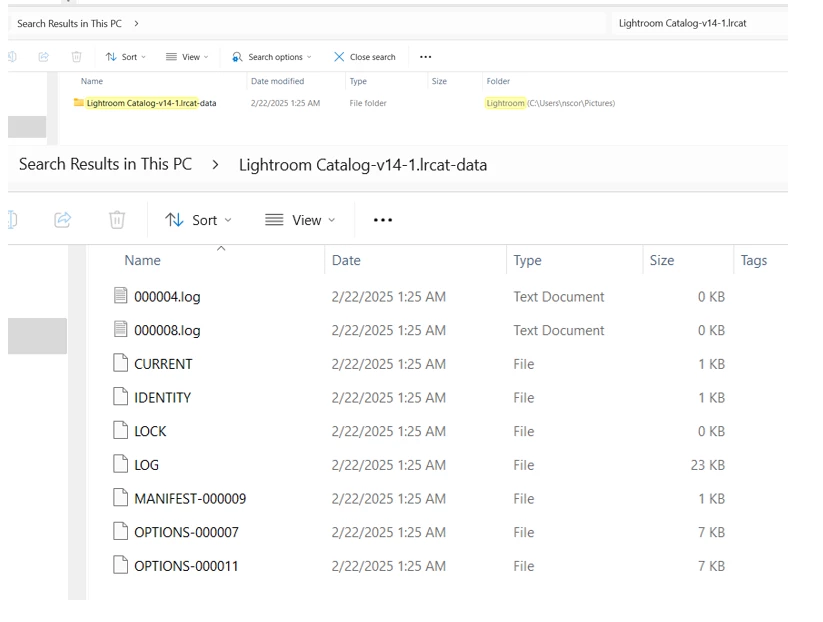
Searched for "Lightroom Catalog-v14-1.lrcat" in This PC also in my remote SSD. This is what came up.

I see a folder, but no file in that folder by that name. 
 

Also, while looking around, it seems my internal harddrive is suddenly full (47GB/ 1TB left). In searching for the main culprits, it turns out to be Lightroom Catalogs. Could it be that my laptop just choked?

Can I delete some of these?


quote

Searched for "Lightroom Catalog-v14-1.lrcat" in This PC also in my remote SSD. This is what came up.

I see a folder, but no file in that folder by that name. 


By @NSCORP - Mark


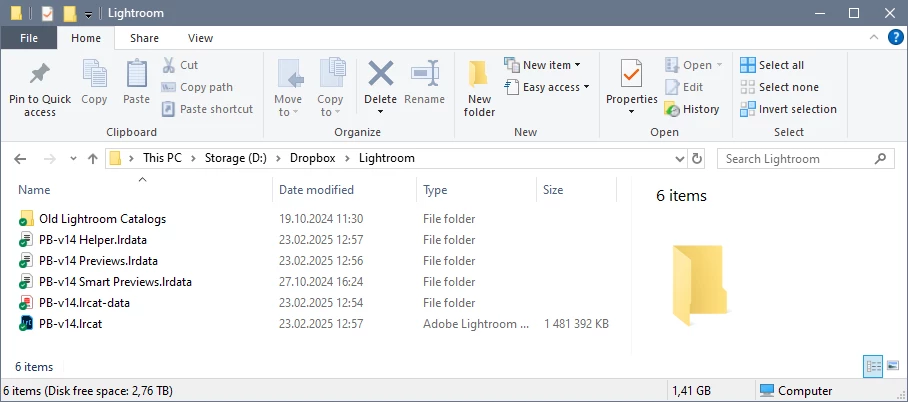
The .lrcat.data folder does not contain the catalog file, it sits next to the .lrcat.data folder, see the screenshot below.

Your v14-1 catalog file seems to be gone, so you have to restore it from a backup. If you have not been making backups (it's mandatory), you'll have to open your newest catalog, which is v13-3.lrcat.

Backups are stored as Zip files in folders with date names. 

Create a new folder, give it a name, (like Lightroom Catalog), and unzip the zip file to this folder. Then double-click the catalog file to launch LrC.
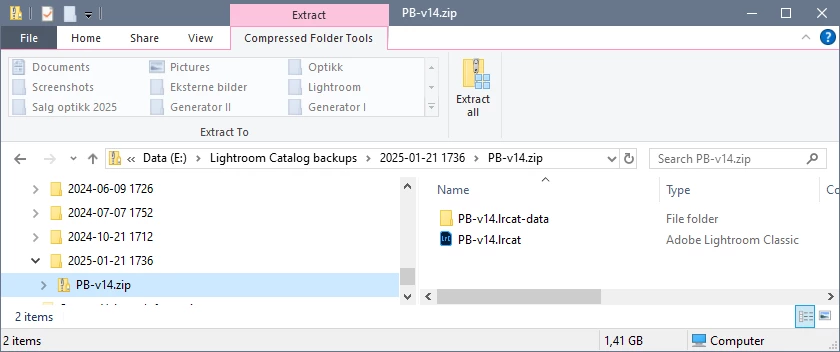


quote

Also, while looking around, it seems my internal harddrive is suddenly full (47GB/ 1TB left). In searching for the main culprits, it turns out to be Lightroom Catalogs. Could it be that my laptop just choked?

Can I delete some of these? 


You are critically low on space, and should deal with this before doing anything else.

A system drive should have at least 20% free space, preferably more, which means that you should have at least 200 GB free.

The Lightroom Catalogs are only a few GB, and are not the main culprits.

If all your photos are on the C drive, you should move them to an external drive.

LrC will then report them as missing, and you will need to relink them.

See https://www.lightroomqueen.com/lightroom-photos-missing-fix/

and https://www.lightroomqueen.com/how-move-lightroom-to-new-computer/

The relinking will be easier if you have exactly the same folder structure on the external drive as on the internal.


2 replies

AxelMatt
Community Expert
Community Expert
February 22, 2025
quote

... Opened it today and an error window popped up.

...


By @NSCORP - Mark


What was the error message? Please post it word-by-word.

Is the external drive connected correctly? With the same drive letter as the drive had on the import procedure?


My System: Intel i7-8700K - 64GB RAM - NVidia Geforce RTX 3060 - Windows 11 Pro 25H2 -- LR-Classic 15 - Photoshop 27 - Nik Collection 8 - PureRAW 6 - Topaz Photo AI
dj_paige
Legend
February 22, 2025

Probably LrC (accidentally) opened the wrong catalog file. Go to File->Open Recent and open each catalog shown there, until you find the right catalog. If that doesn't work, use your operating systems search feature to find all files whose name ends with .LRCAT, one of those is the catalog you want.

Inspiring
February 22, 2025

Step 1 - Only one file showed up.

Step 2 - Found some others you were talking about. 

     How do I get LrC to see those so I can choose from them?


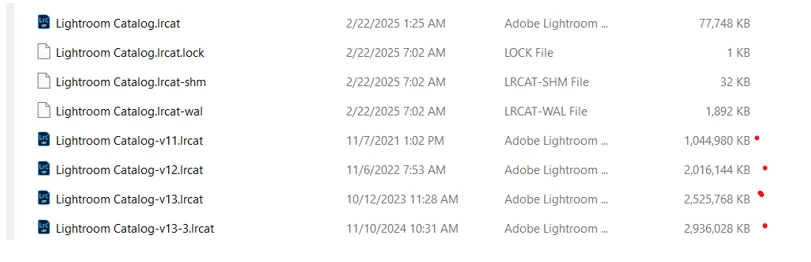
In the screenshot, The top one highlighted is what I think showed up in LrC.

The second highlight is what I'm thinking I need. 


Per Berntsen
Community Expert
Community Expert
February 22, 2025

The first five files are Lightroom catalogs with the .lrcat extension, but you have Windows set to hide file extensions, so extensions are not showing.

The catalog currently open is "Lightroom Catalog", which the smallest of your catalogs, and probably the oldest.

You have a folder named "Lightroom Catalog-v14-1.lrcat.data", but the associated catalog file is not visible in the screenshot.

This is most likely the catalog you want, and it will be named "Lightroom Catalog-v14-1.lrcat".


See if it is listed under File > Open recent in LrC, if not, do a search for it, but don't limit the search to the Lightroom folder, search in Pictures, and the whole C drive if necessary. Maybe you moved it accidentally.

If you find it, move it back to the Lightroom folder.

Also, I strongly recommend that you set Windows to show file extensions in the File explorer.