
Participant
September 25, 2022
Question

Ghost pictures following an issue importing pictures

  • September 25, 2022
  • 2 replies
  • 269 views

Whist importing 500+ pictures from an SD card LrC became very slow and would not complete the import.  After several attempts finally all the pictures imported successfully.  The I noticed several hundred blank pictures and I cannot delete them.   I use LrC 11.5 and MacOS Catalina. 


I'm also seeing the error :-


?:0: attempt to index field 'rootFile' (a nil value)
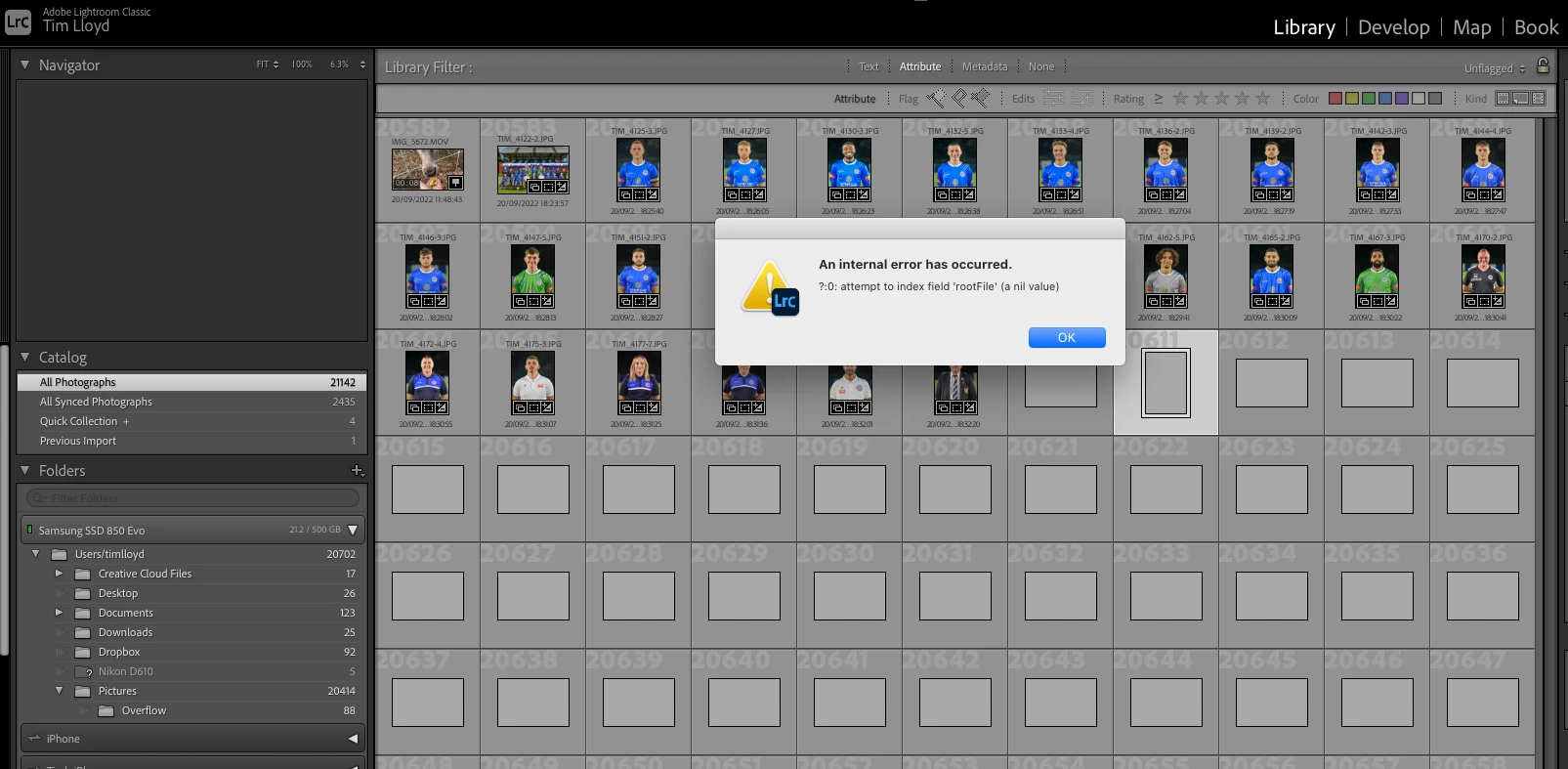


How can I remove these ghost pictures? 


Regards


Tim. 

This topic has been closed for replies.

2 replies

GoldingD
Legend
September 25, 2022

Please post your System Information as Lightroom Classic (LrC) reports it. In LrC click on Help, then System Info, then Copy. Paste that information into a reply. Please present all information from first line down to and including Plug-in Info. Info after Plug-in info can be cut as that is just so much dead space to us non-Techs.

G6UEDAuthor
Participant
September 25, 2022

Lightroom Classic version: 11.5 [ 202208080927-8a575c91 ]
License: Creative Cloud
Language setting: en-GB
Operating system: Mac OS 10
Version: 10.15.7 [19H2026]
Application architecture: x64
Logical processor count: 4
Processor speed: 2.9GHz
SqLite Version: 3.36.0
Built-in memory: 8,192.0 MB
Real memory available to Lightroom: 8,192.0 MB
Real memory used by Lightroom: 921.3 MB (11.2%)
Virtual memory used by Lightroom: 27,611.0 MB
Memory cache size: 557.5MB
Internal Camera Raw version: 14.5 [ 1177 ]
Maximum thread count used by Camera Raw: 3
Camera Raw SIMD optimization: SSE2,AVX,AVX2
Camera Raw virtual memory: 526MB / 4095MB (12%)
Camera Raw real memory: 528MB / 8192MB (6%)
Displays: 1) 1920x1080

Graphics Processor Info:
Metal: NVIDIA GeForce GT 750M


Init State: 1
User Preference: 1

Application folder: /Applications/Adobe Lightroom Classic
Library Path: /Users/timlloyd/Pictures/Lightroom/Lightroom Catalog-2-2-v10-v11.lrcat
Settings Folder: /Users/timlloyd/Library/Application Support/Adobe/Lightroom

Installed Plugins:
1) AdobeStock
2) Aperture/iPhoto Importer Plug-in
3) Facebook
4) Flickr
5) SmugMug
6) Teekesselchen

Config.lua flags: None


JohanElzenga
Community Expert
Community Expert
September 25, 2022

This is catalog corruption. The by far easiest way to solve it is to replace your catalog by a backup copy.


-- Johan W. Elzenga
G6UEDAuthor
Participant
September 25, 2022

Hi Johan.

Thanks for the reply.  This is something I've not done before, will I loose all the editing of the successful imports I made following the problem?


Regards


Tim. 

JohanElzenga
Community Expert
Community Expert
September 25, 2022

@G6UED wrote:

Hi Johan.

Thanks for the reply.  This is something I've not done before, will I loose all the editing of the successful imports I made following the problem?


Regards


Tim. 


Not necessarily. What you can do before you replace your catalog by a backup copy is select all images that you imported since that last backup and then choose 'Metadata- Save Metadata to Files'. That will save the edits to XMP sidecar files. Then, after you replaced the corrupted catalog by a backup copy, right-click on the folder where the newly imported images are stored and choose 'Synchronize Folder'. Lightroom will show which images are new to it and suggest to import them. Let it import the images. Lightroom will automatically read the XMP files and apply the edits on import. The only thing that you will lose this way is any virtual copies that you may have created.


-- Johan W. Elzenga