
Known Participant
November 12, 2025
Answered

Give a photo in different collections a unique identifier without updating the photo pointed to

  • November 12, 2025
  • 2 replies
  • 93 views

I want to point to a photo from a folder from multiple collections.  Lightroom will not be used to display the photos and I want to force the order in which photos are displayed outside of Lightroom.  For example, photo 199707001 is in folder "Source".  Photo 199707001 in Collection "A" might assigned a sequence number 0100 to be the 10th photo displayed and in Collection "B" photo 199707001 might assigned a sequence number 0150 to be the 15th photo displayed.  In collection "A", when photo 199707001 has 0100 appended, in the folder "Source" the photo id becomes 0100199707001.  In collection "B" if I then update the sequence number of photo 199707001 from 0100199707001 to 0150199707001, the identifier is changed to 0150199707001 in both Collection "A" and folder "Source".


For many reasons, displaying photos in chronological order of the date/time stamp when they were taken doesn't work.  Using a subject name is no better because different collections don't share the same subjects.  Furthermore, subject names would become a hodgepodge of key and data that would be unmaintainable.


I've thought of physically duplicating the photos in differen source folders, which can make for the same source photo duplicated from 2 to 5 times which would be repeated for hundreds of photos.


I've thought of exporting the photos from Lightroom and appending the sequence numbers to the file names.  This will be slow and error prone since Lightroom does not export photos in the the order that they exist in the collection used as the source of the export.  The thought appending sequence numbers to say, 10 photos is bad enough.  Appending sequnce numbers to 100-200 photos would be a horror.  Futhermore, every time I exported that collection, sequence numbering would have to be repeated.  My hard drive has only 7.5TB of space and I can't save every exported collection.
Correct answer Conrad_C

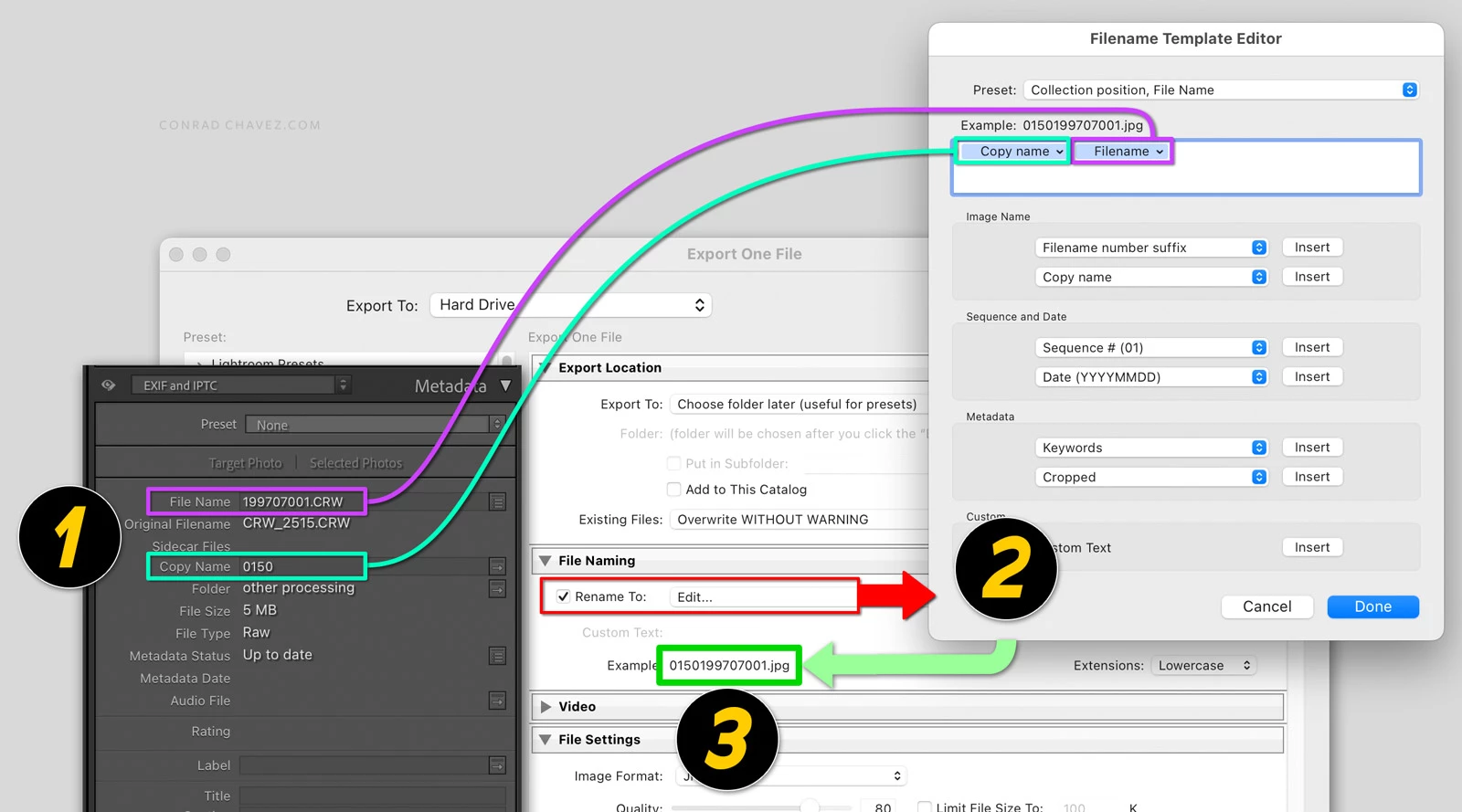
Thanks, your reply seems to clarify what you need. In that case, I think you probably want to use what I described in the last paragraph in my previous reply. It would work like the diagram in the picture below:


1. For each virtual copy in a different collection, in the Metadata panel enter that virtual copy’s collection-specific sequence number into the Copy Name field, which is specific to that virtual copy and doesn’t affect the original file or other virtual copies of that original. The Copy Name field isn’t visible in all Metadata views, but you can see that I set the Metadata panel view to “EXIF and IPTC” which does display Copy Name. Or, you can customize the Default metadata view to include any fields you want including Copy Name. 


2. When exporting, in the File Naming group of options, make sure that Rename To is set to a file renaming preset that includes the Copy Name token followed by the Filename token. In my example, I created a File Naming preset called “Collection position, File Name” that does those things, so I would make sure Rename To is set to that. 


3. When the correct File Renaming settings are applied, the exported copy will have the final file name you want: Sequence number followed by the file name, with no space between them.


2 replies

Conrad_C
Community Expert
Conrad_CCommunity ExpertCorrect answer
Community Expert
November 12, 2025

Thanks, your reply seems to clarify what you need. In that case, I think you probably want to use what I described in the last paragraph in my previous reply. It would work like the diagram in the picture below:


1. For each virtual copy in a different collection, in the Metadata panel enter that virtual copy’s collection-specific sequence number into the Copy Name field, which is specific to that virtual copy and doesn’t affect the original file or other virtual copies of that original. The Copy Name field isn’t visible in all Metadata views, but you can see that I set the Metadata panel view to “EXIF and IPTC” which does display Copy Name. Or, you can customize the Default metadata view to include any fields you want including Copy Name. 


2. When exporting, in the File Naming group of options, make sure that Rename To is set to a file renaming preset that includes the Copy Name token followed by the Filename token. In my example, I created a File Naming preset called “Collection position, File Name” that does those things, so I would make sure Rename To is set to that. 


3. When the correct File Renaming settings are applied, the exported copy will have the final file name you want: Sequence number followed by the file name, with no space between them.


Known Participant
November 12, 2025
Conrad,

Thanks a lot! That sounds like just what I want.

Thanks again for your quick, helpful reply.

Thanks,
Bruce Oman
Conrad_C
Community Expert
Community Expert
November 12, 2025

When you talk about the “identifier,” where in the photo metadata are you setting this number? In File Name, File Base Name, Copy Name, or another field? 


I handle similar situations like this:

1. Arrange the virtual copies in the different sequences needed in each of their collections, without changing the file name of their source file. I let each Collection remember the sequence number of each image in it, by keeping Sort set to Custom Order so it remembers how I dragged them into the sequence I wanted. 

2. When exporting, apply a File Naming template that uses a Sequence token to add the sequence number to the exported copy’s filename. So if filename 199707001 is #15 in Collection A, and the Sequence token uses 3 digits, the number 015 is added to the exported copy. The File Naming template for that would look like this, File Name+Sequence#(001). That template would produce the filename 199707001015. When exporting Collection B, the filename for the exported copy of that collection’s instance of file 199707001 would be appended with its different number in its collection’s sequence.


In this way, virtual copies in different collections that are based on the same source file can automatically get their own different sequence numbers in their exported copy’s filenames.


If for some reason you need to manually annotate the virtual copies in each collection with their sequence positions, then don’t do the above. Instead, you can manually enter your sequence number into the Copy Name field (but definitely not the File Name field). If you add it to Copy Name, then each virtual copy can have its own Copy Name that isn’t connected to the source file or to any other virtual copy. This comes in very handy when you export: If you need that Copy Name to be part of the filename of exported copies, then just make Copy Name one of the tokens in the File Renaming template you select for export. For example, when you export, if your File Renaming template is File Name + Copy Name, then the exported copy’s filename will concatenate those two pieces of metadata. For example, if the source file name is 199707001 and the its Copy Name is 015, and you set the File Renaming template to File Name+Copy Name, then the file name of the exported copy is 199707001015.

Known Participant
November 12, 2025

I said I append the sequence number, in fact I prefix the photo id with the sequence number.  My bad, sorry.  I prefix the sequence number to the file name.  A photo with a file name of  199707001 becomes 0150199707001.  I number the photos by 10's in case I need to insert another photo between 0150199707001 and 0160200801001.  The sequence number of one photo between the two would be 0155202209001.  I followed this convention since I distribute the scanned photos to four recipients.  This way, they can simply run a file update to insert the new photo into their sequence.  If I renumber all photos after the inserted one, then they have to delete the entire existing file and replace it entirely with the new one.  Adding the sequence number as the prefix forces the order I want with no other dependencies based on the photo id because every photo has a unique identifier.  None of the recipients view the photos in Lightoom.  They use their computer's or television set's photo rendering app, so prefixing the photo id forces the desired order, regardless of the rendering device using their computer's file system sort algorithm.


Thanks very much for your quick reply.  It was very elpful.  It did not know the things you describe were possible.  I'll see if I can make it work.