Glitch Problem
Howdy People
Your expert help needed please. Here`s the backstory:
I run a W10 desktop pc with Photoshop/Lightroom cc. Lightroom`s Catalogue folders were stored in the default c:\drive\ pictures location. Whenever I import images I set up a destination folder on an external drive.
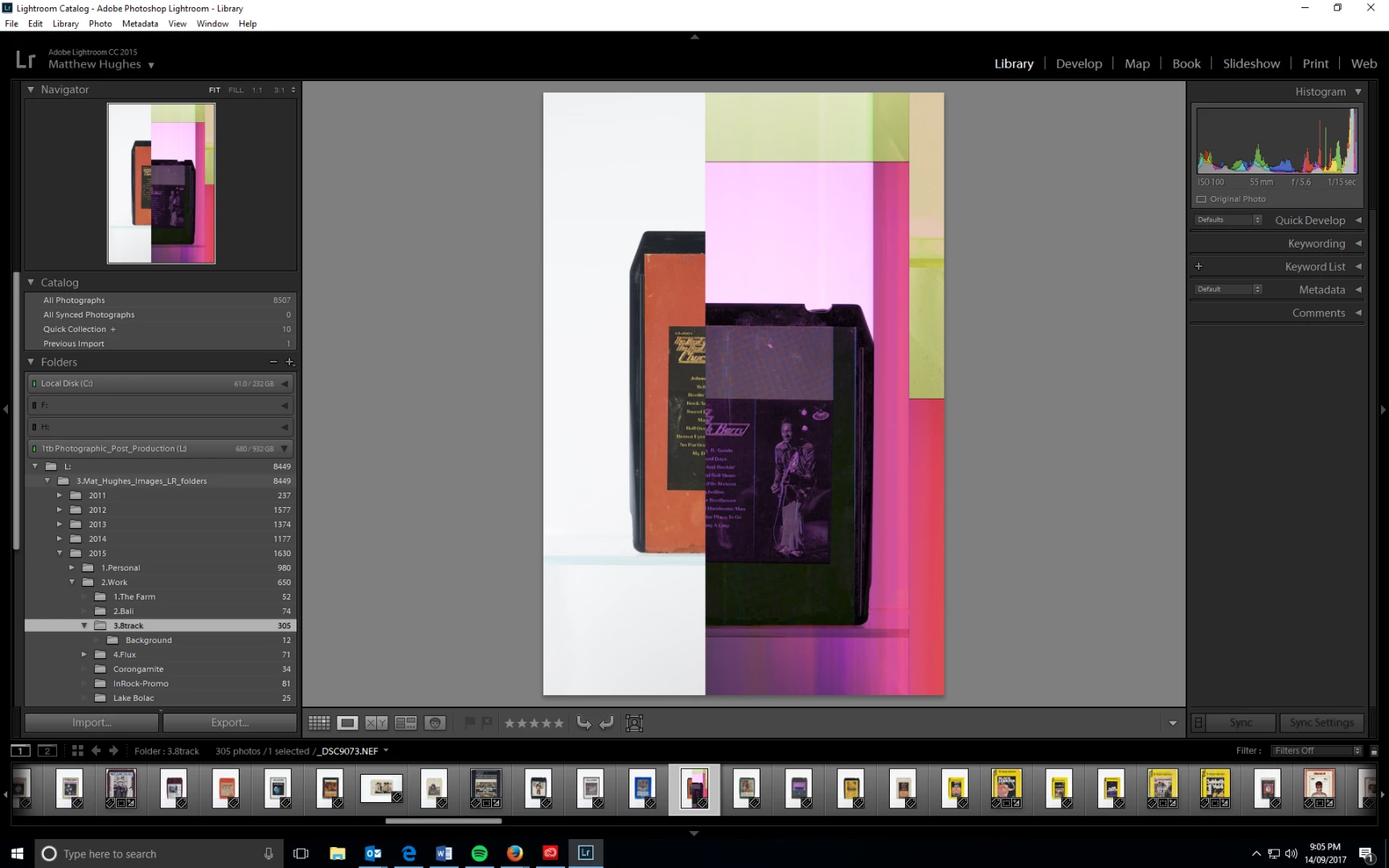
A few months ago, I began to encounter an occasional tramline/narrow colour glitch line on my images. All images appeared to be fine until they passed through either PS or LR.
PS only example: A TIFF file saved on CD\ imported to my external drive\ opened in PS and worked on-looking good\saved back to external drive in various formats PSD, JPG, TIFF\ now when these files are reopened, the image displays glitches.
LR example: A RAW file (storage location as described above) \ some minor work in LR\ exported as TIFF to external drive\ opened in PS and worked on with WACOM-looking good\ saved back to external drive in various formats as before, PSD, JPG, TIFF\ now when these files are reopened in PS, the image displays glitches. Within the Lightroom interface at this point LR did not show any visible signs of a glitched image.
To nail down this issue, I tried to disable the Graphics Card in PS however this performance option is greyed out and I now understand that I have only one in built card. It was suggested that I was saving in too many layers however the this didn`t ring true for the JPG. The remaining possibility was the computer`s hard drive. Just as I started a safety backup I was visited by the blue screen. All stop.
Last week a computer tech checked out the system. The SSD hard drive was fine, no sign of anything amiss. The suggestion was that the Windows OS had a spasm and needed reloading. This was done.
A new c:drive\ user was created and everything including PS and LR was reloaded. I took the opportunity for some housekeeping since the c:drive was getting quite full with LR folders, and moved them in Explorer from the c:drive to the external drive. I went back and renamed the original files before repointing LR to the new folder location.
Yesterday I opened a file from the external drive in PS\ worked on a JPG and saved it back to the external drive and everything appeared fine… although I didn`t interrogate every single file!
However yesterday I also opened LR to take a quick look at a file with the view to importing it to PS.
I selected to file in Library mode, flicked to Develop mode and the whole file instantly glitched.
So I`m now a rabbit in the headlights. Where do I start to unpickle this pickle. Help.
OS Name Microsoft Windows 10 Pro
Version 10.0.15063 Build 15063
Other OS Description Not Available
OS Manufacturer Microsoft Corporation
System Name DESKTOP-87D5D76
System Manufacturer To Be Filled By O.E.M.
System Model To Be Filled By O.E.M.
System Type x64-based PC
System SKU To Be Filled By O.E.M.
Processor Intel(R) Core(TM) i5-2400 CPU @ 3.10GHz, 3101 Mhz, 4 Core(s), 4 Logical Processor(s)
BIOS Version/Date American Megatrends Inc. P1.00, 29/07/2011
SMBIOS Version 2.7
Embedded Controller Version 255.255
BIOS Mode Legacy
BaseBoard Manufacturer ASRock
BaseBoard Model Not Available
BaseBoard Name Base Board
Platform Role Workstation
Secure Boot State Unsupported
PCR7 Configuration Binding Not Possible
Windows Directory C:\Windows
System Directory C:\Windows\system32
Boot Device \Device\HarddiskVolume1
Locale Australia
Hardware Abstraction Layer Version = "10.0.15063.502"
User Name DESKTOP-87D5D76\Matt
Time Zone AUS Eastern Standard Time
Installed Physical Memory (RAM) 8.00 GB
Total Physical Memory 7.73 GB
Available Physical Memory 3.35 GB
Total Virtual Memory 10.2 GB
Available Virtual Memory 4.99 GB
Page File Space 2.45 GB
Page File C:\pagefile.sys
Device Encryption Support Reasons for failed automatic device encryption: TPM is not usable, PCR7 binding is not supported, Hardware Security Test Interface failed and device is not InstantGo, Un-allowed DMA capable bus/device(s) detected, TPM is not usable
Hyper-V - VM Monitor Mode Extensions Yes
Hyper-V - Second Level Address Translation Extensions Yes
Hyper-V - Virtualization Enabled in Firmware Yes
Hyper-V - Data Execution Protection Yes
 AdChoices