
Known Participant
May 6, 2019
Question

guided upright vs rotation

  • May 6, 2019
  • 2 replies
  • 3105 views

Hi there,

I'm writing because I have a question regarding the guided upright tool, maybe someone has an answer to this.

I'm often documenting in an art- and architectural context. many of my photos are taken without tripod, as quickly as possible. that's why often my images are not very straight, but for sure I want the result to be straight.

Usually I do that with the "guided upright"-tool, but there's something that's really bugging me: when i only use "guided upright" then the images often end up being distorted. the better way to do it is to first rotate the image, then export the image, then use the "guided upright"-tool.

To illustrate what I mean, here's some examples (sorry, not the best photo, but it illustrates the point):

1) original image
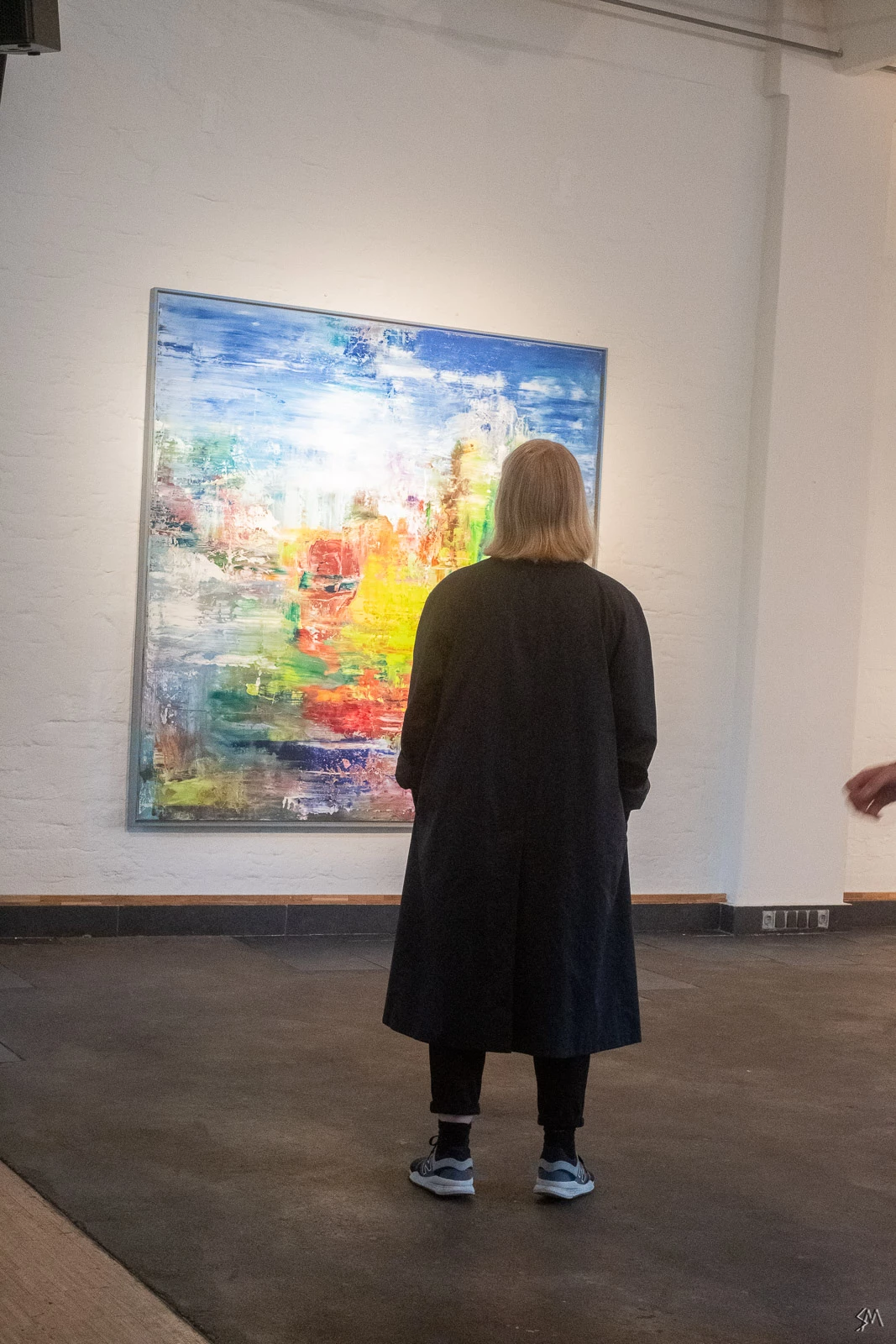
2) straightening using only "guided upright"-tool
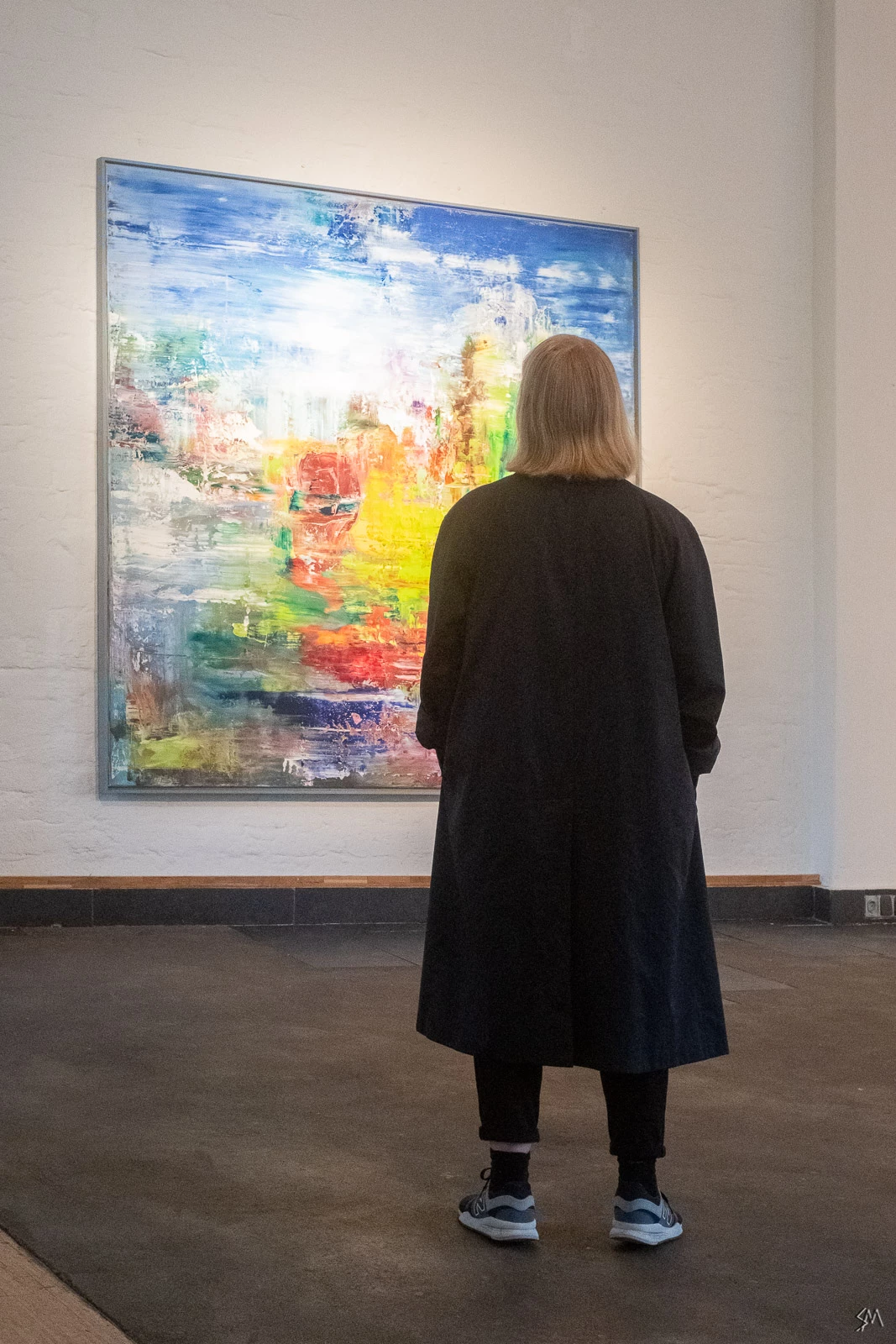
3) straightened by first rotating, then exporting and re-importing, then "guided upright"-tool
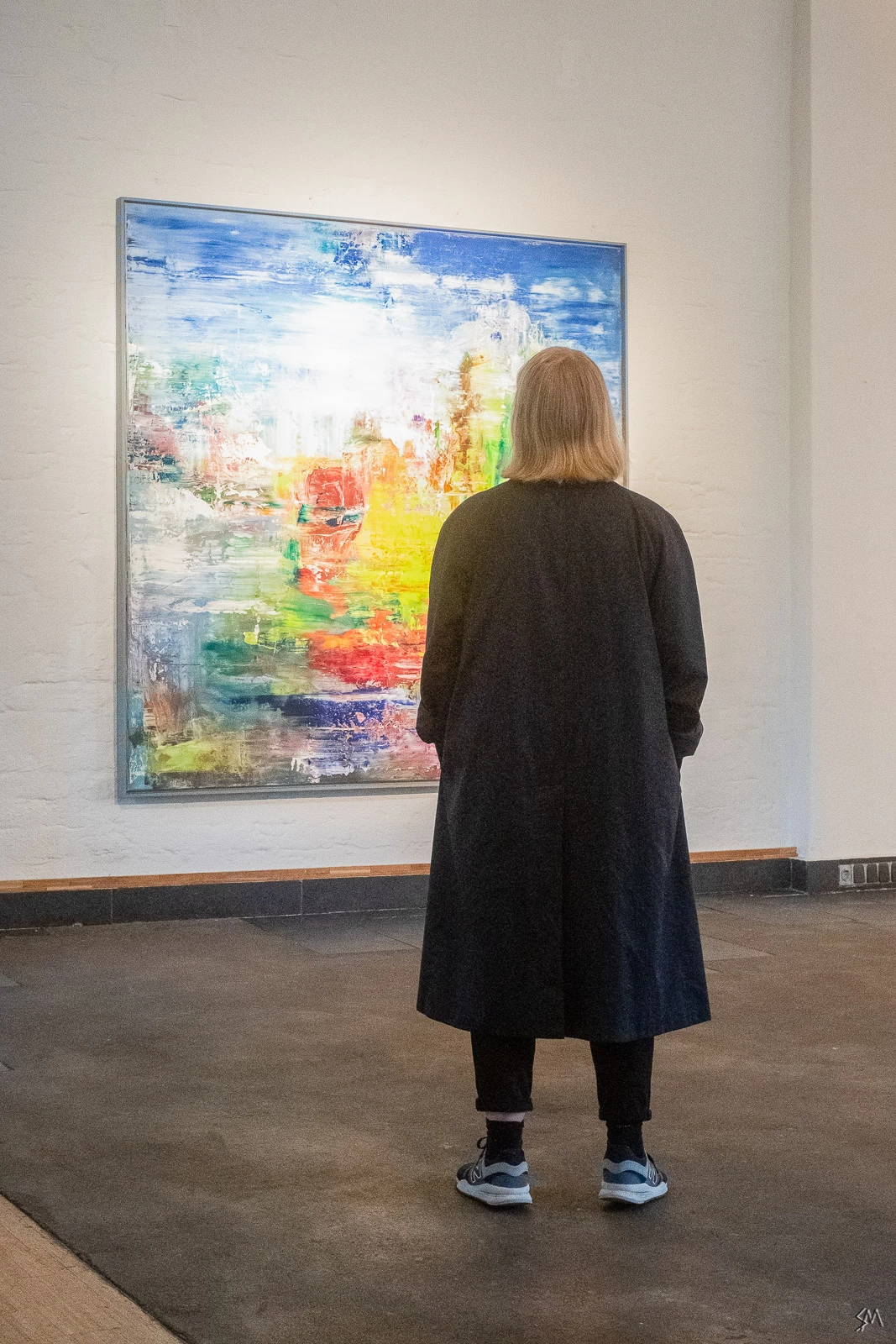
As one can see, there's a significant difference between the results. Here's the two last results again for easier comparison:
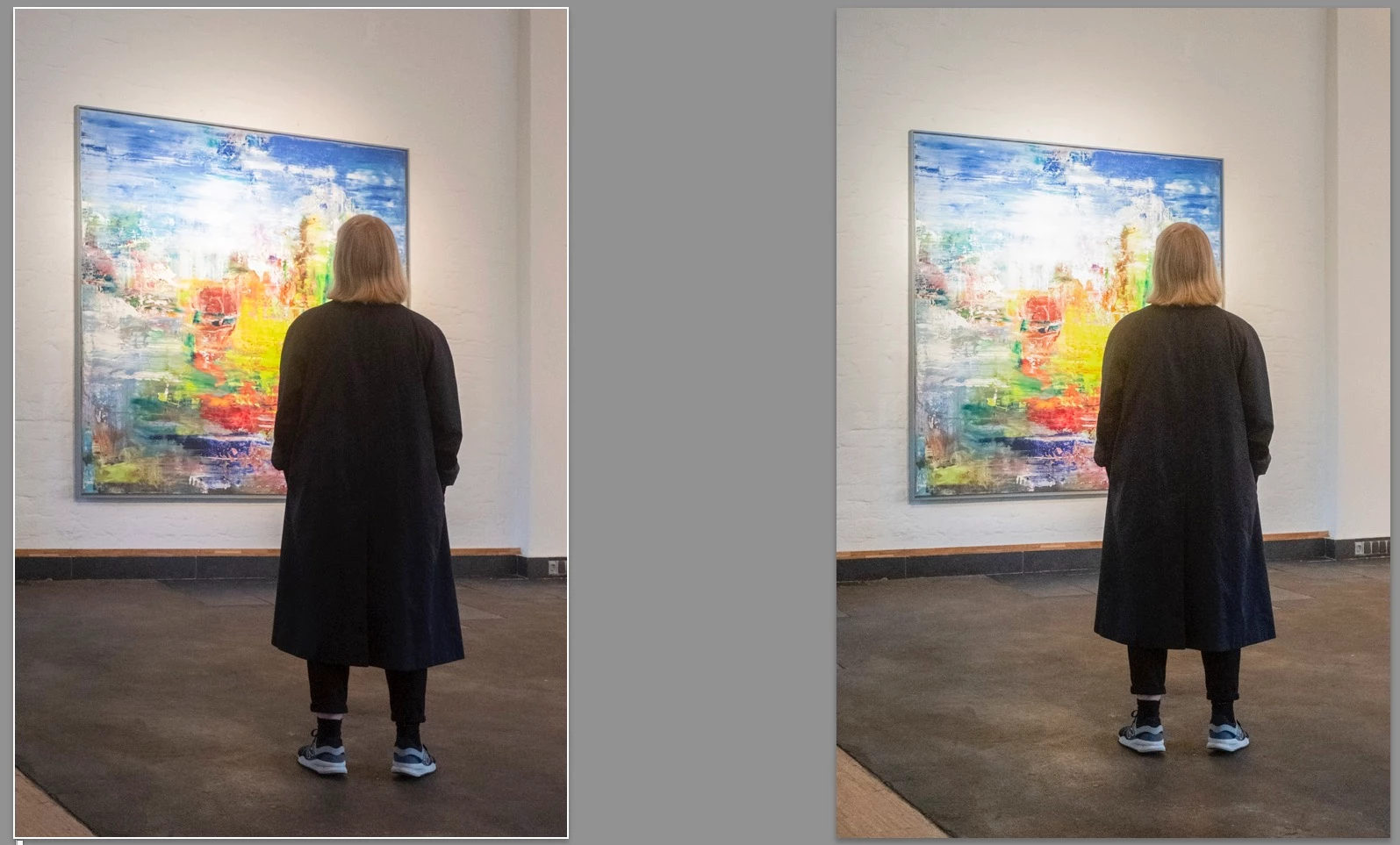
Usually the "guided upright"-tool is resetting any rotation of the image (resulting in a distorted image). There's also the option to press the "option-key" while using the "guided upright"-tool, so the rotation is not being reset. Problem is: that doesn't work at all, it gives me the same result as without resetting the rotation.

My only workaround is to first rotate the image, then export and re-import, then use the "guided upright"-tool.

My question is:

- is this a bug in the application? "Guided Upright" should work in the way that the image is being less distorted not more, shouldn't it? Is it maybe just sloppy programming?

- Why does the pressed "option-key" result in the same distorted image as when i don't press it?

Any feedback would be really helpful, because all that exporting, re-importing is just a waste of time and storage...

Thanks,

Sebastian

This topic has been closed for replies.

2 replies

Just Shoot Me
Legend
May 6, 2019

Maybe if you got permission from the art gallery, painter, artist, owner of the art you wouldn't need to be so quick with your shots and you could compose them better.

Known Participant
May 6, 2019

that's a very constructive response, thank you.

i am photographing with permission, not sure why that's a point here. as i said: on openings sometimes i have to shoot quickly, out of my hand, because some motives just disappear too quickly. it's better to get a good shot that's not straight than miss a shot but have straight lines.

Known Participant
May 6, 2019

I think programming-wise the "guided upright"-tool should not only be about the perspective correction, but rotate the image first by the median value between the two guidelines. Everything else leads to distorted results.

Example: if the left guideline is at an angle of let's say 10 degrees, and the right one is at 20 degrees, then it would make sense to first rotate the image by (10+20)/2=15 degrees, and then do the perspective correction as indicated by the guidelines.

Hope someone can follow me here...

Cheers, S

Known Participant
May 6, 2019

to illustrate my point once more i just made a black square that i rotated in photoshop:

I did not distort the square any further (to keep it as simple as possible), but if I'm using the "upright"-tool on the left and right sides then following thing happens:

I understand that the tool is for correcting perspective distortions, but the tool should incorporate an option to rotate the image first, before correcting the distortion, otherwise it's unusable because it's resulting in images that are MORE distorted than without the correction.

The only work-around is - as stated above - rotating the image first, exporting and re-importing, then use the guidelines.

Maybe the Adobe-team could find a solution for that? Would be really helpful.

Cheers, S

Todd Shaner
Legend
May 6, 2019

That's happening because you are only applying vertical constraint guides. Try applying both vertical and horizontal guides (4).