


Participant
July 2, 2025
Answered

Havinc issues importing into Classic on a Mac

  • July 2, 2025
  • 1 reply
  • 252 views

I am trying to import photos into a specified folder on a Mac. Its a new Mac and I have given Lightroom Classic access to files and folders. My structure is users/<name>/pictures/<year>/<date>

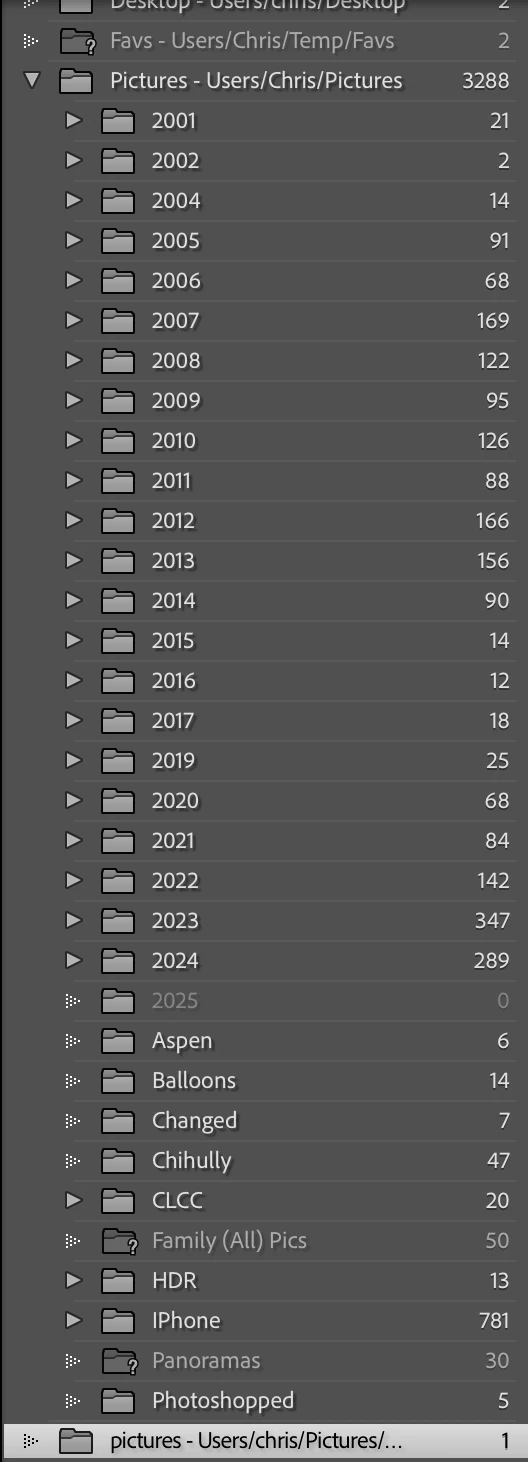
It used to work when I imported pictures it would add the year if it couldn't find it and then put the dates and pics in that folder. When I look at the folders listing under Library view I see that structure. When I import now it is creating the year under the Mac HD and not the Users/<name>/Pictures structure. I have set the destination on import to the correct directory but it keeps putting it in the wrong place. I had to turn on file sharing in order to see the directory structure in the import settings as well. Have no idea what is going on.
Correct answer JohanElzenga

Here is what it does when I import a picture...


This is a well-known problem, called the 'Capitalisation problem'. Basically, what happens is that you have two different folders, one called ‘XXXX’ (or a combination of upper- and lower cast) and the other one called ‘xxxx’. In other words, the names are the same, except for the capitalisation of at least one letter. In your case it is your home (user) folder, called "Chris" and a copy called "chris". Because MacOS and Windows are case-insensitive, your OS sees those two folders as one and the same folder and so it deals with this without you even being aware of it. You will only see one single folder in the Mac Finder or Windows Explorer!!! But Lightroom is case-sensitive, so Lightroom does see two different folders. Here's how to fix the problem. https://www.lightroomqueen.com/capitalization-catalog-error/


1 reply

Anshul_Saini
Community Manager
Community Manager
July 8, 2025

Hi @joeuser182,


Thanks for reaching out and sharing the details. I can understand how puzzling it must be to see Lightroom Classic creating folders in unexpected locations on your Mac.


To help get this sorted quickly, could you please confirm a few details:

  • What version of Lightroom Classic and macOS are you currently using?

  • Could you share a screenshot of your import settings (especially the right-hand side panel showing your destination settings) and your folder structure in Lightroom’s Library module?

  • Are you importing directly from an external device (like an SD card or external drive) or from a local folder?


In the meantime, here’s what I’d recommend checking:

  • Double-check your “Destination” panel settings during import. Ensure “Into Subfolder” is correctly set to your Pictures directory, and verify the option for organizing by date/year is correct.

  • Confirm that Lightroom Classic has full disk access permissions under macOS System Settings > Privacy & Security > Full Disk Access and enable it if it’s not already enabled. Restart LrC and check if the issue is resolved.

Let me know how it goes, or if the issue persists, please share those screenshots and additional details. I’ll be here to assist further!


Best regards,

Anshul Saini

Participant
July 10, 2025

Thaks for the reply - I am using Lightroom CLassic 14.4 release - Mac is running Sequoia 15.5. I am importing from a Nikon D750


I will run through your redcommendations and let you know how it goes!


Participant
July 10, 2025

I do have it set for the pictures subfolder... I was trying some different stuff on the screen capture I posted -  Where do I find the Organize by Date/Year? I thought I knew where it was.....