
Participating Frequently
August 25, 2017
Answered

How can I nudge an image by a single pixel

  • August 25, 2017
  • 4 replies
  • 3022 views

I took a couple of hundred images during the solar eclipse. I had to continually move my camera to keep the sun in frame. I'd like to animate them, to make a time lapse video. So I've created a square crop [whine: it would be REALLY NICE if you could input the crop dimensions numerically instead of by dragging and trial and error] which I've applied to all the images and I'm trying to align the sun in the centre of the crop. This is frustrating because the arrow keys nudge the image too far so I have to use the mouse, and it's a real pain.

Is there a way to change the nudge value to a single pixel?
    This topic has been closed for replies.
    Correct answer johnrellis

    if you could input the crop dimensions numerically i

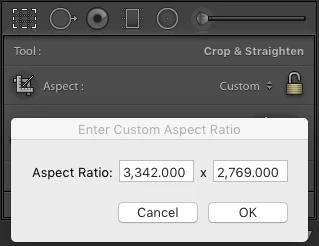
    You can define a custom ​aspect ratio​ numerically using whatever units are convenient, including pixels:

    You can then apply that ratio to each of the photos individually, or you can use Copy/Paste Settings to copy that aspect ratio to all of the photos; you can then move the crop of each photo separately.

    Since all of your originals presumably have the same pixel dimensions, applying the same crop aspect ratio to them will yield final photos with the same pixel dimensions.

    4 replies

    johnrellis
    johnrellisCorrect answer
    Legend
    August 25, 2017

    if you could input the crop dimensions numerically i

    You can define a custom ​aspect ratio​ numerically using whatever units are convenient, including pixels:

    You can then apply that ratio to each of the photos individually, or you can use Copy/Paste Settings to copy that aspect ratio to all of the photos; you can then move the crop of each photo separately.

    Since all of your originals presumably have the same pixel dimensions, applying the same crop aspect ratio to them will yield final photos with the same pixel dimensions.

    Participating Frequently
    August 25, 2017

    If my image is 5472 x 3648 and I want to crop it to 1600x1600 pixels that's the same ratio as 1x1

    So entering 1600x1600 gives me an image that's 3648x3648 - not what I wanted.

    dj_paige
    Legend
    August 25, 2017

    The crop tool does not allow you to crop to obtain exact pixel dimensions. it only gives you the aspect ratio you asked for.

    You can however accomplish this (and moving the crop by exactly 1 pixel) in Photoshop.

    johnrellis
    Legend
    August 25, 2017

    Left Arrow moves the image 10 screen pixels. Opt/Alt Left Arrow moves the image 1 screen pixel. Shift Left Arrow moves the image 100 screen pixels.

    By "screen pixel", I mean a pixel as currently displayed on the display in Develop. What that translates to in terms of actual image pixels depends on the size of the display and the size at which you export the image.

    Conrad_C
    Community Expert
    Community Expert
    August 25, 2017

    Having just nudged a few eclipse pictures myself the other day, the smallest nudge you can get (that I know about ) with the Crop tool is holding down the Option/Alt key while you press an arrow key.

    I share your frustration with resizing the crop rectangle. It doesn't help that we aren't allowed to zoom in while doing that. Photoshop provides much more precision all around, but I wanted to avoid converting everything to a non-raw format.

    dj_paige
    Legend
    August 25, 2017

    I hope I'm wrong, but I'm pretty sure that is a job for Photoshop. Lightroom can't do this.