Participant
July 3, 2025
Answered

How delete extra blank pages in Lightroom Classic Book layout before sending to Blurb for printing?

  • July 3, 2025
  • 2 replies
  • 256 views

Using Lightroom Classic to make Book  thru Blurb. Initially used Auto Layout, which created 50 pages. After editing, I only have photos for 17 pages plus covers. But can't delete extra 33 blank pages - pressing Delete button on blank page doen't help. Terry 

Correct answer Ian Lyons

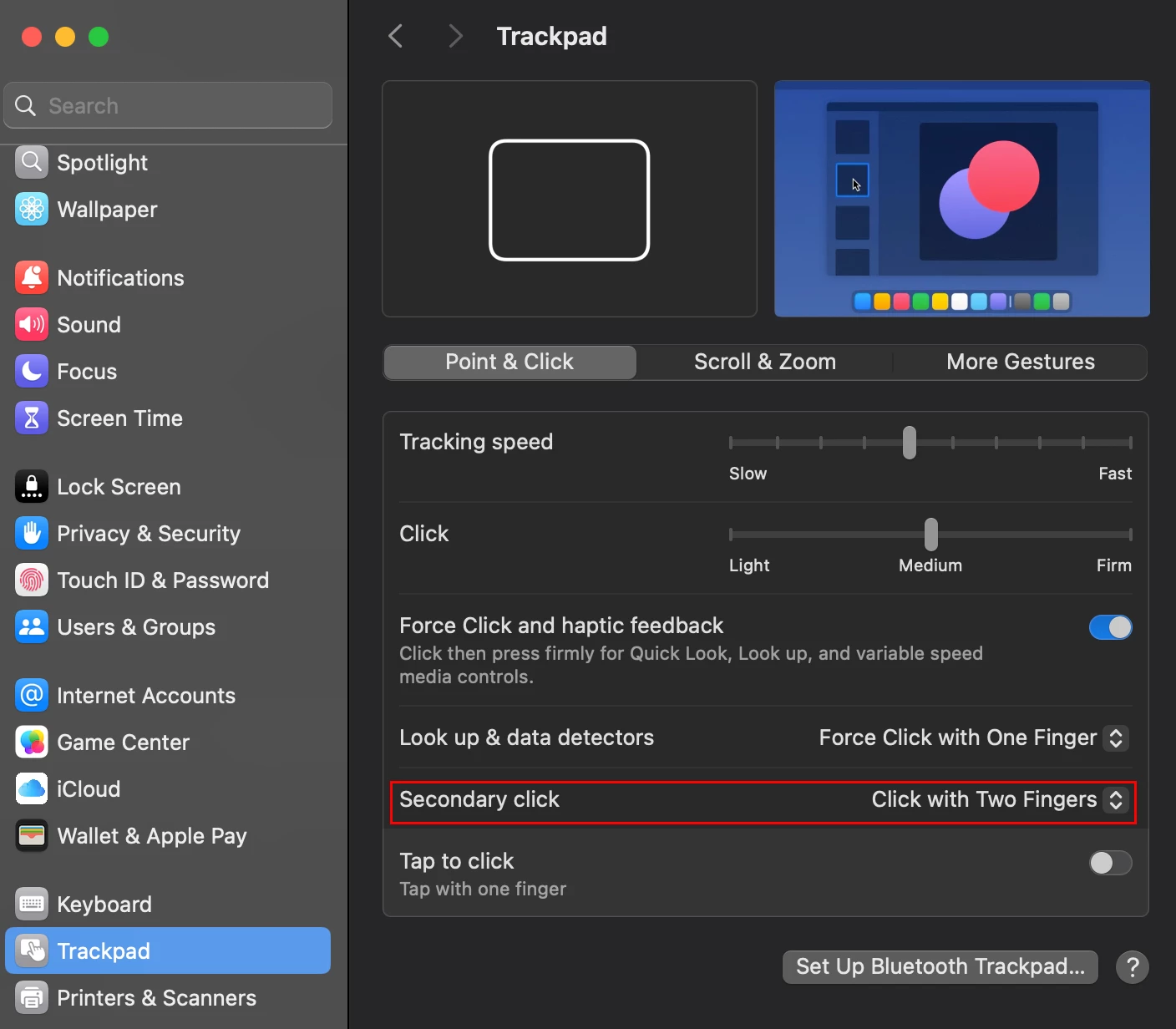
Hold down the Ctrl key then press down on the trackpad. Alternatively, you can can configure the trackpad to accept two finger press to replicate right-mouse button. I've attached a screenshot.


2 replies

Participating Frequently
July 3, 2025

Hi Terry, I've encountered this issue before. In Lightroom Classic's Book module, blank pages created by Auto Layout sometimes get “locked in.” Try switching to Manual Layout mode first (uncheck "Auto Layout"), then right-click the blank pages and select "Remove Page" from the context menu; the Delete key alone often won’t work. Also, double-check that you’re not trying to delete a left/right-paired page that requires balance.

Ian Lyons
Community Expert
Community Expert
July 3, 2025

If you right mouse click on a page you should see a context menu. There's an option to remove the page in this context menu

Participant
July 3, 2025

Thanks - using MacBook Pro laptop - don't know how right click.

Ian Lyons
Community Expert
Ian LyonsCommunity ExpertCorrect answer
Community Expert
July 3, 2025

Hold down the Ctrl key then press down on the trackpad. Alternatively, you can can configure the trackpad to accept two finger press to replicate right-mouse button. I've attached a screenshot.