
2Charlie
Inspiring
June 15, 2024
Answered

How do I add local image folder without importing?

  • June 15, 2024
  • 2 replies
  • 2570 views

My current folder structures looks like this.
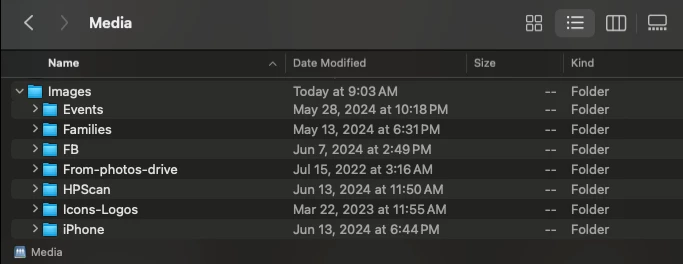
Currently in the LR library it shows all of folders listed here except the iPhone folder. In LR, how do I simply just add the iPhone folder to the library instead of creating a new folder in the library and then import all the photos/images in the iPhone folder? If I do a Sychronize folder, I can see the iPhone folder. And if I'm correct, doing it this way avoids importing but I'm not 100% sure.


What I'm trying to avoid is duplicating images in my Media volume. That is why I want to add the existing folder instead of importing. I do not want to import images form iPhone to another iPhone folder; thus, duplicating the files.

This topic has been closed for replies.
Correct answer Michael J. Hoffman

Okay, so eventhough it says "Import" at the bottom right, in this case, it's only going to Add instead of copying, correct?


Thank you so much!


correct, the top center option (#2 in my list above) tells LR how it is to handle the images during import. 

"Importing" refers to adding the image location and metadata to the catalog. "Organization" of the files on disk is different from importing and can be accomplished by "copy" "add" or "move."

2 replies

JohanElzenga
Community Expert
Community Expert
June 15, 2024

Just import that folder and choose 'ADD' at the top of the import dialog. That will add the folder (and import the images without moving or copying them).


-- Johan W. Elzenga
2Charlie
2CharlieAuthor
Inspiring
June 15, 2024

Are you referring to this Add option at the top here?


DdeGannes
Community Expert
Community Expert
June 15, 2024

Is the screen capture of a folder on your Computer Hard Drive, if not provide info on what we are looking at?

Images must be imported into Lightroom Classic for you to view and edit them in the Lightroom application.

Regards, Denis: iMac 27” mid-2015, macOS 11.7.10 Big Sur; 2TB SSD, 24 GB Ram, GPU 2 GB; LrC 12.5,; Lr 6.5, PS 24.7,; ACR 15.5,; (also Laptop Win 11, ver 24H2, LrC 15.3; PS 27.0; ) Camera Oly OM-D E-M1.
2Charlie
2CharlieAuthor
Inspiring
June 15, 2024

Yes, the screen capture is an image of my computer's external hard drive. It's actually a NAS system that I mapped. Does importing means copying the images and making duplicates? I know for sure that if import from my SD card, it actually copies files over. However, in this case, it's already store in the hard drive. I just want to show all the files in LR.

Michael J. Hoffman
Community Expert
Community Expert
June 15, 2024

Importing by choosing "ADD" as Johan mentions above does not create a copy. Obviously that's not a good option for SD cards; in that case you want to choose the "COPY" or "COPY as DNG" option. But for permanently attached drives, ADD is what you want when the files are already organized the way you want them.