Answered
How do i create a Library Search filter for pixel dimensions?
Is it possible to create a Searchable Prompt in Lightroom Classic to select all files with specified maximum dimensions or file size?

Is it possible to create a Searchable Prompt in Lightroom Classic to select all files with specified maximum dimensions or file size?
Hi
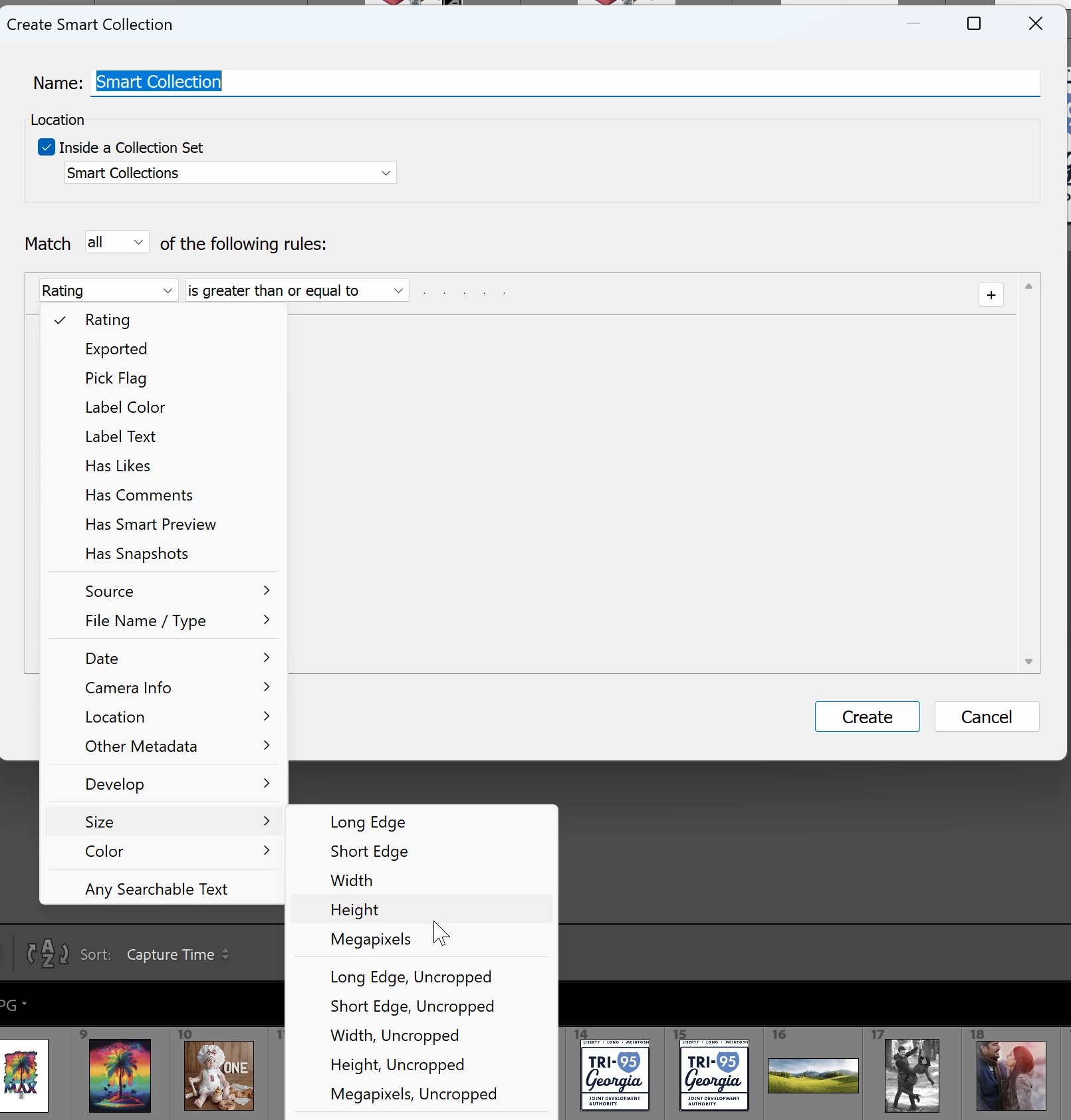
Yes, you can filter by pixel dimensions in Lightroom Classic, but not directly through the Library Filter bar. Instead, create a Smart Collection:
Go to Library > New Smart Collection.
Set the rule to File Dimensions.
Choose a condition such as is less than or is greater than, and enter the maximum pixel dimensions you're looking for (for example, 2048 × 2048 px).
Save the Smart Collection, and Lightroom Classic will automatically include all matching photos.
If you're looking to find files by file size (MB/KB), Lightroom Classic doesn't provide a built-in search filter or Smart Collection criterion for file size.
Already have an account? Login
Enter your E-mail address. We'll send you an e-mail with instructions to reset your password.


 AdChoices