Inspiring
February 14, 2022
Answered

How do I disable Hierarchical Keywords in LR Classic

  • February 14, 2022
  • 1 reply
  • 1003 views

How do you disable Hierarchical Keywords in Lightroom. I don't remember creating any. Is Lightroom creating automatically some when you use the same keywords with images. I am keywording now some images from Venice Italy. And it always adds the keywords canal that I have to manually remove later. How can I get rid of that feature. I don't want any automatic input from LR. Just deactivate or forever erase that option. Is this possible


Thank you.
This topic has been closed for replies.
Correct answer Rob_Cullen

TBMK There is no setting to disable the possibility of the hierarchy in keywords. Just don't add keywords under a 'parent' KW.

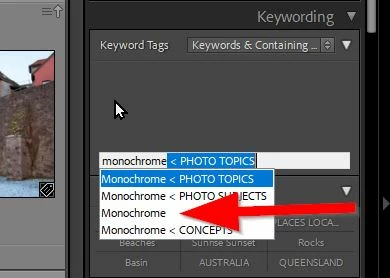
I have my Keywording panel set to show [Keywords & Containing Keywords]. So when I add a keyword I get a preview that illustrates if the KW exists in a hierarchy, or not.

In this screen-clip the KW "Monochrome", indicated by the arrow, is not in a hierarchy, and I can select this one for the selected images.

You can move KWs out of a hierarchy by Drag&Drop in the KW List (very tedious if you have many KWs in  hierarchies).


Note: That if you have many keywords in a 'Flat' list, you may run into the limitation when you will only ever see, for example, KWs  A>M, and KWs N>Z will not show. (Something to do with the maximum number of pixel lines that the OS will show in the panel.) The answer to this is always- "Use a Hierarchial KW system!


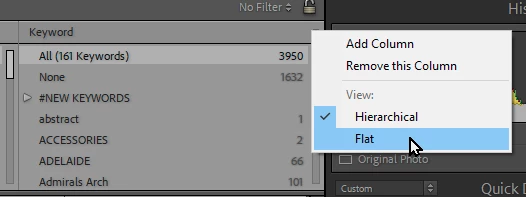
Note: If you use the Metadata Search Filter for Keywords, you can show KWs as either Hierarchical or Flat.


1 reply

Rob_Cullen
Community Expert
Rob_CullenCommunity ExpertCorrect answer
Community Expert
February 14, 2022

TBMK There is no setting to disable the possibility of the hierarchy in keywords. Just don't add keywords under a 'parent' KW.

I have my Keywording panel set to show [Keywords & Containing Keywords]. So when I add a keyword I get a preview that illustrates if the KW exists in a hierarchy, or not.

In this screen-clip the KW "Monochrome", indicated by the arrow, is not in a hierarchy, and I can select this one for the selected images.

You can move KWs out of a hierarchy by Drag&Drop in the KW List (very tedious if you have many KWs in  hierarchies).


Note: That if you have many keywords in a 'Flat' list, you may run into the limitation when you will only ever see, for example, KWs  A>M, and KWs N>Z will not show. (Something to do with the maximum number of pixel lines that the OS will show in the panel.) The answer to this is always- "Use a Hierarchial KW system!


Note: If you use the Metadata Search Filter for Keywords, you can show KWs as either Hierarchical or Flat.


Regards. My System: Windows-11, Lightroom-Classic 15.0, Photoshop 27.0, ACR 18.0, Lightroom 9.0, Lr-iOS 10.4.0, Bridge 16.0 .
mastixAuthor
Inspiring
February 14, 2022

Thank you very much. I will have to follow your suggestion to move out from a hierarchy those words that I don't like. Now every time I put view I get the word "drone". Not right. So I will need to move them out manually.

I wish there was a way to disable that hierarchy nonsense altogether. It doesn't help me at all. On the contrary, it slows me down. I have keywording tools that are very efficient for my stock work and wish they just do what they have to do, include the keywords that I told the program to do and not those that the program thinks it has to include. All this dumb IA just is so many times a step backwards.

I understand that many people might find it useful but let the customer decide. 1 click disable that function and everybody happy 🙂

Same with the shortcuts. Typing keywords and boom hit a keyword that is assigned to a shortcut and Lightroom does something that I don't want to. Wish also that keywords could be disabled altogether or at least only assign those that you want.

In any case, thank you for your help and will do the Drag&Drop solution

Regards

Cristian