
bartonlew
Legend
January 23, 2018
Answered

how do I eliminate glare from an image

  • January 23, 2018
  • 3 replies
  • 10089 views

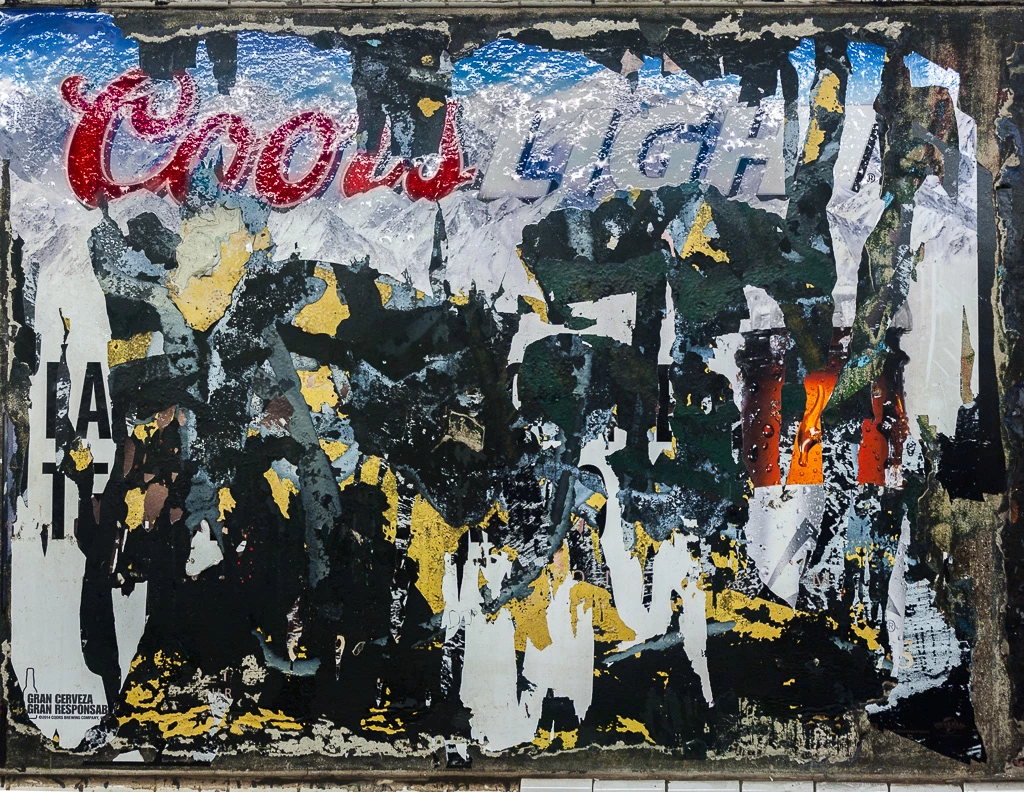
Hello, I need to eliminate the glare created by the overhead lighting in the photo below.  This image was shot in a train station and I have no control over the lighting.  I used the Adjustment Brush to saturate the letters in "Coors" but also tried various settings to eliminate or lessen the shiny glare across the top of the image.  I'd like to bump up the whiteness in the word "Light" but make it contrast with the background and lessen the shiny reflective glare across the top of the image overall.  If anyone has any suggestions, I'd be grateful.  Thanks.
This topic has been closed for replies.
Correct answer Rob_Cullen

You will not be able to do it with Lightroom.

The highlights mean there is no image data in those areas to restore.

I think your only hope is to do extensive cloning and brushing in Photoshop to 'paint in' the missing parts of the sign.

3 replies

bartonlew
bartonlewAuthor
Legend
January 23, 2018

That's what I was afraid of.  Guess it's time to take an online course in Photoshop.  Thanks for your help.

AxelMatt
Community Expert
Community Expert
January 23, 2018

I think you can try to reduce the glare with the Highlights slider. Move this slider to the left side and check.

Take a look here:

https://forums.adobe.com/message/5960051#5960051#5960051

https://photofocus.com/2015/12/27/removing-glare-from-eyeglasses-in-lightroom/

https://photofocus.com/2014/05/12/fixing-shadows-and-highlights-with-lightroom/

Regards

Axel

My System: Intel i7-8700K - 64GB RAM - NVidia Geforce RTX 3060 - Windows 11 Pro 25H2 -- LR-Classic 15 - Photoshop 27 - Nik Collection 8 - PureRAW 6 - Topaz Photo AI
bartonlew
bartonlewAuthor
Legend
January 23, 2018

Thanks, but I already tried that, and while it's helped me before, here is did not.  But thanks anyway.

Rob_Cullen
Community Expert
Rob_CullenCommunity ExpertCorrect answer
Community Expert
January 23, 2018

You will not be able to do it with Lightroom.

The highlights mean there is no image data in those areas to restore.

I think your only hope is to do extensive cloning and brushing in Photoshop to 'paint in' the missing parts of the sign.

Regards. My System: Windows-11, Lightroom-Classic 15.1.1, Photoshop 27.3.1, ACR 18.1.1, Lightroom 9.0, Lr-iOS 10.4.0, Bridge 16.0.2 .