As a practical policy, I would recommend not making image organising folders directly at the top level of a drive.
It is easier to manage if there is a standard folder first, representing your whole library (or at least, those parts of your library which live on this particular drive volume) and then the various year (or whatever) folders within that. And then if you moved some older years to another drive in future, you would want a similar containing folder there - the point being, a folder will exist to which LR can be directed, rather than just a "bare" drive name.
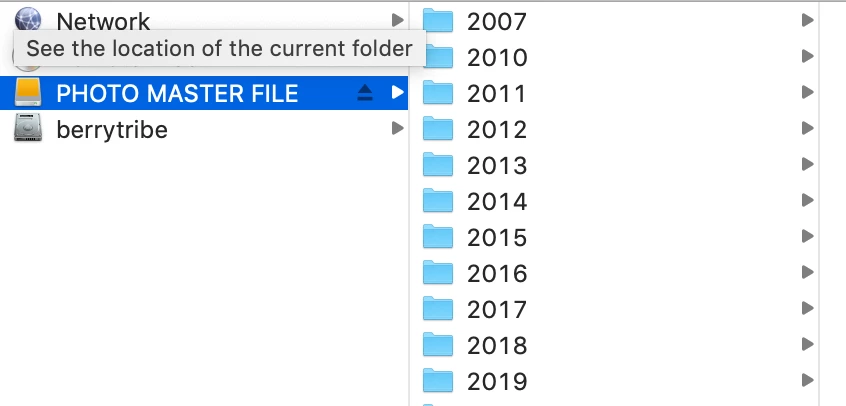
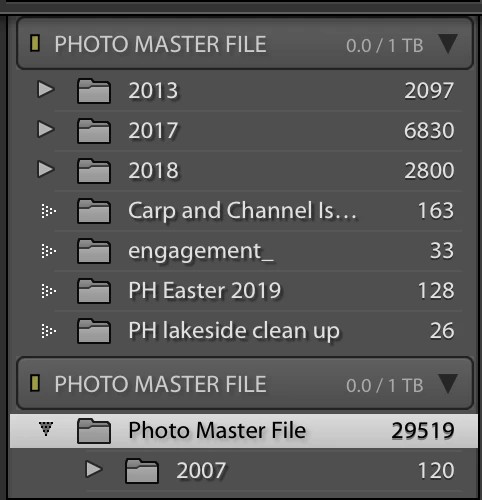
(edit: you may already have such a folder, called "Photo Master File" - distinct from the drive name which is all in capital letters.)
Once such a containing folder exists, it can be shown or not shown in LR - but once shown, LR reorganises its entire folders panel as needed until the nesting (hierarchy) displayed, corresponds with how things are on disk.
So if inside drive volume "PHOTO MASTER FILE" you made a new folder "Library" (say), you could move all of the year based folders into that using Finder, outside Lightroom. This will momentarily cause the Catalog to lose contact with these photos, but they and all edits etc still remain safe. Then you can "Find Missing Folder" for one of the year folders still seen inside LR's folders panel, and then in the dialog which opens, browse to the corresponding year folder inside your new "Library" folder. All the other years alongside should also readdress themselves, and LR will regain contact with all the photos involved.
If a second instance for this drive's contents still shows up in LR, (e.g. with different years inside) you can readdress one of those image containing folders too, in the same way, and LR should bring it all together as one.
(edit: so - go to one of those year folders which do not display "Photo Master File" as their parent, and select "Show Parent Folder")
IOW your years should show in a single list, once LR is displaying the (e.g.) "Library" folder which constitutes the actual relationship between these years. You can then choose "Hide Parent Folder" if you don't want this to take up any space in the interface - but any time such a problem repeats, "Show Parent Folder" will bring it back into view.


 AdChoices