Participant
May 20, 2017 11:11 AM UTC
Answered

How to add few minutes to photo's capture time in Lightroom?

After a day of shooting I have realized that time in my camera was incorrect (few minutes mismatch with my gps tracker). Is there any way to add certain time to all selected photos capture time (6 minutes)? I can do it one by one but it's just a torment .
Just Shoot Me
Just Shoot MeCorrect answer
Legend
May 20, 2017 12:01 PM UTC

Did you follow the link I provided?

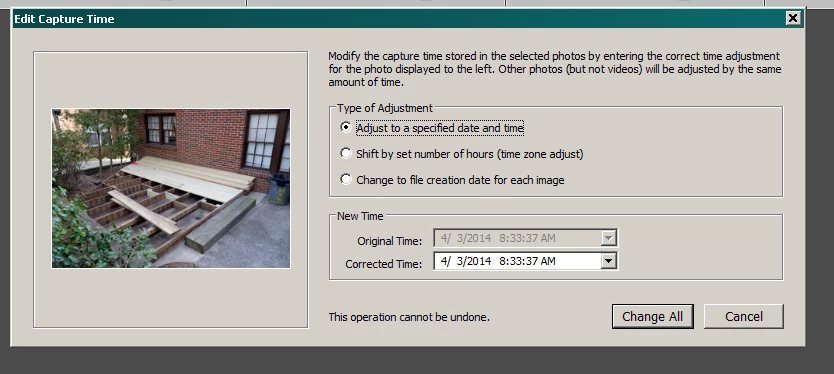
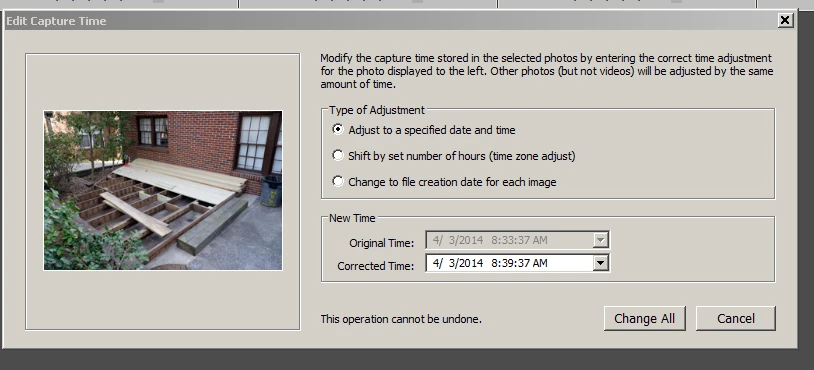
In the Edit Capture Time dialog, after selecting all the images in the Grid view, select the minutes section of the date time in the Corrected Time area and Type in a minute 6 minutes ahead. Click the Change All Button.

14 replies

Participant
Aug 13, 2022 6:54 PM UTC

There's no way to adjust minutes specifically - only hours. I'm currently culling a wedding and my second shooters images are off by 2 hours and 9 minutes. I adjusted it by 2 hours, but 9 minutes still makes a BIG difference when culling. 


Translate
JohanElzenga
Community Expert
Community Expert
Aug 13, 2022 8:41 PM UTC

@ClicksByCourtney wrote:

There's no way to adjust minutes specifically - only hours. I'm currently culling a wedding and my second shooters images are off by 2 hours and 9 minutes. I adjusted it by 2 hours, but 9 minutes still makes a BIG difference when culling. 


You are wrong. There is such an option. See the screenshots in the answers, and actually read the answers. Why post this as a new message in a five years old thread if you do not even bother to read that thread?


What you need to do is select all images, and then set the correct time for the active image. Lightroom will not set the same time for all the other images, as you probably think, but change all the other images by the same amount of time. Exactly what you want.


Translate
-- Johan W. Elzenga
Rob_Cullen
Community Expert
Community Expert
Aug 13, 2022 11:48 PM UTC

There is such an option, as @JohanElzenga states.

Change BOTH the 'Hour'  and 'Minute' fields to reflect the 2 Hours AND 9 Minutes difference-


M Example:   10:03:06  > 12:12:06   (Plus 2hrs9mins)

Translate
Regards. My System: Windows-11, Lightroom-Classic 15.6, Photoshop 27.8, ACR 18.7, Lightroom 9.4, Lr-iOS 10.4.0, Bridge 16.0.3 .
Jim Wilde
Community Expert
Community Expert
May 20, 2017 11:35 AM UTC

You use the same "Edit Capture Time" command, but instead of doing it one image at a time you select ALL the images (in Grid view) that you want to adjust by the same amount....then do Metadata>Edit Capture Time and you'll see that the dialog changes (it basically tells you that all the selected images will be adjusted by the same amount as you specify for the "most selected" image). So in your case, set the corrected time for the most selected image (shown in the dialog) and all the other selected images will be adjusted by that same corrected amount.

Translate
karpiuAuthor
Participant
May 20, 2017 11:43 AM UTC

I fought it's should be like this but it seems that when I am in library -> grid view Lightroom gets what is selected not from the grid above but from the selection below. And even here if I have selected more than one photo the dialog is not changing and still LR is adding time change to only one photo. Weird. I am using most recent version of LR (not the CC).

Translate
Just Shoot Me
Just Shoot MeCorrect answer
Legend
May 20, 2017 12:01 PM UTC

Did you follow the link I provided?

In the Edit Capture Time dialog, after selecting all the images in the Grid view, select the minutes section of the date time in the Corrected Time area and Type in a minute 6 minutes ahead. Click the Change All Button.

Translate
Just Shoot Me
Legend
May 20, 2017 11:30 AM UTC
karpiuAuthor
Participant
May 20, 2017 12:01 PM UTC

I am sure that this solution is working, but unfortunately it's is not working in my Lightroom. And I don't know why . In this situation I just have to remember to set the time in my camera more often .

Translate
Just Shoot Me
Legend
May 20, 2017 12:03 PM UTC

Also make sure you have the top option selected, "Adjust to a specified date and time".

Translate