



idontwanttobehereatall
Participant
May 3, 2026
Question

How to clean up corrupted xmp files

  • May 3, 2026
  • 3 replies
  • 52 views

I’ve got a bit of a weird problem where a subset of ~1.2k photos cannot have their metadata saved. All of them have this badge on their photo in the strip, and when I try to save, I get this error.
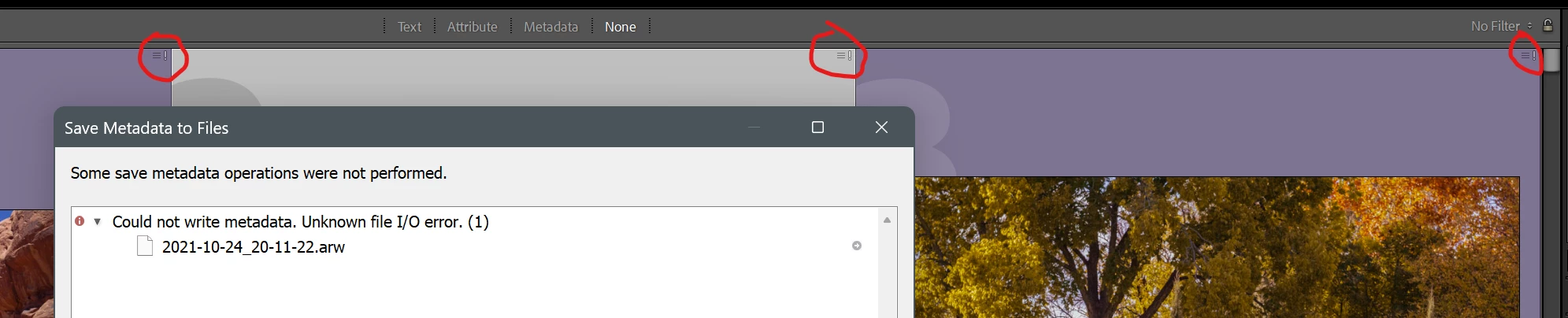
 

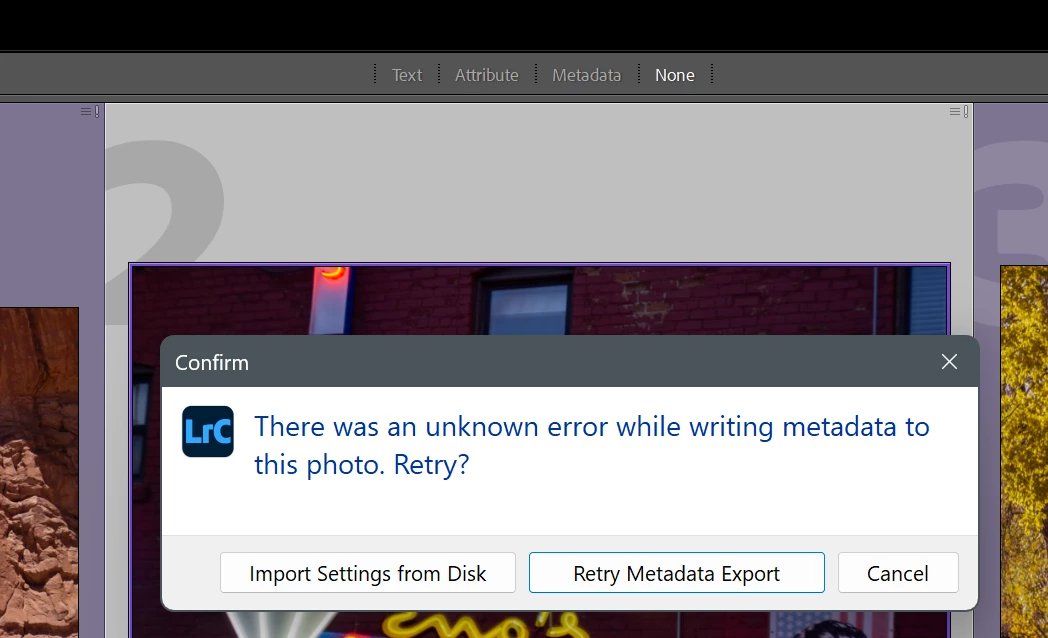
Initially, I thought my RAW files might have been corrupted, and something was wrong with the file itself, but I tried opening the raws in two separate programs (XNview MP / DarkTable) and the image opened perfectly in those. That led me to trying out some other things including the ‘Import Setting from Disk’ option that pops up which you click on the ‘metadata error’ icon circled in red above
 

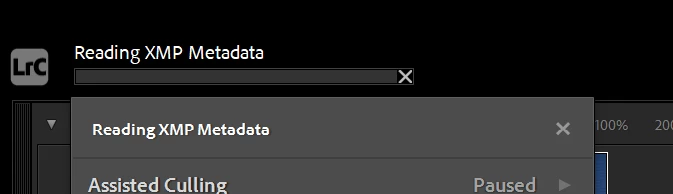
When Lightroom tried to read these files, it just froze on the ‘Reading XMP Metadata’ step with it never getting any further. This is only a subset of seemingly random photos in my library across the entire history of photos Ive taken 2016-2026. File permissions and all things which could be getting between Lightroom → XMP File are all correct, so that leads me to believe the issue is either with lightroom or the xmp file itself.
 

Ive attached an XMP file for an image that will not save (with location data scrubbed) but it seems like the file itself is not corrupted basted on testing the xmp in other tools. 

Removing the file from Lightroom then Re-Syncing the folder fixes the problem, but then I lose all of my edits. Is there a way I can dump the XMP files is bulk from lightroom then rewrite them based on the metadata stored in Lightroom to fix the issue + preserve edits? Or any other solution Im open to.


    3 replies

    idontwanttobehereatall
    Participant
    May 3, 2026

    I was eventually able to resolve the issue through a super annoying reimport process, though I lost quite a bit of metadata while doing so.

    1. Create a collection that has all the images with problems (not smart collection)
    2. Remove all photos from lightroom, but JUST REMOVE - DO NOT DELETE from your file system.
      1. Lightroom doesn’t let you remove photos from lightroom in the collection screen if you right click. Instead, you need to go to the ‘photo’ menu bar at the top and hit remove. Why it isn’t in the right click (and tells you in a smart collection that you can’t remove photos from a collection view, who knows!)
    3. Synchronize the folder that holds all of your photos you just removed from Lightroom
      1. Check the ‘show import dialog’ box on the popup
    4. IMPORTANT: On the rightside panel where you can apply a development preset, set it to “None”
      1. Thanks to this post (https://www.lightroomqueen.com/community/threads/can-i-remove-photos-but-keep-development-settings.36832/post-1242726 ) it broke down exactly what this process does and what you will retain/lose: 
        In the process you will lose:
      2. - Collection participation of the images
        - Pick flags
        - Publish Service participation
        - Virtual Copies
        - Develop module history of changes
        - Snapshots
        - Slideshows
        - Saved prints
        - Sometimes Keywords may be re-added at the root of the KW list rather than finding the existing KW in a hierarchy
        - Where keywords are duplicated in your catalog (e.g. you have the Keyword "Red" under both "Cars" and under "Trucks") it may pick the wrong one, pick both or create a new one at the root (I have not done enough experimentation to determine the exact pattern but have seen anomilies in this area)

        You will retain
        - Develop module changes (but not history, only final state of slider positions)
        - targeted adjustments (radial filters, gradiant filters, brush strokes)
        - most other metadata (titles, captions, star ratings, copyright, GPS, Location info, etc
    5. Wait for Lightroom to re-import.

    You will lose the metadata listed above + edit steps, but will at least retain the important stuff required to ‘restore from 0’ if your setup breaks like mine did. There is still no clear error as to why this IO problem happened in the first place, but this can at least resolve the problem

    idontwanttobehereatall
    Participant
    May 3, 2026

    After some more testing, deleting XMP files and trying to force LR to write a new one doesn’t help, so the only way that seems to be able to fix it is by removing the pics completely and reimporting. I do not want to lose my edits/star ratings/keywords for 1800 pictures, so would love any other options I could try to fix this subset of images that is acting up

    JohanElzenga
    Community Expert
    Community Expert
    May 3, 2026

    Just delete those sidecar files using Windows Explorer.

    -- Johan W. Elzenga
    idontwanttobehereatall
    Participant
    May 3, 2026

    I understand the intention was good, but I highlighted that this is happening to a completely random series of 1.2k photos scattered across 100+ folders. Manual cleanup is not an option since I would need to Right Click → View File in Explorer 1.2k times.


    I did a bit more testing regardless, and it seems like deleting the xmp and trying to force LR to save the metadata again does not write a new xmp file. It just gives the same IO error. The only way I’ve been able to resolve it is by removing the photos from my library and re-scanning the folder