wlpearce_com
Participant
September 27, 2018
Answered

How to correct a photo name?

  • September 27, 2018
  • 1 reply
  • 416 views

This seems like such a simple question that I'm almost embarrassed to ask it.  But it's been a problem for me ever since I switched from Aperture over a year ago.  I'm a sports photographer and my workflow is to 1. Import photos, 2. Rename them in bulk with a template that includes the event and a sequence#, 3. Label the photos individually with an athlete name using a [custom text]_[filename] template.  All is well...

But occasionally I screw up (hard to believe I know).  I label with the wrong name or whatever.  All I want to do is correct the filename.  In Aperture, I just selected the filename and edited it... just like renaming a file in Explorer or Finder.  How can I do that in Lightroom?  I can't even figure out a way to get the filename on the clipboard so I can do it with a [custom text] template.  Frustrated!  It can't be this hard.

Thanks in advance.  Bill
    This topic has been closed for replies.
    Correct answer Rob_Cullen

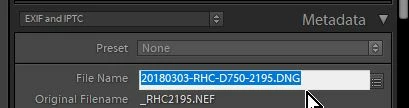
    For a single image- one way is in the metadata panel in Library module-

    Select the entire filename, or position cursor to delete/insert changes:

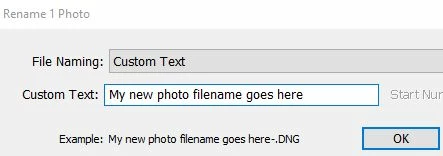
    Pressing F2 (Function key 2) will also open the re-name dialog where you can select a Preset and use it to re-name one or any number of selected photos.

    For one photo you might use just {Custom Text} and type the whole name.

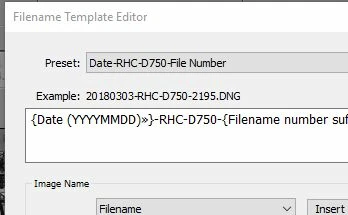
    Or create your own rename preset in the Template Editor from the "Edit..." option in the 'File Naming:' Preset drop-down menu:

    If you adopt the practice of re-naming your photos in Lightroom AFTER you have imported them, you have the benefit of re-using the "Original Filename" for any subsequent rename. (Note the Original filename in the first screen-clip above)

    *The "Original Filename" from the camera is lost ('replaced' might describe it better) if you rename within the Import dialog!!

    Having the "Original Filename" always available makes it easier to construct renaming templates that include the camera's filename.

    1 reply

    Rob_Cullen
    Community Expert
    Rob_CullenCommunity ExpertCorrect answer
    Community Expert
    September 28, 2018

    For a single image- one way is in the metadata panel in Library module-

    Select the entire filename, or position cursor to delete/insert changes:

    Pressing F2 (Function key 2) will also open the re-name dialog where you can select a Preset and use it to re-name one or any number of selected photos.

    For one photo you might use just {Custom Text} and type the whole name.

    Or create your own rename preset in the Template Editor from the "Edit..." option in the 'File Naming:' Preset drop-down menu:

    If you adopt the practice of re-naming your photos in Lightroom AFTER you have imported them, you have the benefit of re-using the "Original Filename" for any subsequent rename. (Note the Original filename in the first screen-clip above)

    *The "Original Filename" from the camera is lost ('replaced' might describe it better) if you rename within the Import dialog!!

    Having the "Original Filename" always available makes it easier to construct renaming templates that include the camera's filename.

    Regards. My System: Windows-11, Lightroom-Classic 15.3, Photoshop 27.5, ACR 18.3, Lightroom 9.3, Lr-iOS 10.4.0, Bridge 16.0.3 .
    wlpearce_com
    Participant
    September 28, 2018

    Perfect.  Metadata panel exactly what I was looking for... and I knew it had to be there somewhere!  I just didn't have that panel turned on.  Thanks much.