Known Participant
January 12, 2021
Answered

How to delete all synced photos?

  • January 12, 2021
  • 2 replies
  • 15060 views

Hello, 

i need DELETE all my SYNCED data. Ok.. but where is the option to do that? In LR Classic , at preferences, you can see a button to do tht but when you clk it, LR send you to LR web page... and there, nothing.... ( or i miss it ). 

I go to Adobe homepage , at account profile and dont find it too. 

I dont want do it manualy...  

thank you very much.
Correct answer johnrellis

[This post contains formatting and embedded images that don't appear in email. View the post in your Web browser.]


1. In LR Classic, Preferences > Lightroom Sync > Delete All Synced Data.


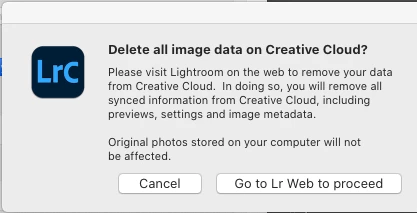
2. Click Go To Lr Web To Proceed:


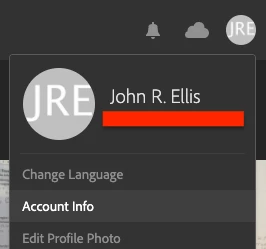
3. Click your avatar in the upper-right corner, then Account Info:


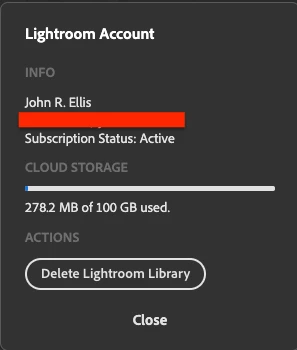
4. Click Delete Lightroom Library:


[Use the blue reply button under the first post to ensure replies sort properly.]


2 replies

Participant
January 22, 2025

Your admin has to delete your account.

johnrellis
johnrellisCorrect answer
Legend
January 12, 2021

[This post contains formatting and embedded images that don't appear in email. View the post in your Web browser.]


1. In LR Classic, Preferences > Lightroom Sync > Delete All Synced Data.


2. Click Go To Lr Web To Proceed:


3. Click your avatar in the upper-right corner, then Account Info:


4. Click Delete Lightroom Library:


[Use the blue reply button under the first post to ensure replies sort properly.]


Known Participant
January 12, 2021

Thank you very much.  I saw the option but not sure is was the right one.