
Participant
January 23, 2023
Question

How to fill a background with a solid colour directly in Lightroom?

  • January 23, 2023
  • 2 replies
  • 1051 views

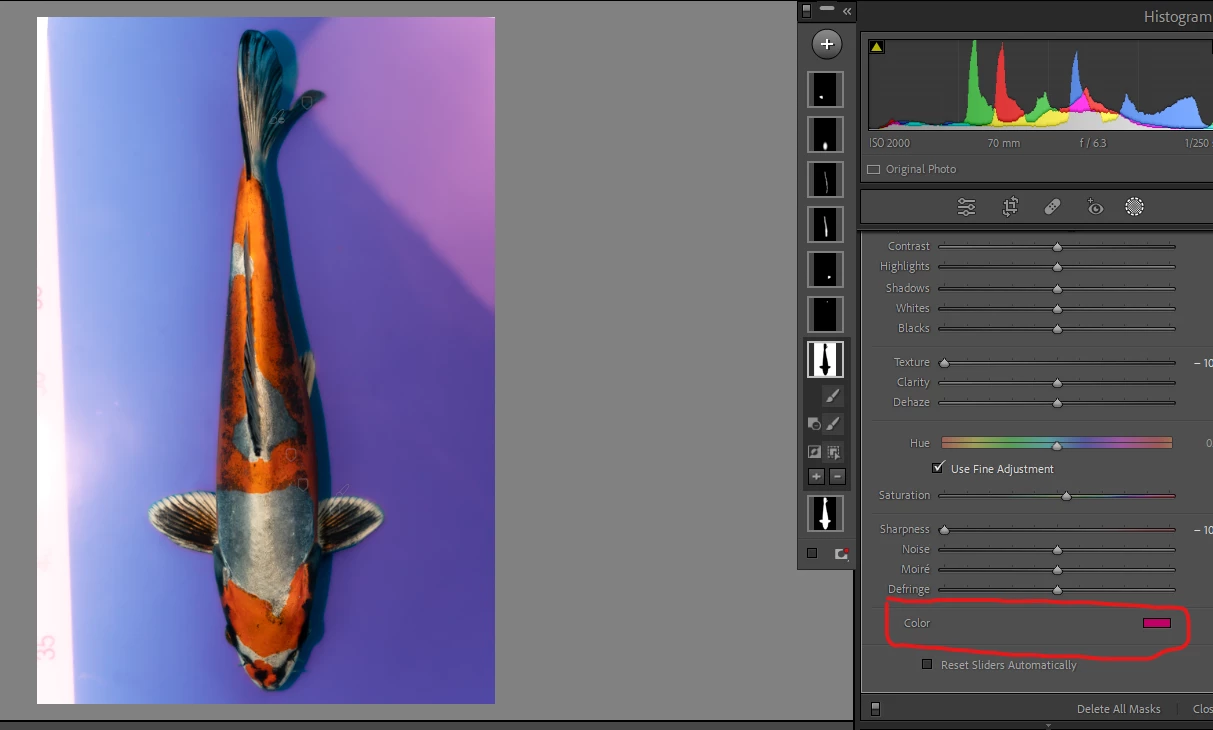
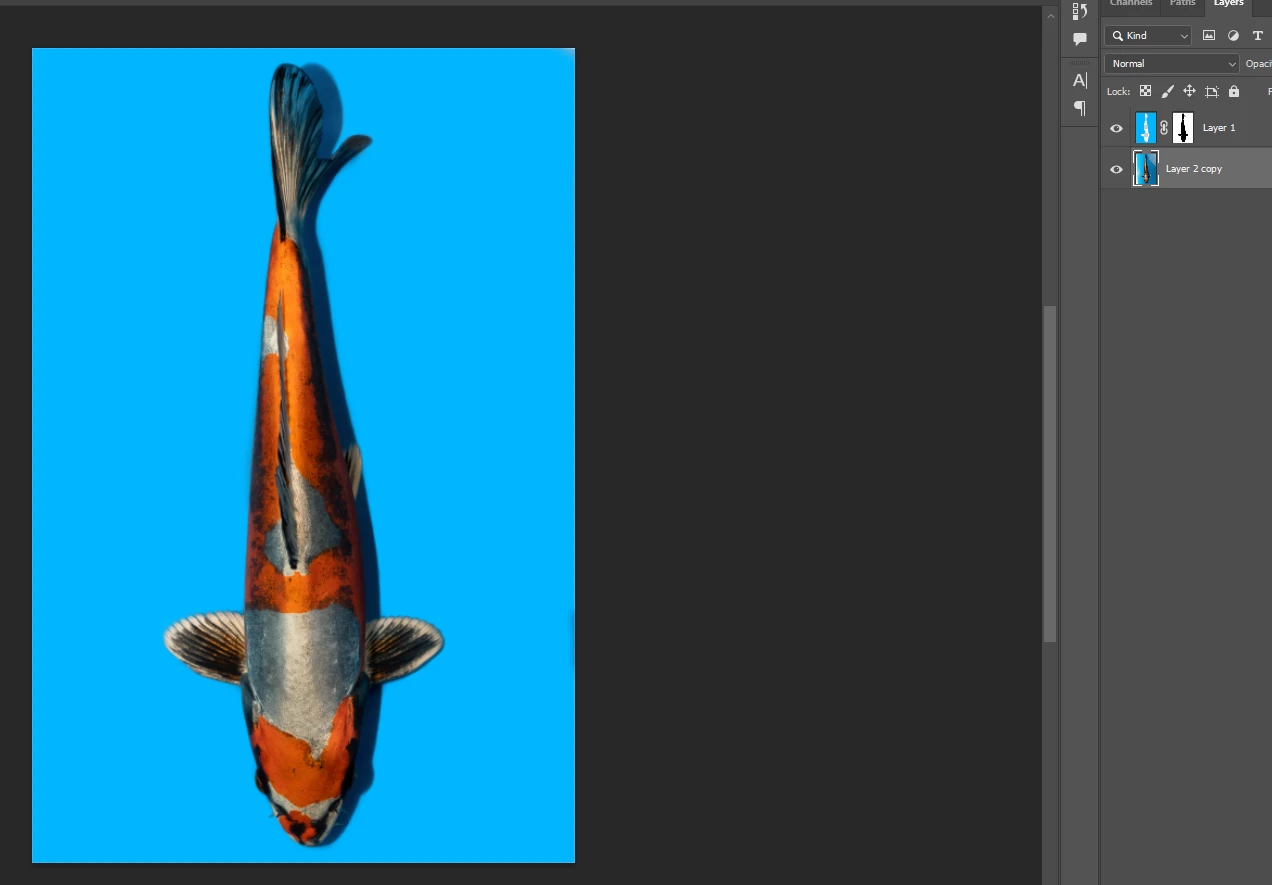
Hey there, I'd like to know how to fill a background with a solid colour directly in Lightroom? At the moment I'm having to export my photos, then use the masking features in Photoshop to achieve this which is very time-consuming.


As you can see in my masking panel I've already created a mask of the fish then inverted it for the background, I've tried using the colour option but it retains the details of the background which I don't want.


I just want a solid colour like this (completed in Photoshop):


This topic has been closed for replies.

2 replies

Mohit Goyal
Community Manager
Community Manager
February 22, 2023

Hi @Ethan Mellor-Dunn 


Adding to @Sameer K suggestion, you can send your images to Photoshop using the "Edit-in" feature in Lightroom Classic.  Check out the attached screenshot below:-


Once the file is open in Photoshop, do the edits and go to the File menu > Save. This process will send the image back to Lightroom with the Photoshop edits. For more detailed info, see this: https://helpx.adobe.com/in/lightroom-classic/help/editing-photoshop-or-photoshop-elements.html


Hope it helps.

Thanks,

Mohit

Sameer K
Community Manager
Community Manager
January 23, 2023

Lightroom currently does not have the option to add solid background replacements. You can use Photoshop quick actions from the Discover Panel by pressing CTRL/CMD+ F in Photoshop > Quick Actions to speed up your workflow.
Check this to learn more: https://helpx.adobe.com/photoshop/using/quick-actions/remove-background.html


Thanks!

Sameer K

Participant
January 23, 2023

I've tried this before but the selection isn't anywhere near as accurate as the selection in Lightroom, is there a way to copy the mask from Lightroom so I can import it into Photoshop and fill it with a solid background?

Conrad_C
Community Expert
Community Expert
January 23, 2023
quote

I've tried this before but the selection isn't anywhere near as accurate as the selection in Lightroom

By @Ethan Mellor-Dunn


Which methods have you tried in Photoshop? Did you try all of the following to see if any were comparable to Lightroom Classic:


Select > Select Subject (AI-based, let Photoshop find the subject)

Object Selection tool (AI-based, you draw around the subject)

Object Selection tool with Select Subject set to Device (Quicker results)

Object Selection tool with Select Subject set to Cloud (Detailed results)

Object Selection tool with manual add/subtract


quote

is there a way to copy the mask from Lightroom so I can import it into Photoshop and fill it with a solid background?

By @Ethan Mellor-Dunn


Some manual methods have been discussed in this forum, but they take many steps per image. An automated option is the Copy Settings plug-in by John Ellis, which he updated with a new Extract Masks feature for copying a Lightroom Classic mask to Photoshop.